





Google Home Keeps Asking to Set Up Again: 4 Fixes to Try
When Google Home keeps asking to set up again, the usual explanation isn't a dead speaker. Google's own troubleshooting pages point to a changed Wi-Fi network, weak signal, interference, or a glitch somewhere in the setup process itself, and the order Google recommends puts a restart and a Wi-Fi check well ahead of a factory reset, which sits last on the list because it can't be undone (Everyday Tech Guides, citing Google Nest Help).
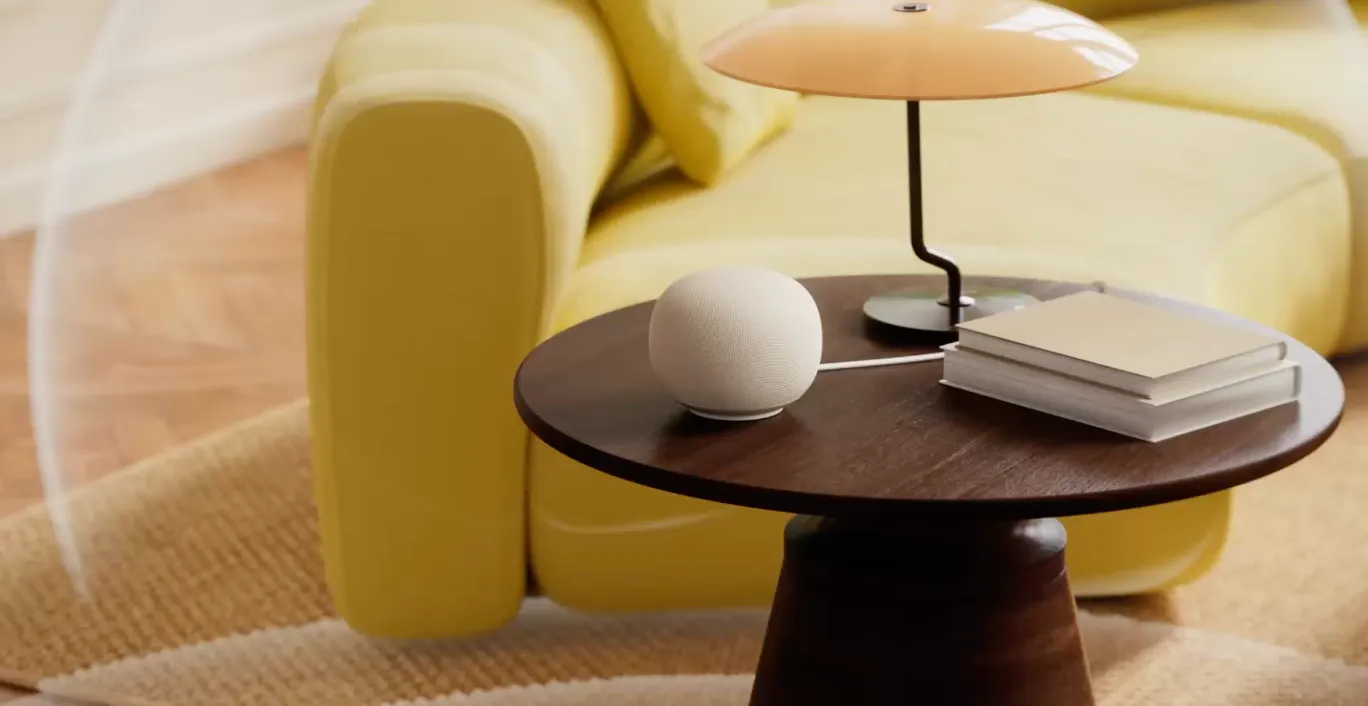
The guidance covers the full current lineup. Nest Mini, Nest Audio, Nest Hub, Nest Hub Max, and older Google Home speakers all run through the same setup flow in the Google Home app, so any of them can land on the same repeating prompt (Everyday Tech Guides).
A short sequence of checks, done before anyone touches a reset button, usually sorts out whether the real problem is the home network, an outdated app, a mismatched account, or something else. The steps below follow that same order: restart, verify the app and network, test with a hotspot, and reset only once everything else has failed.
Why does Google Home keep asking you to set up again?
Google's support documentation lists several possible triggers without ranking one above another: a changed Wi-Fi network name, password, router, or provider; weak signal or interference near the speaker; or a glitch in the app or setup process itself (Everyday Tech Guides, citing Google Nest Help). When the cause is a changed network, the fix is to reconnect Google Nest to Wi-Fi through the app, reopening Add, then Device, rather than resetting anything.
Interference is easy to miss. Google recommends keeping the speaker within 15 to 20 feet of the router and checking what sits nearby, since this kind of intermittent drop can look like a failed setup from the outside even when nothing is actually wrong with the device (Everyday Tech Guides).
None of this proves the speaker itself is broken. The fastest way to tell a real network problem from an app or account glitch is to work through a short set of checks, starting with the one below.
Google Home keeps asking to set up again: check these four things first
Before touching any reset button, work through four checks. They're drawn from Google's separate troubleshooting pages for connection issues, hidden networks, and group playback, arranged from quickest to try to most involved.
1. Confirm the device is actually offline. Ask Assistant a question out loud. If it answers, Google says the connection is working, which points the setup prompt toward an app or account glitch rather than a dead network (Everyday Tech Guides).
2. Update the app and check compatibility. Update the Google Home app through the Play Store or App Store, and confirm the phone meets Google's minimum requirements: Android 9.0 or later, or iOS 17.0 or later, with the latest version of the app installed (Everyday Tech Guides).
3. Restart the hardware, then re-enter the password carefully. Unplug the router for a full minute, unplug the speaker for a full minute, then reopen the Google Home app. Wi-Fi passwords are case sensitive, so use the eye icon on Android or Show Password on iPhone to double-check it (Everyday Tech Guides, citing Google Nest Help).
4. Use a phone hotspot as a diagnostic fork. If the speaker connects to a temporary hotspot, the home network or router is the likely problem, and the next call should go to the internet provider or router maker. If it won't connect to the hotspot either, Google's guidance is to contact support directly rather than reach for the reset buttons, since hotspots aren't meant for everyday use anyway (Everyday Tech Guides).
A few network conditions are worth ruling out before assuming the speaker itself is the problem. If no other devices in the house can connect to Wi-Fi either, the fault is the network, not the speaker: restart the router, then check with the internet provider for an outage before testing anything else (Everyday Tech Guides). A hidden network won't show up in the Google Home app's list at all; if other devices can't see it either, enter the network name and security type manually (Everyday Tech Guides). Public or shared networks, including dorms, apartments, offices, and mobile hotspots, may not work for setup at all, according to Google (Everyday Tech Guides). On a dual-band router, Google suggests trying setup on both the 2.4 GHz and 5 GHz bands, provided the phone supports 5 GHz (Everyday Tech Guides).
Two account-level issues get mistaken for connection failures often enough to flag separately. Google says every device in a speaker group needs to be powered on and connected for group playback to work, so if a group stops responding, check its device list under Settings, then Choose Devices, in the app before assuming something bigger is broken (Everyday Tech Guides, citing Google Nest Help). It's also worth confirming the phone is signed into the same Google Account used for the speakers; a mismatch is one of the checks Google lists, even if it won't always look like an obvious connection failure (Everyday Tech Guides).
When to factory reset a Google Home device
If the checks above don't clear the loop, Google lists a factory reset as a last resort, well after restarts and the hotspot test, not as an early workaround. If the device also failed to connect to a hotspot during step four, contact Google support before resetting anything (Everyday Tech Guides).
A reset has to be triggered with the device's physical controls; neither voice commands nor the app can start one (MacMyths). It's also irreversible: it clears the device's data, disconnects it from every member of the household, and removes it from the home, though Google notes that some basic data may stay linked to the home itself (MacMyths; Engadget).
The button sequence differs by model. Nest Mini (2nd generation) and Nest Audio need the microphone switched off first, then about 15 seconds holding the top touch surface. Nest Hub and Nest Hub (2nd gen) use both volume buttons on the back for roughly 10 seconds (Everyday Tech Guides).
Nest Hub Max owners have one extra step before resetting. Google recommends saving any video clips worth keeping and removing the device from the Google Home app first, since that history may not be recoverable afterward (MacMyths).
Budget time for cleanup once the reset finishes. The speaker needs to reconnect to Wi-Fi and the Google Account, and if it belonged to a speaker group, it has to be added back manually (Everyday Tech Guides).
A setup screen that won't go away is frustrating, but it doesn't confirm the speaker is dead. Update the Google Home app, confirm the phone matches the speaker's Wi-Fi band and Google Account, and run the hotspot test before reaching for the physical reset buttons. If the hotspot test also fails, contact support before resetting anything, and once a reset does happen, plan on rebuilding any speaker groups the device was part of.

Comments
Be the first, drop a comment!