



Android Auto Google Maps speedometer missing: causes and fixes
If the Google Maps speedometer on your Android Auto display is missing and you haven't touched a single setting, you're not alone, and you're not stuck. The most consistently reported fix is to set a destination and start navigating, a workaround several affected drivers say brings the speedometer right back (SlashGear, yesterday). That fix addresses one specific version of the feature, though. It won't help if what's actually missing for you is the newer, always-on display that works without a destination entered at all.
Google Maps' live speedometer only started rolling out on Android Auto in July 2026, with a broader expansion later that month that still hadn't reached every user by September (9to5Google, last month). Speed limit data in Google Maps itself goes back to 2019, so pairing it with a live, on-screen speedometer on Android Auto is a genuinely recent addition, not something drivers have had long enough to build troubleshooting instincts around (9to5Google, last month). Mishaal Rahman, Android's community engagement manager, said the Android Auto team is separately rolling out an always-on version that shows the speedometer, speed limit, traffic signals, and stop signs even when no destination is set, a distinct capability from the navigation-only speedometer some drivers have reported losing (Android Police, last month). This guide walks through the troubleshooting steps worth trying, in order, then explains what your result actually tells you about which version of the feature you have access to.
What's actually happening when the speedometer disappears
Reports of the speedometer vanishing without any settings changes started showing up on Reddit last month, with drivers noting they hadn't touched anything in either Android Auto or the Maps app (SlashGear, yesterday). The timing lines up with the rollout window: the speedometer was still incomplete across accounts when the disappearance reports started (9to5Google, last month).
An Android Auto product-team member explained that the reports actually describe two separate things: the speedometer shown during active navigation, which has been rolling out since July, and a newer always-on version that doesn't require a destination at all. The always-on version simply hadn't reached every account yet, so what looked like a vanished feature was sometimes a feature that had never been fully turned on for that user in the first place (9to5Google, last month).
That two-feature explanation accounts for a lot of the confusion, but it doesn't fully close the case. The Android Auto team also said it was investigating reports of the speedometer disappearing during active navigation itself, a separate problem from the always-on rollout simply being incomplete (9to5Google, last month). SlashGear's reporting from yesterday described that investigation as still open at the time of its writing, without confirming it's since been resolved (SlashGear, yesterday). Treat that as an open question, not a closed one.
The timing also overlapped with a couple of unrelated Android Auto problems. Traffic patterns went missing for some users after breaking in late August, and a signal-indicator bug had been running for months by that point (9to5Google, last month). Neither is tied to the speedometer issue directly, but it helps to know those are separate, pre-existing bugs rather than new fallout from the same cause.
The fix below works because it targets the navigation-only version of the speedometer specifically. It's a reported workaround, not proof that Google has identified and patched a specific bug behind every report of a missing display.
How to get the Google Maps speedometer back on Android Auto
Work through these in order.
-
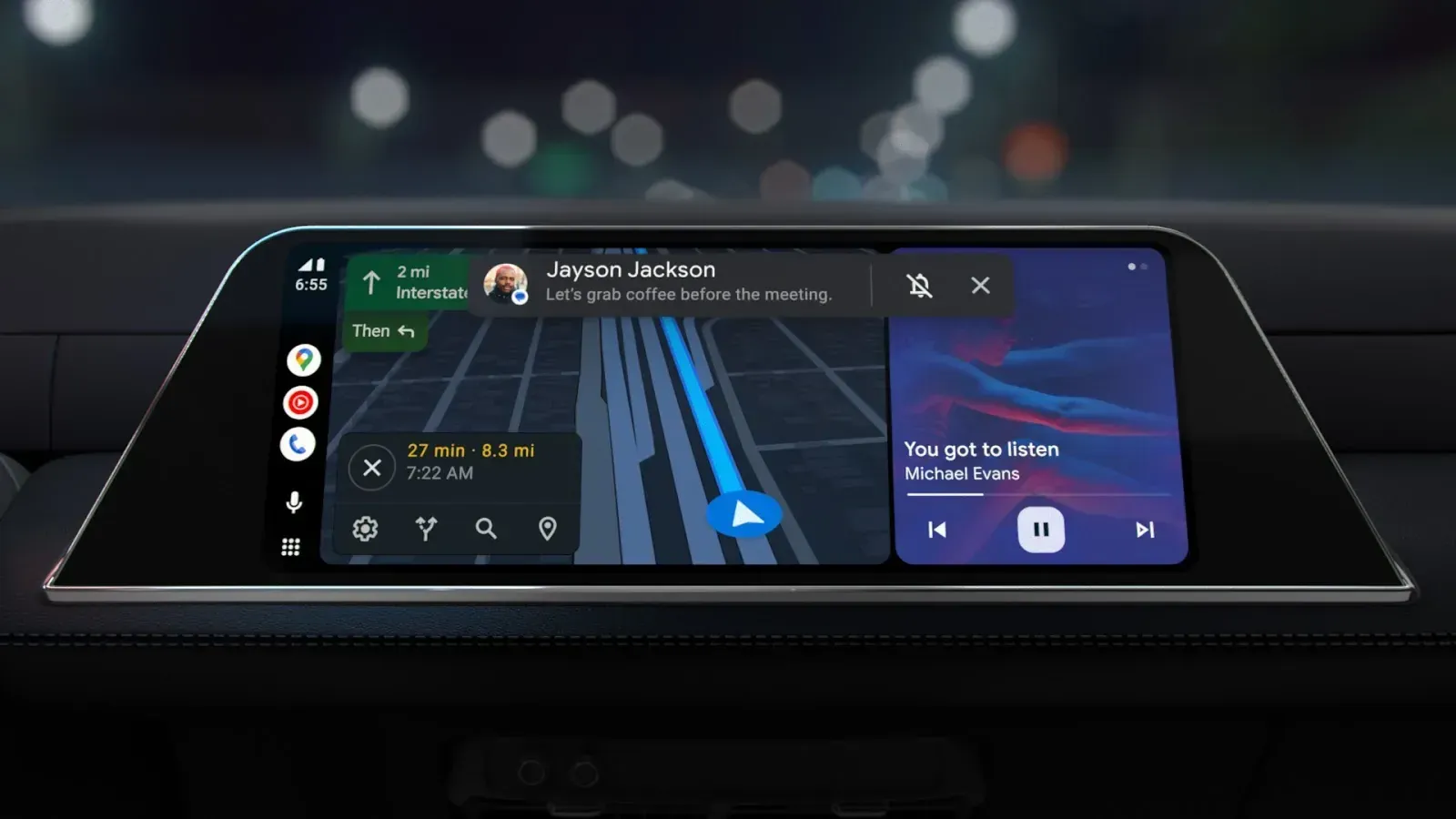
Set a destination and tap Start. Do this either in the Android Auto interface directly or in the Google Maps app on your phone before you connect. This is the most consistently reported fix for a speedometer that disappeared during navigation (SlashGear, yesterday). After starting the route, the speedometer should appear on the Android Auto screen alongside your turn-by-turn directions. This step won't confirm or rule out a deeper bug, but it's the quickest thing to try.
-
Check that the Speedometer toggle is actually on. Open Google Maps on your phone, tap your profile icon in the upper right, then go to Settings, then Navigation, then Driving options, and look for the Speedometer switch (Android Police, last month; SlashGear, yesterday). Confirm it's switched on before assuming anything else is broken.
-
Update Google Maps and Android Auto, then retry. Updating both apps puts you on current software before you retest, but no cited report confirms that an update specifically fixes the disappearing speedometer. Treat this as a baseline check rather than an evidence-backed remedy (Android Police, last month).
The Speedometer toggle controls whether the feature is enabled for your account at all, but switching it on doesn't guarantee the always-on display will actually appear. Rahman said that capability was still rolling out as of last month, so a toggle correctly set to on can still show nothing if your account hasn't been included in that rollout yet (9to5Google, last month).
Why the Android Auto speed limit display may still be missing
Once you've tried the steps above, your result tells you something specific about which version of the feature you can access.
The speedometer shows up once you start navigating, but not before. That's expected behavior for the version available since the July 2026 rollout. There's nothing to fix here; you simply don't have the always-on version yet, and starting a route remains the way to see your speed and speed limit data (9to5Google, last month).
It only ever appears during active navigation and never without a destination set. The always-on version, covering speed limits, traffic signals, and stop signs, hasn't reached your account yet. Rahman didn't give a rollout timeline for when that changes, so there's no setting to flip here beyond checking back after future updates (9to5Google, last month).
It doesn't appear at all, even after starting a route with the toggle switched on. This is the scenario worth watching rather than assuming your phone or head unit is at fault. Availability isn't universal across every region, and the most recent reporting described the investigation into the disappearance as still open at the time it published, with no word on whether it's since been resolved (SlashGear, yesterday). The available reporting doesn't point to a fix beyond the steps listed above.
What to do now
Start a route first. That's the workaround confirmed in SlashGear's coverage of the issue (SlashGear, yesterday). If that brings it back, there's nothing further to do.
If you're still missing the speedometer, speed limit, traffic signals, or stop signs without a destination set, that's the always-on version, and Google hasn't given a timeline for when it reaches everyone (9to5Google, last month). Check the toggle, keep both apps updated, and watch Google Maps' release notes for word on when that rollout finishes rather than assuming a permanent device problem.
Even once the speedometer is working, its accuracy can vary and it isn't available in every area (SlashGear, yesterday). Treat it as a helpful reference rather than a guaranteed one. Posted speed limit signs and your vehicle's own instrument cluster are still worth trusting first, especially on roads where Maps' data might be outdated or simply unavailable.













Comments
Be the first, drop a comment!