



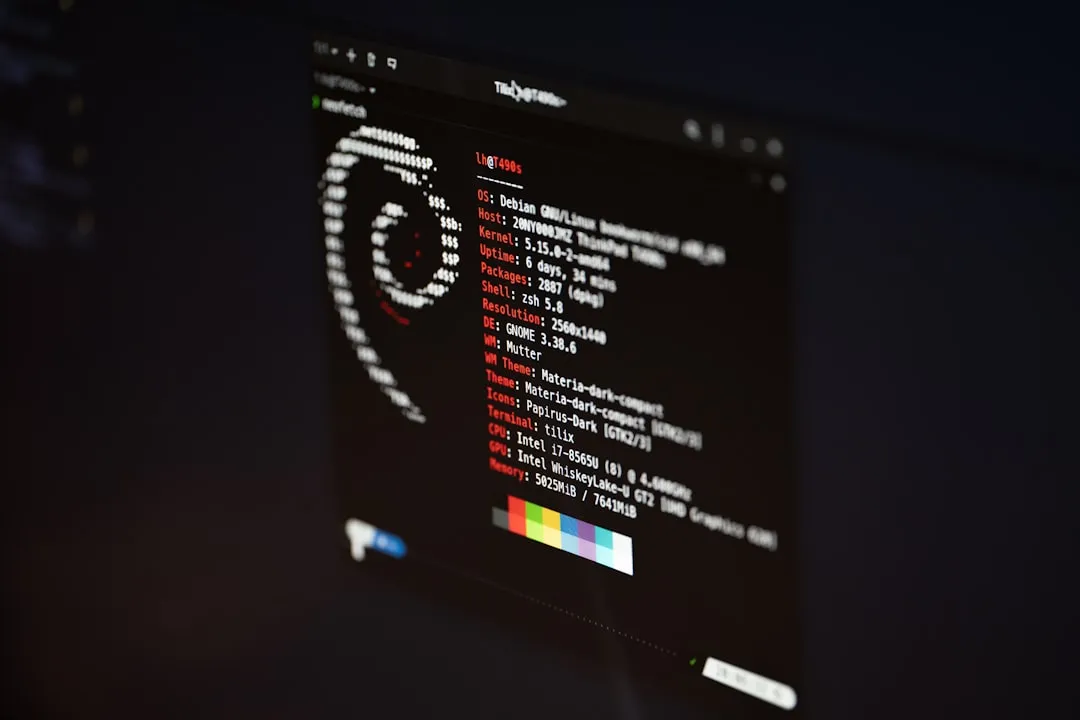
The ARM computing revolution is accelerating, and Google Chrome's optimized performance on ARM64 Linux systems represents a crucial turning point for developers and tech enthusiasts exploring this emerging platform. While ARM processors have dominated mobile devices for years, their expansion into laptops and desktops has created compatibility challenges—particularly with essential applications like web browsers that haven't been natively optimized for these architectures.
Chrome's absence from Ubuntu's official repositories due to its proprietary nature has made this transition even more complex for Linux users, according to OneUpTime. However, Google's recent commitment to ARM optimization is evident in their dedicated Chrome release for Snapdragon-powered Windows PCs, which launched with promises of faster and smoother browsing, as announced on Google's blog. This Windows success demonstrates Google's engineering capabilities and suggests similar optimization benefits are coming to ARM Linux systems.
The timing aligns perfectly with the growing popularity of ARM-based Linux machines among developers and early adopters who need their essential tools to match their hardware's potential.
Why ARM64 Chrome matters more than you think
Native ARM64 Chrome optimization delivers benefits that extend far beyond basic compatibility. When browsers run through emulation layers, users experience performance bottlenecks, reduced battery life, and sluggish responsiveness compared to native x86 systems. Google's optimization work for ARM-based Windows systems provides a preview of what's possible—recent benchmark testing indicates even greater performance improvements with Qualcomm's Snapdragon X Elite processors, based on Google's testing.
For Linux users, native ARM64 Chrome can finally harness ARM processors' key advantages: exceptional power efficiency, superior thermal management, and increasingly competitive raw performance. This translates to longer battery life during intensive browsing sessions, quieter operation with less thermal throttling, and snappier web application performance.
The practical impact becomes clear in real-world scenarios: streaming 4K video content, running JavaScript-heavy web applications, or managing dozens of browser tabs simultaneously. Where emulated Chrome might struggle and drain battery quickly, native ARM64 optimization allows these tasks to run smoothly while maintaining the cool, quiet operation ARM processors are known for.
Getting Chrome running on your ARM Linux system
Installing Chrome on ARM64 Linux requires a specific approach since it's not available through Ubuntu's standard repositories. The most reliable method uses command-line tools to add Google's official repository, which handles dependency management and enables seamless future updates, according to installation guides.
Here's the streamlined installation process:
# Download and install Chrome stable
wget -q -O - https://dl.google.com/linux/linux_signing_key.pub | sudo apt-key add -
sudo sh -c 'echo "deb [arch=amd64] http://dl.google.com/linux/chrome/deb/ stable main" >> /etc/apt/sources.list.d/google-chrome.list'
sudo apt update
sudo apt install google-chrome-stable
Google offers three release channels to match different user needs: stable for daily use, beta for accessing newer features with manageable risk, and unstable for testing cutting-edge functionality. All three versions can coexist on the same system, each creating separate desktop shortcuts for easy access, as noted in the installation documentation.
PRO TIP: The repository setup is a one-time process that automatically configures Chrome updates through regular apt upgrade commands, integrating seamlessly with Ubuntu's package management workflow. This means Chrome updates alongside your other system packages without requiring special maintenance.
Optimizing Chrome for ARM Linux performance
Installation is just the first step—proper configuration unlocks Chrome's full potential on ARM systems. Hardware acceleration often requires manual enablement, particularly on Ubuntu systems running Wayland or with specific GPU configurations, based on optimization guides.
Enable GPU acceleration through Chrome's settings (navigate to chrome://settings/system) or launch with specific flags:
google-chrome --enable-features=VaapiVideoDecoder --ignore-gpu-blocklist
For Wayland-based desktops (Ubuntu's default since version 22.04), adding the --ozone-platform=wayland flag ensures Chrome uses native Wayland protocols instead of X11 compatibility mode, according to configuration documentation. This optimization becomes critical on ARM systems where Wayland's efficiency improvements directly impact battery life and thermal performance.
You can make these optimizations persistent by editing Chrome's desktop file or setting environment variables, ensuring optimal performance with every launch. The difference is particularly noticeable when streaming video content, using WebGL applications, or running graphics-intensive web tools—exactly the scenarios where ARM's efficiency advantages shine.
What this means for the ARM Linux ecosystem
Chrome's native ARM64 support signals more than browser optimization—it represents growing industry confidence in ARM as a legitimate desktop computing platform. Google's investment in cross-platform optimization demonstrates their commitment to security, performance, and feature parity across different architectures, as emphasized in their platform announcements.
The browser delivers the complete Chrome experience: robust security features, AI capabilities like Google Assistant integration, and access to the full extension ecosystem that desktop users expect. Chrome updates on Linux systems follow the standard APT workflow, with packages typically receiving updates within days of official releases, according to maintenance documentation.
This level of engineering investment and ongoing support indicates ARM Linux systems are transitioning from experimental curiosities to viable daily-use platforms. When Google allocates significant resources to optimize their flagship browser for a platform, it typically signals long-term viability and growing user adoption.
The bigger picture: ARM's desktop future
Chrome's arrival on ARM64 Linux represents a watershed moment in the broader shift toward ARM-based computing. Google's multi-platform optimization strategy—spanning Snapdragon Windows PCs to Linux systems—reveals the company's conviction that ARM processors will capture significant desktop market share, as evidenced by their comprehensive development efforts.
For developers and tech enthusiasts already exploring ARM Linux systems, native Chrome removes one of the final obstacles to full ARM adoption. The seamless integration with Ubuntu's package management ensures Chrome maintenance remains as simple as any other system component, based on the comprehensive installation and maintenance documentation.
Looking ahead, Chrome's success on ARM Linux will likely accelerate similar optimization efforts from other major software vendors. The pattern is familiar: Google's early platform investments often predict broader industry trends, and their ARM commitment suggests we're approaching a tipping point where ARM-powered Linux machines become compelling alternatives to traditional x86 systems.
Bottom line: This development transcends Chrome gaining ARM support—it represents the ARM ecosystem achieving the maturity level where major software companies invest substantial resources in native optimization. That industry validation typically catalyzes widespread adoption across the entire software landscape.















Comments
Be the first, drop a comment!