





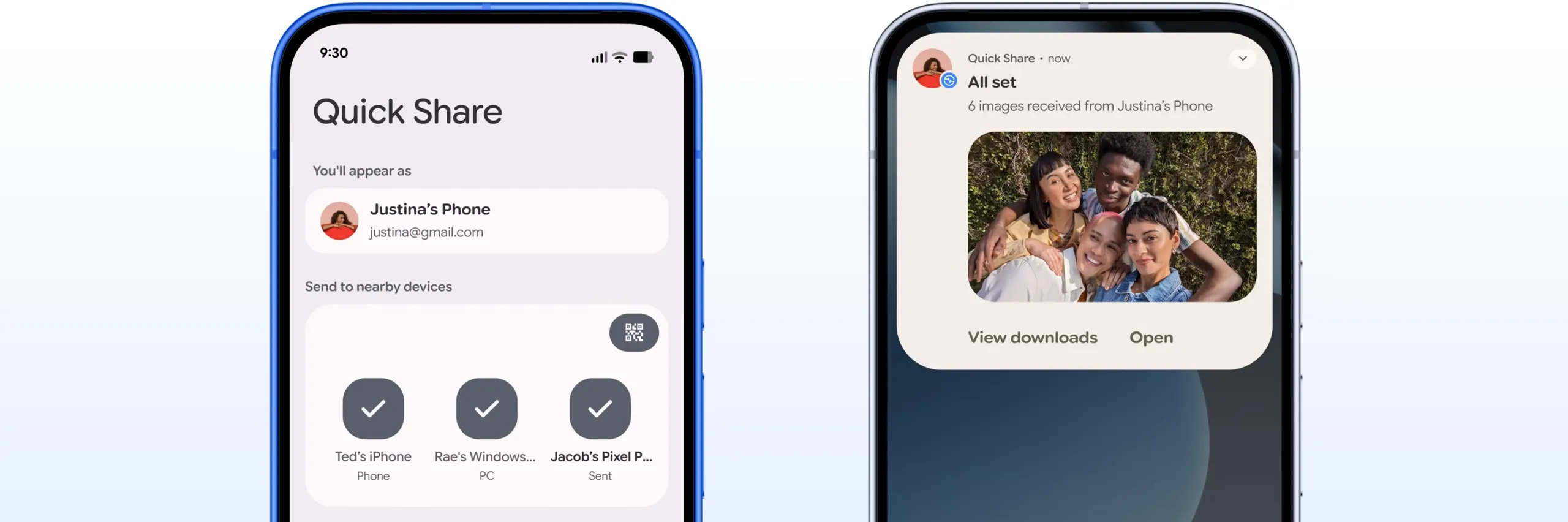
If you're still emailing yourself a screenshot or dragging a photo into Drive just to get it onto a laptop, you're doing more work than the phone requires. This guide covers how to use Quick Share to transfer files on Android, whether the destination is your own Chromebook, a Windows PC, or someone else's phone standing next to you. Quick Share comes built into Android and ChromeOS already. Windows needs a separate app installed before it can take part in a transfer.
Google says files move in their original format, with no stated size or file-count limit, though individual apps can still impose their own caps. It also works without Wi-Fi by falling back to Bluetooth.
What to check before you start
Same Google Account, for phone-to-phone transfers. Quick Share automatically shares between Android devices signed into the same Google Account, which is the simplest setup when every device involved is yours. Google also supports automatic acceptance between Android devices and Chromebooks signed into the same Google Account. Windows supports the same behavior when Quick Share is signed into that account.
Google's connected-phone requirements for Chromebooks. Google's Quick Share documentation lists ChromeOS 91 or later and Android 6.0 or later as the requirements for sharing files between a Chromebook and Android device.
Windows needs the app first. Windows doesn't have Quick Share built into the operating system, so download and install the app before trying to send or receive anything, available from Google's Quick Share app page.
Managed Chromebooks may restrict this. Google's documentation warns that a Chromebook used at work or school may not support connected-phone features, including file sharing, and suggests contacting the administrator rather than troubleshooting further on your own.
Your phone might still say "Nearby Share." Google folded Nearby Share into Quick Share in January 2024 and adopted the Quick Share name across the merged feature. An older or unupdated phone showing the predecessor name in its share sheet is likely running the same underlying feature.
Set visibility before you send
Quick Share can only find a device willing to be found, so check this on both ends before you start a transfer.
On Android, open Quick Share from Settings or the Quick Settings tile and confirm your visibility. Devices signed into the same Google Account are matched automatically, the simplest setup when every device involved is yours.
On a Chromebook, open its own Quick Share settings page and confirm visibility before you try to send anything. Defaults can vary by device and ChromeOS version, so don't assume your setup matches what worked on a different machine.
On Windows, there's no separate toggle outside the app itself: installing and opening Quick Share is what makes a PC discoverable at all.
Keep broad "Everyone" visibility switched off except for the moment you're actually waiting to receive a file from someone outside your account. Narrower visibility just means fewer strangers can see your device exists in the first place.
How to send files with Quick Share on Android
Open the file you want to send, whether that's a photo, screenshot, or downloaded PDF, then tap Share and choose Quick Share.
Pick the target device from the nearby-devices list. Devices signed into the same Google Account as your phone are matched automatically; anything else needs the matching visibility covered above.
If the devices aren't signed into the same Google Account, wait for the recipient to accept the transfer. Transfers between your own devices on the same account can be accepted automatically.
The phone-side flow is similar across destinations. What changes is the setup beforehand and what happens once the file lands, covered below.
How to receive files with Quick Share on a Chromebook
Sending to a Chromebook uses the same share-sheet steps above. The receiving steps vary by platform.
Confirm the devices meet Google's Quick Share requirements: ChromeOS 91 or later on the Chromebook and Android 6.0 or later on the phone.
Accept the incoming transfer when your Chromebook prompts you. The exact prompt and save location can vary by ChromeOS version, so check the Files app if the file isn't immediately visible.
If a Chromebook transfer is unusually slow, first check that Quick Share is enabled, bring the devices closer together, and restart Quick Share or the devices if necessary. Google's current Chromebook support documentation recommends those steps when Quick Share isn't working as expected.
If the Chromebook is managed by a school or employer and simply never appears, that lines up with Google's warning that connected-phone features may be restricted on managed devices. Check with the administrator before assuming something is broken.
How to send files with Quick Share to Windows
Windows takes an extra setup step the other two platforms skip.
Install the Quick Share app on the PC before attempting a transfer. The PC can't take part until the app exists, since Windows doesn't have Quick Share built in the way Android and ChromeOS do.
From your phone's share sheet, choose Quick Share and select the PC from the device list.
If prompted, accept the transfer on the Windows PC. Transfers between devices signed into the same Google Account can be accepted automatically.
A reviewer wrote last year that Quick Share worked reliably about half the time between Android and ChromeOS devices, with even worse odds sending to Windows. That's one person's experience, not a controlled benchmark, but it's still worth sending a small test file before relying on Windows for a transfer that matters.
What to check if a device won't appear or a transfer stalls
Confirm both devices use the account you expect. Quick Share's automatic matching between Android devices depends on a shared Google Account, so check that first if two phones won't see each other.
Check visibility on both ends. A device sitting just outside your visibility setting looks identical to one that's simply offline or out of range, so rule out a settings mismatch before assuming something's broken.
On Windows, confirm Quick Share is running and check its visibility setting. The app can receive files while running in the background, so its window does not need to stay open.
If a transfer stalls partway through, closing and reopening Quick Share on both devices is a reasonable basic reset to try, though it isn't a documented fix. If it still won't go through after repeated attempts, stop retrying and switch to a cable or a cloud upload instead.
Sharing with someone outside your Google Account
Quick Share isn't limited to your own hardware. Google's guidance confirms it can share with any nearby device, including people who aren't in your contacts.
To receive from someone outside your account, the recipient needs to widen their own visibility beyond whatever your-devices-only default they're running, long enough for your phone to find them, then narrow it back once the transfer finishes.
Treat this as occasional use, not a default. The same-account setup covered earlier needs fewer visibility changes on both sides and is faster when it applies.
What to do now
Open your phone's share sheet and check whether it says Quick Share or still Nearby Share: either way, it's the same underlying feature. If a Windows PC is part of your routine, install the Quick Share app now and open it before you actually need it, rather than finding out mid-transfer that it's missing.
Before relying on this for something that matters, send one small test file to each destination you plan to use and confirm where it lands. If a Chromebook or Windows PC keeps failing to show up, or a transfer won't complete after repeated attempts, stop troubleshooting and fall back to a cable or a cloud upload instead.




Comments
Be the first, drop a comment!