



How to Use Android Auto Maker for Unsupported Apps
Android Auto Maker modifies an APK or XAPK so it can register in Android Auto's parked apps and games category. That's a different path from the one official developers use, where games go through Play Console submission and get tested against Google's car app quality guidelines before publishing (Android Developers Blog, last month). The open-source tool itself was built by GitHub developer malebuffy, also behind Xtream Player, and it works by injecting the manifest entries Android Auto checks for into an app's install file (Mezha, today). ADSLZone describes the same process from a different angle: feed it an app's install file, and the repackaged result installs and gets recognized inside Android Auto's games category like a supported game (ADSLZone, four days ago).
This isn't a universal unlock for whatever is on your phone. It's an experimental, parked-only workaround that suits apps you don't mind losing data from, not a dependable way to get banking, paid-streaming, or daily-driver apps onto your dashboard. This guide walks through the setup, the compatibility checks worth running first, the likely failure points, and what ongoing maintenance looks like once something is installed.
Check this before you start
This workflow only applies to Android Auto apps while parked. The category Android Auto Maker targets exists specifically for stationary use, and nothing here covers or endorses modifying apps to defeat Android Auto's driving restrictions. There's a separate, riskier installer mode for that, covered near the end, and it's worth treating as its own decision rather than an extension of this setup.
Android Auto Maker's own companion app can run on Android 8.0 or newer, but that number doesn't describe what your car will actually show. The parked apps and games category requires Android 15 or newer on the connected phone to display anything on the head unit, so a phone on Android 14 can run the packaging tool but won't see the result show up in the dashboard (ADSLZone, four days ago).
You'll need the target app's APK or XAPK file, including the split-package XAPK format some alternative app stores use, since that's what Android Auto Maker converts into a single installable package (ADSLZone, four days ago). Source that file carefully. Downloading APKs from unfamiliar third-party sites carries its own risk, separate from anything Android Auto Maker does.
Plan on losing the original app's local data. Android Auto Maker re-signs the modified file with its own key, and in that specific pairing, original app versus its repackaged counterpart, Android refuses to install over the existing app because the signatures no longer match. That means uninstalling the original first, which wipes its local storage and logs you out of anything tied to that install (SmartWorld, today).
Before you uninstall anything, check whether the app syncs data to an account or lets you export it. That detail decides whether this trade-off costs you nothing or costs you progress, logins, or purchases you'd rather not redo. Games, media players, and simple utilities tend to be safer test cases than banking apps or subscriptions you rely on daily, since there's no guarantee the repackaged version even appears in the car.
How to use Android Auto Maker to install unsupported apps on Android Auto
Current reporting confirms these steps but doesn't document every interface detail, like exactly where the repackaged file lands before installation. Treat what follows as a practical outline rather than a screenshot-by-screenshot walkthrough.
-
Get the tool. Android Auto Maker is distributed two ways: as an Android APK you install directly on your phone, or through a local web server you run on a PC (Mezha, today). It's hosted on the developer's GitHub page, the same place ADSLZone points readers to grab it (ADSLZone, four days ago).
-
Check the target app's data situation first. Confirm whether it syncs to an account in the cloud or offers an export option before you go any further.
-
Feed it the target app. Load the APK or XAPK of whatever you want on your car screen. The tool injects the manifest entries Android Auto checks for in the parked apps and games category and outputs a new installable APK (Mezha, today; ADSLZone, four days ago).
-
Uninstall the original app. This is a distinct action, not something the tool handles automatically (SmartWorld, today).
-
Install the repackaged APK using the method your phone supports. If the install fails or the app doesn't show up afterward, check the developer's GitHub page for current instructions before reaching for a helper installer (ADSLZone, four days ago).
-
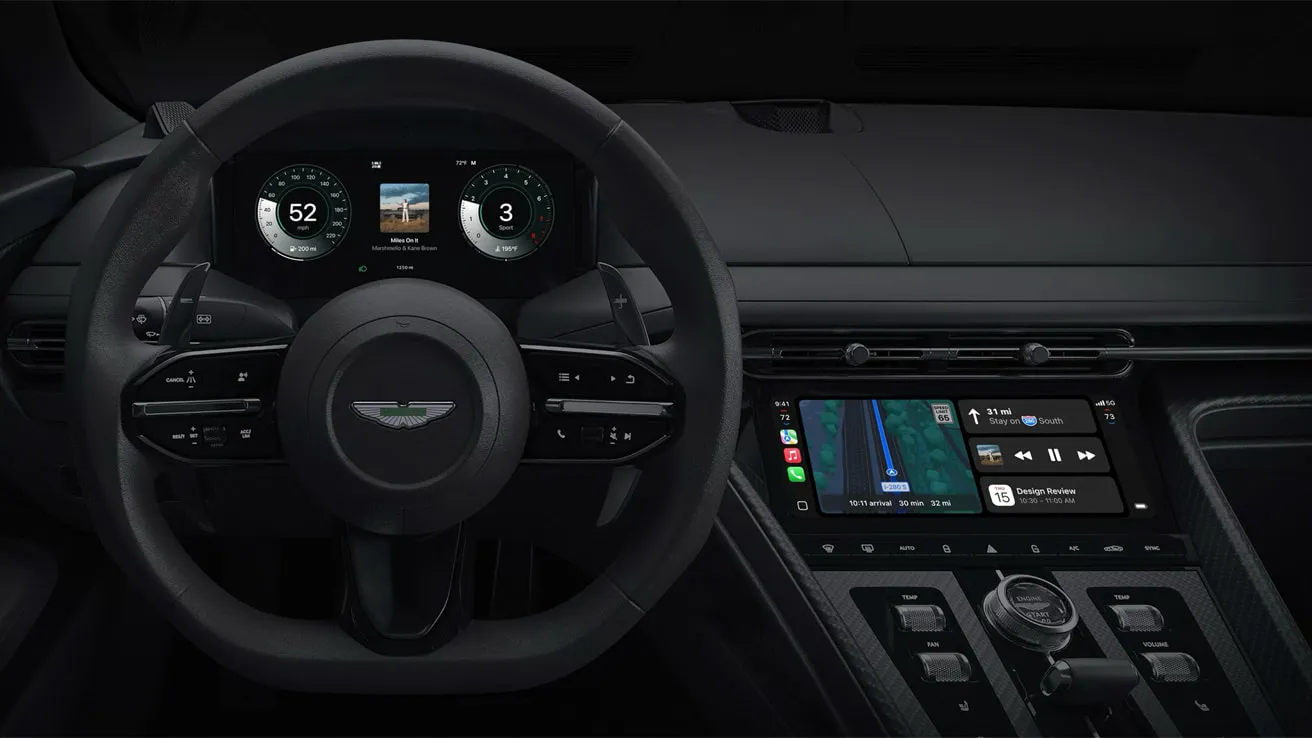
Check Android Auto with the car parked. For apps in the games category, ADSLZone reports a successful install shows up in Android Auto's app list once the vehicle is parked, controlled through the touchscreen like a supported game (ADSLZone, four days ago). Whether that holds the same way for media players or utilities isn't documented, so confirm it with the specific app you install rather than assuming identical behavior across categories.
This process still relies on Android Auto's existing parked-app category. It does not make the app available while driving, and the developer's separate "advanced" installer method, covered further down, takes a different and riskier approach to get apps running once the car is actually moving.
What to expect: likely outcomes
The package installs but never shows up in Android Auto. One documented requirement to check first is Android 15 or newer on the phone, covered above. On some Xiaomi, OPPO, and vivo phones, the OEM software skin can also keep the repackaged app's services from being exposed to Android Auto, which may require an extra step through Shizuku or a helper installer like KingInstaller (SmartWorld, today).
The app appears but won't sign in or play content. Apps relying on Google Play Integrity, hardware-backed SafetyNet, or heavy DRM are likely to fail here, since the re-signed package no longer matches the signature those checks expect. The cited examples are banking apps and DRM-heavy services such as Netflix (SmartWorld, today). Treat games, video players, and basic utilities as plausible, intended candidates rather than a verified working list. Current reporting documents likely failure modes in more detail than confirmed successes.
The app works. That's the best outcome, but it comes with a maintenance routine worth understanding before you commit to a particular app, covered next.
Updating a repackaged app
Repackaged apps sit entirely outside Google Play's update system, since Play has no record of the modified signature attached to them. Each update has to be downloaded, run back through Android Auto Maker, and reinstalled manually, a cycle that repeats for as long as you keep using the app (SmartWorld, today). Current reporting doesn't say whether a newer repackaged build installs cleanly over an older one, so back up any in-app data before updating, the same way you would before the first install.
Compare that with the official route developers now have. Google moved its Android Auto games category from beta to general availability last month, letting developers opt into car support through the Play Console, test against car app quality guidelines, and publish through normal open-testing and production tracks (Android Developers Blog, last month). Apps that go through that process keep standard Play Store updates intact, with no manual repackaging required. Android Auto Maker trades that convenience for access to apps that will likely never make that official list.
Skip the "advanced" driving-mode version
The developer behind Android Auto Maker also released an advanced version that patches navigation apps so they appear in Android Auto while the car is actually moving, not just while parked (SmartWorld, today).
Android Auto normally blocks parked-category activities from launching once the vehicle is moving or user-experience restrictions are active, specifically to cut down on driver distraction (Android Developers Blog, last month). The advanced version is intended to make navigation apps appear in that state anyway, but it requires Shizuku to remain active and the phone screen to stay unlocked for as long as the patched app is in use (SmartWorld, today).
Keeping a phone unlocked with Shizuku running for an entire drive is a trade-off worth weighing on its own, separate from anything this guide's parked-app setup requires.
Treat it as a separate, higher-risk project rather than part of a normal setup. It isn't necessary for the parked-app functionality this guide covers.
What to do now
Confirm your phone runs Android 15 or newer before anything else. It's a documented requirement for parked apps to display in the car, and skipping that check is the quickest way to waste time on a setup that was never going to work. Check whether your target app syncs its data to an account, then uninstall the original and run a disposable, low-stakes app through Android Auto Maker first, something like a simple game or utility rather than anything tied to money or a subscription.
If the install never appears in Android Auto, check your phone's Android version and OEM skin before assuming the tool is broken. Xiaomi, OPPO, and vivo devices sometimes need Shizuku or a helper installer to expose the app correctly (SmartWorld, today). Skip the advanced driving-mode version unless you've deliberately weighed the risk of an unlocked phone behind the wheel. Apps that rely on Play Integrity checks or heavy DRM are poor candidates no matter how carefully you follow the steps; the cited examples include banking apps and Netflix (ADSLZone, four days ago; SmartWorld, today).







Comments
Be the first, drop a comment!