



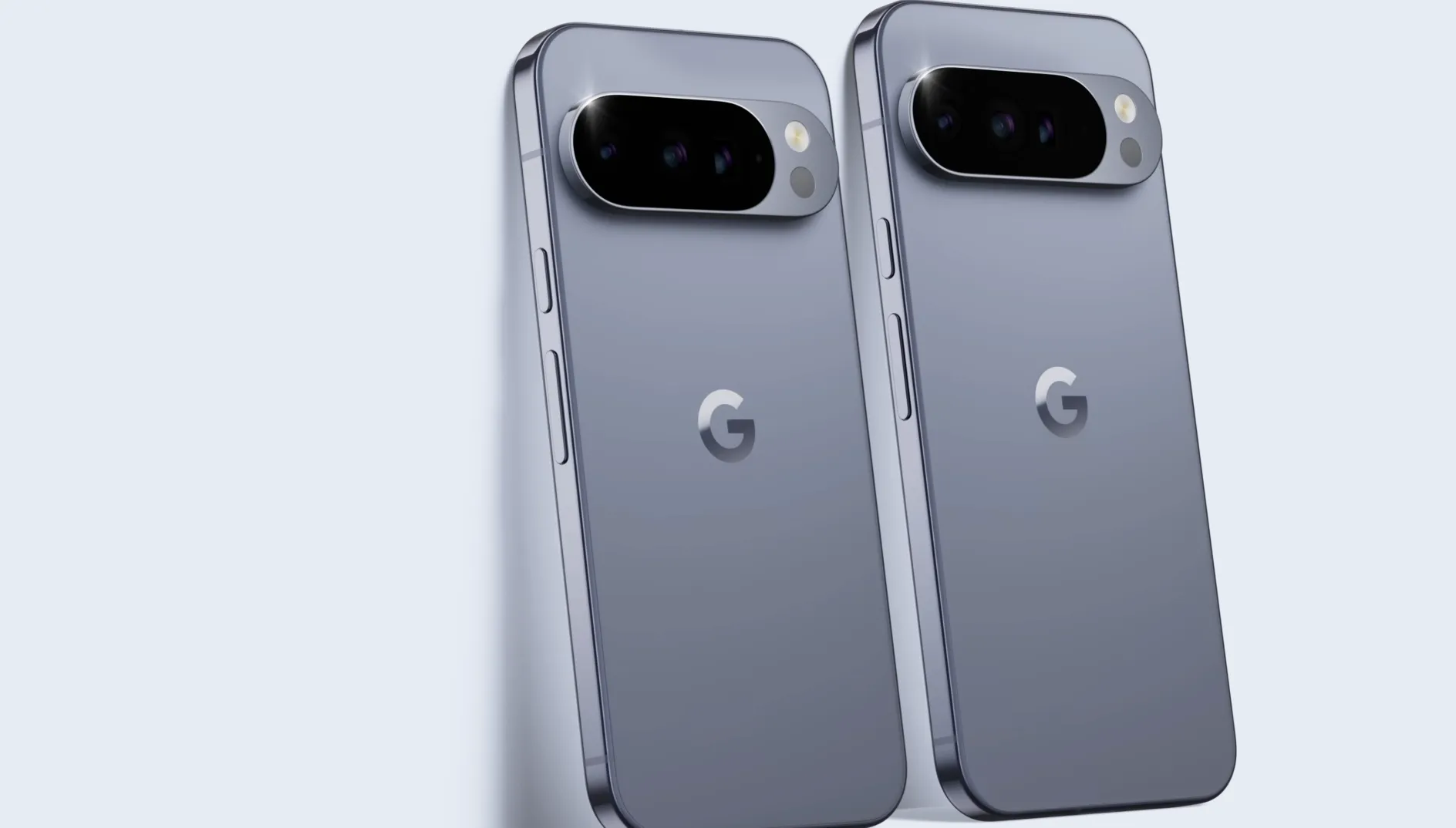
If you own an older Pixel, you may have noticed something Pixel owners have not generally expected to see: a promotional notification sitting in the shade next to your texts and calendar reminders. After the Pixel 11 launch, Android Authority reported this week that many users, including one of its own writers, started receiving ads for the new phone on their older Pixel devices.
Pixels have built a reputation partly on what they don't do. A Pixel doesn't ship with a stack of Microsoft or Meta apps preloaded because someone paid for the placement, and until now there hadn't been ads in the notification shade either, according to Android Authority's account of its own experience.
That's still largely true. The promotional notifications users have reported are coming from a specific, first-party source: My Pixel, the preinstalled app that used to be called Pixel Tips before a rebrand last year added a Store tab for buying Google hardware directly from the phone.
This guide walks through how to turn off ads on Google Pixel phones by disabling the specific notification category responsible, without losing tutorials, feature alerts, or order updates. It also covers why Android's general ad-privacy settings are a separate control that won't fix this, and lays out the actual choices available if you want to go further than just muting the promotions.
Why ads are showing up in the Pixel notification shade
Reports of these promotional notifications began after the Pixel 11 series launched, and Android Authority says they hit multiple users, including its own writer, on phones that had nothing to do with the new hardware.
The notifications are being delivered through My Pixel, the same first-party app Google uses for tips, support content, and now, apparently, marketing. Before its rebrand, the app was called Pixel Tips and stuck to tutorials on how the phone worked, alerts about new Android features, and support access. Those functions are all still there. The app now also includes promotional notifications, which is the part generating complaints.
My Pixel splits its notifications into several categories: features and tips, account and order updates, surveys and research, basket reminders, and new products and offers. That last category is the one Android Authority identified in its tested example as responsible for the promotion it documented.
If you're unsure whether an alert you've received is promotional or something more useful, the fastest way to check is to open My Pixel's notification categories directly and look for New products and offers; that's the label attached to the marketing messages in Android Authority's report.
This report concerns one notification category inside one first-party app. It doesn't establish that ads are appearing across Android itself, and it doesn't mean every Pixel model or every software build shows the same promotion. The fix below targets the specific promotional alert Android Authority documented, not ads that might show up inside third-party apps, browser pages, or any other form of Google marketing.
How to turn off ads on Google Pixel phones
The goal is precise: turn off the new products and offers category specifically, and leave the rest of My Pixel working exactly as it did before. Here's the path Android Authority tested:
Long-press the My Pixel app icon.
Tap App info.
Tap Notifications.
Under notification categories, tap My Pixel.
Toggle off New products and offers.
That's the whole fix for the specific ad Android Authority reported. But it's worth understanding the full set of choices, because My Pixel's categories give you three distinct options rather than one:
Disable only New products and offers. This removes the promotional category and leaves everything else, including features and tips and account and order updates, untouched.
Disable other My Pixel categories individually. If surveys, basket reminders, or another category start to feel like clutter, the same category list lets you turn each one off on its own.
Disable My Pixel entirely. This stops every notification from the app, promotional or otherwise, but it also removes the tutorials, feature notices, and support access the app carries over from its Pixel Tips days.
For most people, the first option gets the result they actually want. You can configure the listed categories separately from one another; switching off new products and offers doesn't touch account and order updates or feature tips unless you turn those off as well.
If you want to disable My Pixel altogether, Android also lets you disable the app from Settings, but you will lose its other functions in the process. That's a real trade-off worth weighing before you tap it, not something to do reflexively because one category annoyed you.
This works because Android added per-category notification controls nine years ago, giving users a way to allow or block specific types of alerts from any single app rather than an all-or-nothing choice. It's a native Android feature, not something built specifically to counter this particular promotion, which is why the fix is clean and doesn't require any workaround.
What the fix changes, and where it doesn't reach
Turning off new products and offers addresses the specific promotion Android Authority documented. After making the change, the outlet's writer reports leaving only feature and order-update notifications enabled, which gives a sense of what remains once the promotional category is gone, though your own setup may look different depending on which categories you find useful.
This is a separate control from Android's ad-privacy settings, which govern how apps personalize the ads they show using "topics" inferred from the apps someone actually uses. Android shares up to three of those topics with an app at a time and deletes them automatically after four weeks.
Adjusting those topic settings will not touch the My Pixel notifications. Google documents these settings as ad-personalization controls, not notification-category controls, and it notes that removing a topic doesn't guarantee ads tied to it stop appearing.
If you've gone digging in ad-privacy settings hoping to stop the Pixel promotions and nothing changed, that's why. The app-level notification toggle is the relevant control for this reported alert, not anything under Android's broader privacy menu.
Once the ad category is off, the same toggle mechanism applies to basket reminders or survey requests if those start to feel like clutter too. Leave account and order updates and feature tips enabled if you still find those alerts useful; nothing about disabling the promotional category forces you to touch the rest.
For broader notification clutter
On supported Pixels, Notification Organizer began rolling out last year, arriving turned on by default and using on-device AI to bundle and quiet lower-priority alerts. Google says it is available on Pixel 9 and later, excluding A-series models, when the primary system language is English, and the device is set to a supported region. Promotions and News are enabled by default; Social and Suggested can be turned on separately. The feature's own description warns it "may sometimes make mistakes."
It's a separate notification-management feature from My Pixel's category settings, with its own on/off switch under Settings > Notifications > Notification organizer and category-level controls of its own. It isn't a documented fix for the My Pixel promotions covered above. It may help if the problem is notification clutter more generally, rather than one specific ad.
Wrapping up
Disabling New products and offers inside My Pixel's notification settings is a five-step fix, and it's the tested route for the promotion Android Authority reported, leaving tutorials, order updates, and support access enabled. The reported issue is limited to one category in one app; it isn't evidence of ads spreading across the rest of Android.
If another My Pixel category turns out to be responsible for a future promotion, the same App info path outlined above should let you manage it individually, without giving up the parts of the app that are actually useful.






Comments
Be the first, drop a comment!