




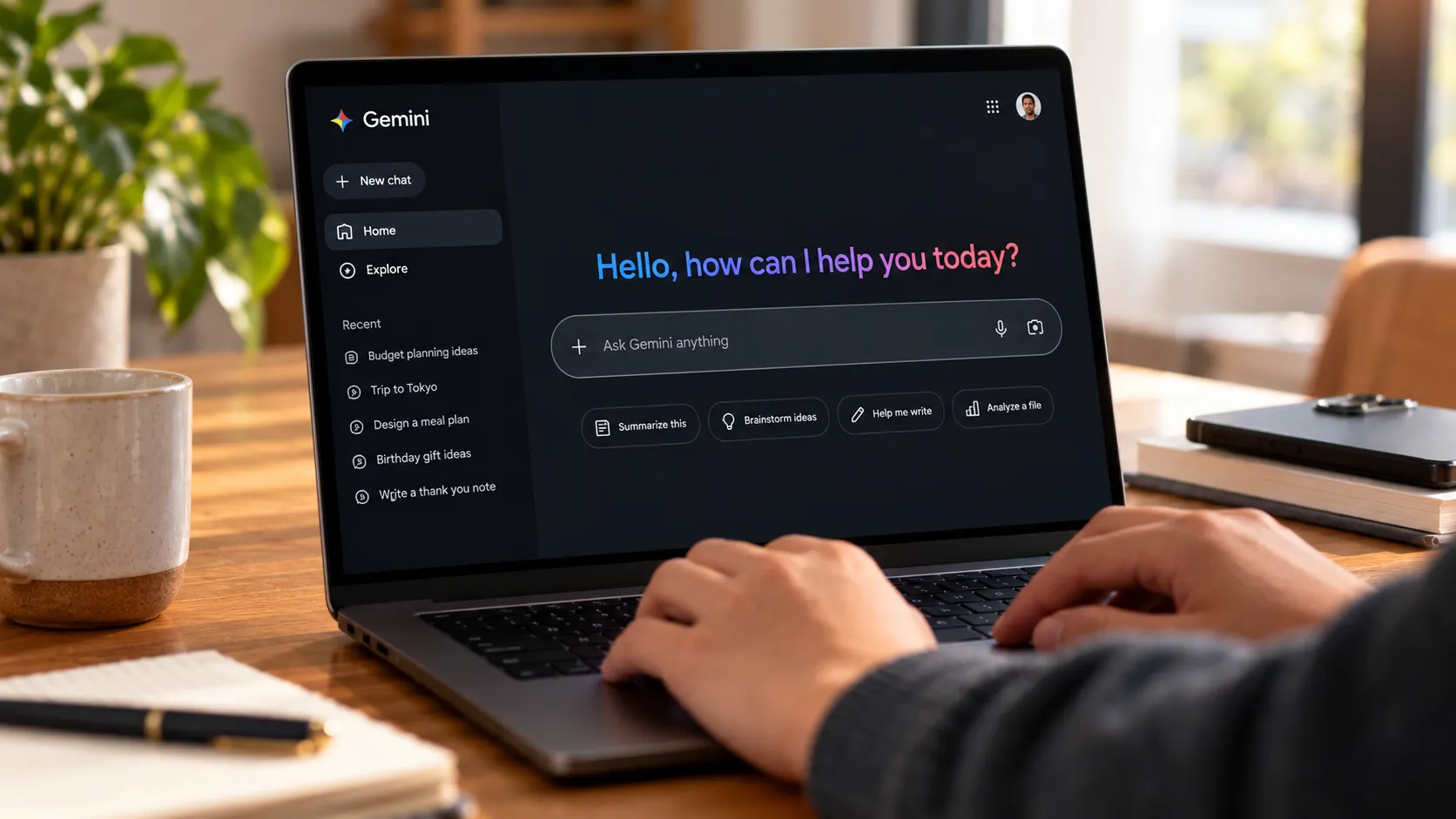
If Gemini has taken over your Google Home or Nest speakers and you want the old Google Assistant experience back, the answer is frustrating: there is no simple "remove Gemini" button for every setup.
Google says Gemini for Home early access is separate from the Google Home app Public Preview and applies to all eligible devices in a home once you opt in, including devices added later. That matters because leaving one preview program may not undo the other, and changing Gemini on your phone may not change what happens on your speakers or displays.
This guide walks through the two practical options worth trying: an Android-only assistant switch for your phone or tablet, and a last-resort Google Home rebuild for speakers and displays that already behave like Gemini. It also explains what you may lose, what will not be deleted automatically, and why this workaround may not last.
Read this before you start
Start with the Android toggle if you use an Android phone or tablet. Google's documented option to switch from Gemini to Google Assistant applies to your phone or tablet's assistant behavior. It may not restore Google Assistant on a Google Home, Nest Mini, Nest Audio, Nest Hub, or other speaker or display that has already received Gemini for Home.
If you manage your Home only from an iPhone or iPad, do not expect an equivalent system-level Android assistant toggle. You can still check your Google Home settings, but the quick switch below is Android-only.
Also note that this is not a permanent escape hatch. Google said in August 2025 that Gemini for Home would replace Google Assistant on existing speakers and displays, with early access beginning in October 2025. As of this article's publication, Google still describes Gemini for Home voice assistant as an early-access feature in supported countries, but that status can change.
Choose the right fix
Say "Hey Google" to one of your speakers or displays and pay attention to what happens.
If your speakers still respond quickly and handle your usual commands, try Path 1 first. It is non-destructive, reversible, and takes only a few minutes.
If your speakers already behave like Gemini — slower responses, unfamiliar phrasing, failed playlist requests, or different routine behavior — skip to Path 2. The Android setting may change your phone assistant without changing the assistant already running on your Home devices.
If you are on iOS, Path 1 does not apply. Check the Google Home app for Gemini for Home early access settings, but do not expect the same Android assistant switch.
Path 1: Switch your Android assistant
Risk: Low. This changes your Android phone or tablet assistant, not your whole Google Home setup.
Open the Gemini mobile app on your Android phone or tablet.
Tap Menu.
Tap your profile picture or initial.
Tap Switch to Google Assistant.
Select Google Assistant.
Tap Switch to confirm.
If you do not see that option, try the Android system setting instead:
Open Settings.
Tap Apps.
Tap Default apps.
Tap Digital assistant app.
Tap Default digital assistant app.
Select a different assistant app, or select None.
Verify the change on the Android device first. Say "Hey Google" or use your usual assistant shortcut and confirm that Google Assistant responds instead of Gemini.
Then test a speaker separately. Ask it to play a playlist you use often, set a timer, or control a smart-home device. If the speaker still sounds or behaves like Gemini, the Android toggle changed your phone or tablet's assistant only. Move to Path 2 if you still want to try removing Gemini from your Home devices.
Path 2: Rebuild your Google Home
Risk: High. This is destructive and should be treated as a last resort.
Google does not document a simple rollback path from Gemini for Home to Google Assistant. If your speakers or displays have already switched and the Android toggle does not help, the practical workaround is to create a new Home and move devices into it manually. Treat this as an unofficial workaround, not a guaranteed Google-supported downgrade.
Before you reset anything, document your current setup:
Room assignments and device groups
Automation and routine names, triggers, and actions
Household member access permissions
Linked third-party services and accounts
Custom device names
Treat this as a clean start. Do not assume rooms, automations, permissions, or linked services will carry over automatically.
Phase 1: Check Gemini for Home early access and Public Preview
Do this first. Google separates Gemini for Home early access from the Google Home app Public Preview, so check both areas where available.
Open the Google Home app.
Tap your profile picture or initial.
Tap Home settings.
Tap Early Access.
Review whether Gemini for Home is available or enabled for your home.
If you are also enrolled in Public Preview, leave Public Preview before creating a new Home.
Leaving Public Preview alone may not remove Gemini for Home early access. The point is to reduce the chance that a new Home immediately receives the same Gemini upgrade.
Availability also varies by country, account, app version, and device. Google's current early-access list includes the United States and the United Kingdom, but not every major market.
Phase 2: Create a new Home
In the Google Home app, tap the plus button.
Select Home.
Follow the prompts to name and configure the new Home.
You should now see a second Home in the app. Before moving every device, add and test one speaker first. If it still behaves like Gemini or shows a Gemini for Home upgrade prompt, stop before rebuilding the rest of your setup.
Phase 3: Factory reset and move each device
This is the slow part. Each device needs to be reset and added again.
Factory reset the first device using its physical reset button. The reset method varies by model, so check the underside, rear panel, or Google's device-specific instructions.
In the Google Home app, remove that device from the old Home.
Add it to the new Home by tapping the plus button, then Device, and following the setup prompts.
Test the device before moving to the next one. Say "Hey Google," ask it to play a familiar playlist, set a timer, and control a smart-home device.
Repeat the reset, removal, setup, and verification process for every device in your setup.
Do not delete the old Home until every device works in the new one. Keeping the old Home gives you a reference point for names, rooms, routines, and permissions if something goes wrong.
Once every device is confirmed working in the new Home, open the old Home's settings, scroll to the bottom, and select Delete Home. This option usually appears only if you are the last remaining full-access member.
What you may lose by leaving Gemini
Leaving Gemini for Home can also mean giving up newer Google Home features.
Some Gemini for Home features require Google Home Premium. Gemini Live is available for Google Home Premium subscribers, Help me create requires a Premium subscription, and some Ask Home features are free while others require Premium. AI camera descriptions, AI notifications, and Home Brief require the Advanced plan.
For many users trying to revert, the trade-off is simple: they care more about fast, predictable speaker commands than newer AI features. But if you use Gemini Live, AI camera summaries, Home Brief, Ask Home, or natural-language automation creation, make sure you understand what you are giving up before rebuilding your Home.
Delete Gemini for Home activity separately
Removing Gemini or rebuilding your Home does not automatically delete past Gemini for Home activity.
Google says Gemini for Home voice queries can be saved in Home History in My Activity when Voice Match and Home History are on. Google says this activity is saved for 18 months by default unless you change or delete it.
To review or delete it:
Open the Google Home app.
Tap your profile picture or initial.
Tap Home settings.
Tap Privacy.
Tap Home History.
Review, delete, or turn off the activity controls you do not want to keep.
If you do not see Early Access, update the Google Home app and check whether Gemini for Home is available in your country and for your home. You can also open Home History in My Activity from a browser if you prefer managing it from the web.
Why this may stop working
The rebuild workaround depends on Gemini for Home still being optional for your account and home. If Google makes Gemini the default assistant experience for all eligible Google Home and Nest devices, a new Home may eventually receive Gemini automatically.
If you are reading this after a future Gemini for Home rollout milestone, check the Early Access section in the Google Home app and Google's current support pages before deleting or rebuilding anything.
Bottom line
Try the Android assistant switch first if your issue is mainly on your phone or tablet. If your speakers or displays have already switched to Gemini for Home, there is no official one-tap rollback. A full Home rebuild may help while Gemini remains optional for your account, but it is time-consuming, destructive, and not guaranteed to remain available.
Before you reset devices, document your setup, check both Gemini for Home early access and Public Preview, and delete any Gemini for Home activity you do not want saved.




Comments
Be the first, drop a comment!