



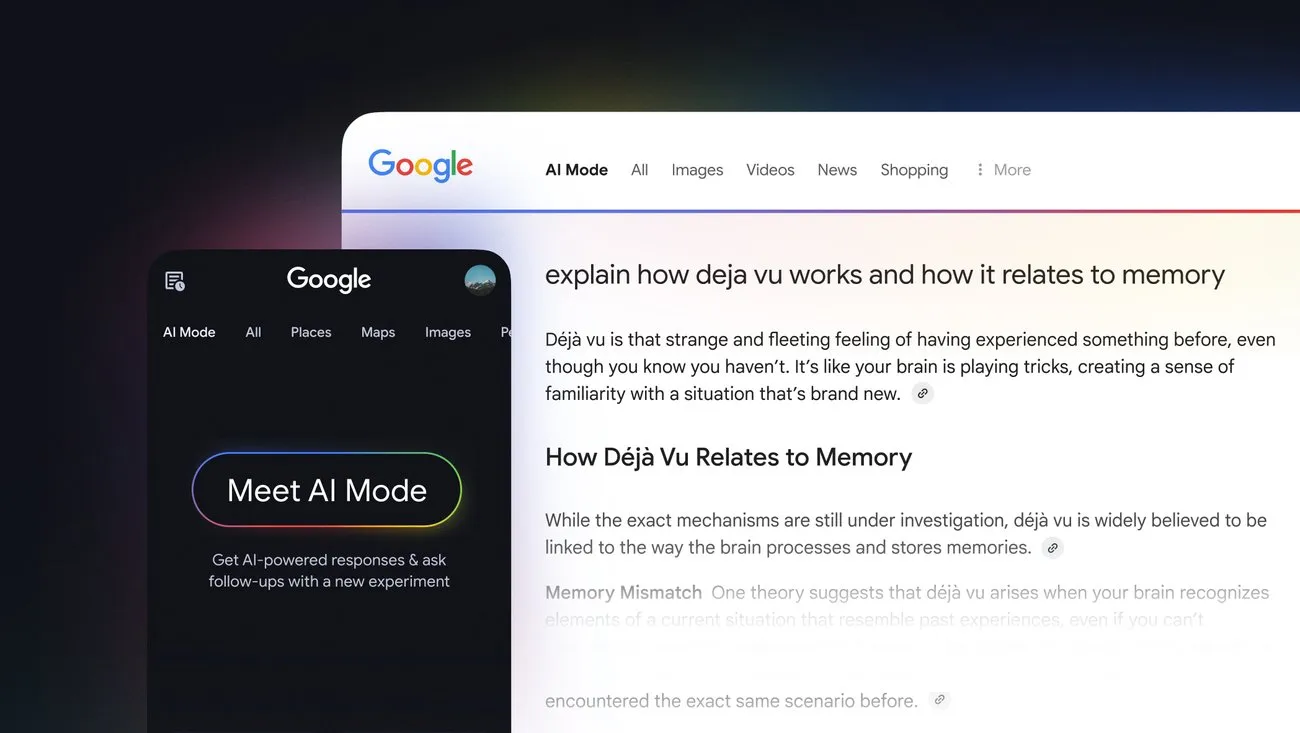
This guide covers how to disable AI Mode in Chrome on desktop: the shortcuts that show up in the address bar, the New Tab Page search box, and the right-click context menu on Windows, Mac, and Linux. It doesn't touch Google Search's own AI Mode tab, which lives outside the browser entirely and gets a short, separate note near the end.
AI Mode shows up in at least three separate places inside Chrome itself: the address bar, the New Tab Page search box, and the right-click menu, and each one has its own on/off switch, which is why turning off one doesn't automatically clear the others. That's separate from the "AI Mode" tab Google shows on its own Search results page, which is controlled at the account level and sits outside Chrome's settings entirely.
Google has been folding AI Mode buttons into the address bar and the New Tab Page search box on Windows 11 and macOS through a string of recent Chrome updates, and on Windows specifically, that button has been appearing since Chrome version 138.
The fix scales to how much you want gone. Hiding the shortcut chips takes about a minute. A full removal through chrome://flags takes a few minutes more. There's also a more durable, more advanced route for managed Windows machines, covered further down. This guide walks through all three in that order.
Choose your fix: match the method to what you're seeing
Not every reader has the same problem, so start here and skip ahead.
Seeing shortcut chips under the address bar only? Jump to Step 1 (the right-click method).
Seeing the AI Mode icon in the address bar, the New Tab Page search box, or the right-click menu? Go to Step 2.
Managing several Windows machines or a work device? Skip flags entirely and use the org/admin policy section instead.
Seeing an "AI Mode" tab on Google.com or in search results? That's account-level, not a Chrome setting. Head to the last section.
These aren't overlapping fixes for the same thing. The shortcut-chip toggle and the flags method each address a different piece of the interface, and browser-level policy has no jurisdiction over what Google Search itself does, since that's a completely separate system.
The Gemini side panel in Chrome runs on its own dedicated control, and nothing in this guide touches it.
Step 1: Hide the AI Mode shortcut chips (fastest, lowest-risk fix)
Right-click inside the address bar and uncheck "Always show AI Mode shortcuts." That's it.
The shortcut chips vanish immediately. No relaunch, no Google account, no digging through settings menus. What this doesn't do is remove the main AI Mode icon sitting in the omnibox itself; that one sticks around until the flags method below handles it.
This applies to desktop Chrome, version 145 or newer, across Windows, Mac, and Linux. If the option isn't there when you right-click, it simply isn't available in that Chrome build yet.
If the main button is still visible after this, or if the New Tab Page and right-click entries are also bothering you, move on to Step 2.
Step 2: Disable Chrome AI Mode button entirely using flags
Before touching anything: change only the flags listed here. Don't use "reset all flags" to troubleshoot, since that wipes out unrelated settings too. Flags are reversible, but they're experimental, and Google can rename or remove any of them at any time.
Open chrome://flags and search "AI Mode." For the address bar and New Tab Page buttons, disable whichever of these appear on your flags page: AI Mode omnibox entrypoint and Omnibox Allow AI Mode Matches. Not every version shows all four, so work through whichever ones are actually there.
For the New Tab Page search box, also search for NTP Compose Entrypoint. In current builds, it has been replaced by NTP Composebox, so look for whichever label your version shows and disable it too.
For the right-click menu, search for Search with AI Mode and disable it separately.
Make all the selections that match what's on your screen, then click Relaunch once. The address bar and New Tab Page search box should no longer show the AI Mode button after Chrome restarts.
If a flag listed here doesn't show up on your flags page at all, stop looking for it. That means the underlying feature isn't enabled for your Chrome version, not a cue to start disabling unrelated flags in search of it. Flag names have also shifted across the Chrome versions referenced in this guide, 138, 140, 143, and 145, so search by keywords like "AI" or "NTP" rather than hunting for one exact label.
Reversing any of this is symmetrical: set the same flags back to Default or Enabled and relaunch. Expect to do this more than once, too. A major Chrome update can reset or rename these flags without letting you know first.
For Windows admins and advanced users: policy-based removal (optional)
Skip this unless multiple machines are involved or the flags approach feels too fragile. Group Policy settings generally outlast experimental flags across Chrome updates, which makes this the more durable option, at a cost.
Google's current Chrome Enterprise documentation identifies AIModeSettings as the policy for AI Mode integrations in the address bar and New Tab Page search box. Set the integer policy to 1 to make those integrations unavailable; 0 allows them. On Windows, Google documents the Registry location as Software\Policies\Google\Chrome\AIModeSettings. Managed organizations should still deploy the setting through Group Policy or Chrome Browser Cloud Management rather than editing individual machines manually.
Verify the current policy name and its accepted values against Google's official Chrome Enterprise policy documentation before editing anything. Better yet, use whatever Chrome policy management the organization already has in place, Group Policy or Chrome Browser Cloud Management, rather than a manual edit.
Once correctly configured, this policy only reaches the browser's own address bar and New Tab search box. It doesn't extend to AI elements Google renders on its Search results pages. That needs separate handling, covered in the next section.
One related setting worth knowing about, so it doesn't get confused with the address-bar toggle: GenAILocalFoundationalModelSettings controls whether Chrome can tap AI models stored locally on the machine. It's a distinct control from the button discussed above.
A separate issue: Google Search's own AI Mode isn't a Chrome setting
Everything covered so far changes Chrome's interface. None of it touches the "AI Mode" tab that can appear on Google.com or in search results. That lives at the Google account level, not the browser.
The direct fix, where it's still available, is to visit labs.google.com while signed into the same account used in Chrome, find AI Mode, and toggle it off. If AI Mode is no longer listed in Search Labs for a given account, Google has likely already folded it into the default search experience, and there may be no toggle left to flip. At that point, a content blocker or search-cleaning extension may be the practical, if imperfect, workaround.
Work and school accounts add another wrinkle. Chrome browser policy doesn't extend to the Google Search page itself. That requires checking "Search Customization" or Data and Personalization settings in the Google Admin Console instead.
Conclusion
Match the fix to the outcome wanted: the right-click toggle only clears the shortcut chips, the flags method handles the address bar, New Tab Page, and right-click entries once each relevant flag is disabled, and Windows policy offers a longer-lasting alternative best left to admins willing to verify values first. None of it touches Google Search's own AI Mode tab, which needs Search Labs or Workspace admin settings instead.
Treat the flag names and policy values in this guide as a starting point, not a permanent fix. They've already shifted across Chrome versions 138 through 145 among the sources checked here. If the AI Mode button reappears after a major Chrome update, head back to chrome://flags and search "AI" or "NTP" again. That's the fastest way to tell whether the setting simply got renamed or reset.






Comments
Be the first, drop a comment!