





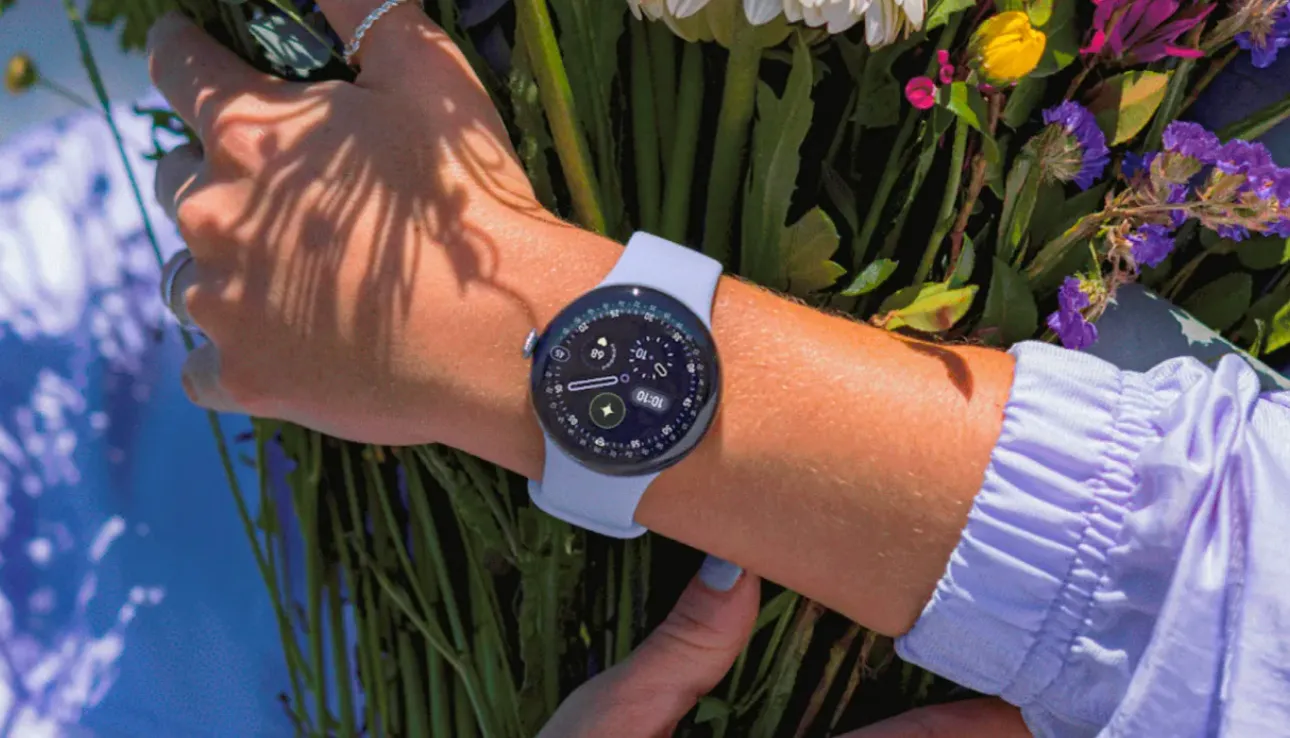
Pixel Watch 4 owners who feel left out of the Pixel Watch 5 launch have a workaround. According to Android Authority, Reddit user m0rr0ng0 found that sideloading a newer build of the Pixel Watch Faces app unlocks five Pixel Watch 5 faces: Weave, Chronograph, a Steph Curry edition, Multicolor Reveal, and Multicolor Modular.
The method uses wireless ADB and GeminiMan WearOS Manager rather than installing the update through Google Play. Android Authority says it works on the Pixel Watch 4 but not the Pixel Watch 3, Pixel Watch 2, or original Pixel Watch, likely because of Watch Face Format requirements.
Google officially introduced Weave and Chronograph with the Pixel Watch 5. The other faces also appear after installing the newer Pixel Watch Faces package on a Pixel Watch 4.
What you'll need before installing the watch faces
A Pixel Watch 4.
An Android phone connected to the same Wi-Fi network as the watch.
GeminiMan WearOS Manager installed on both the phone and watch.
Pixel Watch Faces version 5.0.231.924930285.
Developer Options, ADB Debugging, and Wireless Debugging enabled on the watch.
Android Authority links directly to APKMirror's listing for Pixel Watch Faces version 5.0.231.924930285.
That listing identifies the package as com.google.android.wearable.watchface.rwf, says it requires Wear OS and Android 16 or later, and shows it as signed with Google's certificate. APKMirror also publishes SHA-1 and SHA-256 certificate fingerprints and file hashes for the APK.
Checking the exact package name, version, signing information, and file hash is more useful than relying on the version number alone if the APK came from somewhere else.
Don't uninstall the existing Pixel Watch Faces app before trying the update. The newer APK is signed as an upgrade to the existing Google app, so replacing the installed version should not require removing it first.
Turn on Developer Options and wireless debugging on the Pixel Watch 4
Open Settings > System > About > Version on the watch.
Tap Build number seven times to enable Developer Options.
Return to Settings and open Developer Options.
Turn on ADB Debugging and Wireless Debugging.
Make sure the phone and Pixel Watch 4 are connected to the same Wi-Fi network.
Under Wireless Debugging, tap Pair new device. The watch will display a pairing code, IP address, and pairing port.
Google's Wear OS wireless debugging documentation confirms the same basic pairing process. The pairing port shown under Pair new device may differ from the connection port used after pairing, so use the values shown on the watch rather than assuming they're interchangeable.
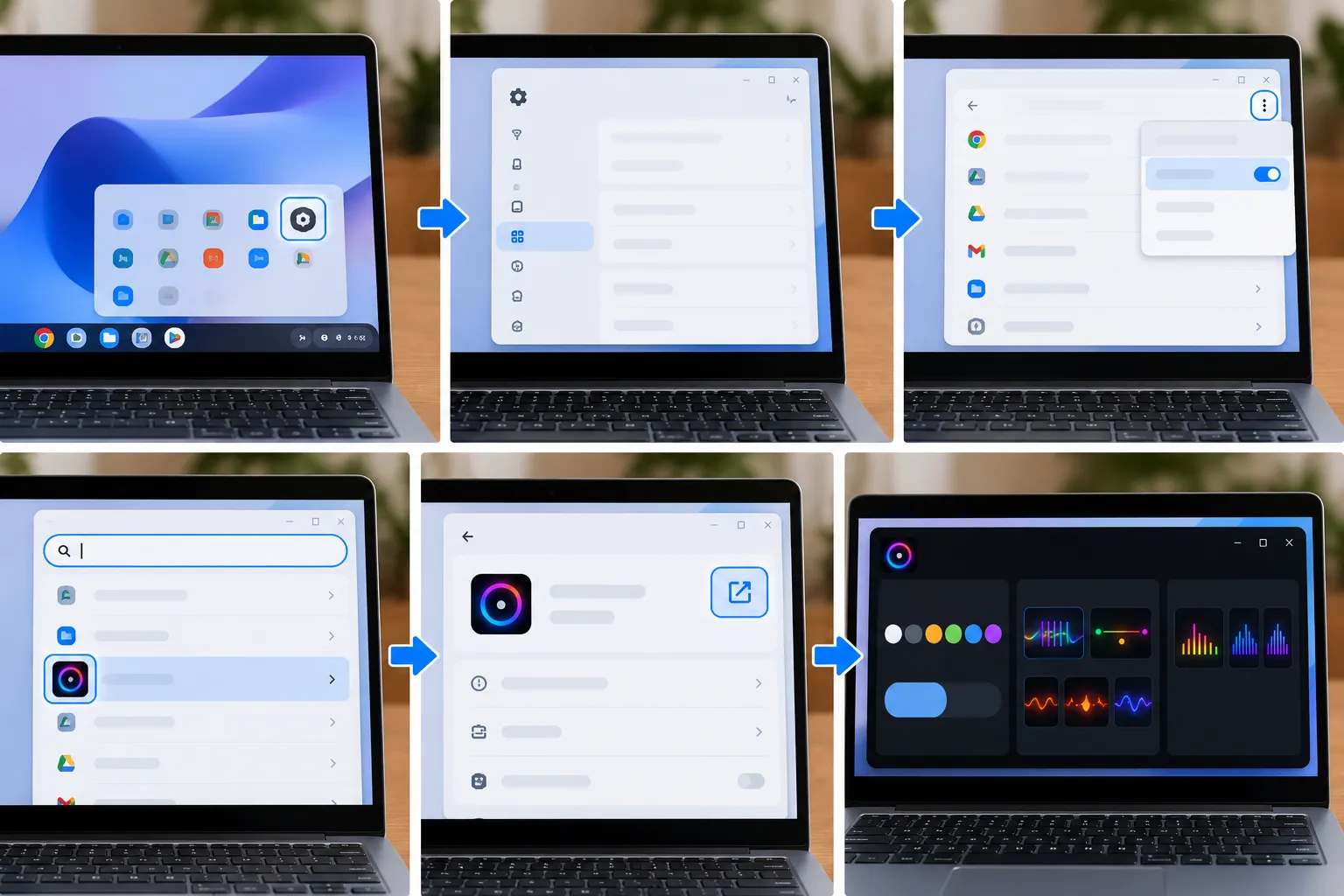
How to install the Pixel Watch Faces APK on Pixel Watch 4 with GeminiMan WearOS Manager
Install GeminiMan WearOS Manager on both the Android phone and Pixel Watch 4.
Download Pixel Watch Faces version 5.0.231.924930285 to the phone.
Enable Developer Options, ADB Debugging, and Wireless Debugging on the watch.
Under Wireless Debugging, choose Pair new device.
Open GeminiMan WearOS Manager on the phone, then enter the IP details and pairing code shown on the Pixel Watch 4.
Confirm that GeminiMan has connected to the watch.
In GeminiMan on the phone, choose Install APK file.
Select the Pixel Watch Faces APK.
Let GeminiMan install the package on the watch over wireless ADB.
After installation, open the watch face picker and look for the newly available faces.
Android Authority found that the updated package adds Weave, Chronograph, the Steph Curry edition, Multicolor Reveal, and Multicolor Modular to the Pixel Watch 4.
Weave and Chronograph are the two new faces Google introduced with the Pixel Watch 5. Weave uses the watch's newer visual design language and reacts to wrist movement, while Chronograph uses a traditional chronograph-style layout.
If GeminiMan won't connect or the APK won't install
If the phone can't connect to the watch, first confirm that both devices are on the same Wi-Fi network and that ADB Debugging and Wireless Debugging are still enabled.
Wireless ADB can also lose its connection after debugging is restarted or the network changes. Open Settings > Developer Options > Wireless Debugging again and repeat the pairing process if necessary.
If pairing succeeds but GeminiMan still can't connect, check the connection IP address and port shown on the main Wireless Debugging screen. Google's documentation notes that the connection port can be different from the pairing port.
If the APK itself is rejected, don't immediately uninstall the existing Pixel Watch Faces package. First confirm that the file is version 5.0.231.924930285, uses the expected Google package name, and matches the published signing information.
Removing the existing app introduces another variable and isn't part of the successful Pixel Watch 4 method Android Authority documented.
What works after installation
After the APK installs, the Pixel Watch 4 watch-face picker should show:
Weave
Chronograph
Steph Curry edition
Multicolor Reveal
Multicolor Modular
Android Authority was able to select the newly available faces and use them as active watch faces on the Pixel Watch 4.
The same method did not work on older Pixel Watch generations. Android Authority reports that the faces fail to load on the Pixel Watch 3, Pixel Watch 2, and original Pixel Watch, likely because the newer package depends on Watch Face Format requirements those devices don't meet in the same way.
Compatibility beyond simply loading and selecting the faces is less clear. If complications, animations, always-on display behavior, or customization options matter, check those functions after installation before relying on the sideloaded package as a permanent replacement for the version delivered normally to the watch.
Turn off wireless debugging when you're done
Once the APK is installed and the faces appear correctly, return to Developer Options and turn off Wireless Debugging and ADB Debugging.
Wireless debugging is intended as a development feature and doesn't need to remain active for the installed watch faces to work. Turning it off also prevents the watch from unnecessarily exposing an ADB debugging connection.
The watch faces remain installed after debugging is disabled.
When to proceed, and when to wait
Proceed if you're comfortable with wireless ADB and can verify that you're installing Pixel Watch Faces version 5.0.231.924930285 with Google's expected signing certificate.
Avoid downloading an APK solely because its filename or version string looks right. Verify its package and signing information against a known copy before sideloading it.
The workaround is also worth treating as temporary. Google hasn't announced these Pixel Watch 5 faces as an official Pixel Watch 4 update, and a future Pixel Watch Faces or Wear OS update could change compatibility.
For now, Pixel Watch 4 is the exception: the newer Pixel Watch Faces package can add five faces that aren't otherwise available through the watch's normal software, while the same sideload does not work on earlier Pixel Watch models.






Comments
Be the first, drop a comment!