



How to Disable Google AI on Android: 16 Steps That Work
There is no single switch. That's the honest starting point for anyone searching for how to disable Google AI on Android, and it's worth saying plainly before walking through 16 steps that actually work. CNET reported earlier this year that on Pixel phones especially, AI is embedded at the platform level. The realistic goal is reduction, not removal. What this guide delivers: Gemini features turned off in Gmail, Docs, Drive, and Photos; system-level AI services disabled on supported Pixel hardware; permissions tightened so named features can't reach your data through leftover access; and Chrome's AI surfaces cleared.
Before you start: Steps 1 through 4 work on any Android device or desktop browser. Steps 5 through 12 apply to recent Pixel models, especially Pixel 9 and Pixel 10; some also appear on Pixel 8 devices. The Chrome steps require a Mac or Windows desktop running Chrome in English (US), and ZDNET confirmed earlier this year that Gemini in Chrome is restricted to users 18 and older in the United States. Keep a record of what you change. CNET warns that some system-level settings interact with unrelated phone functions, and you may want to reverse specific changes if something behaves unexpectedly.
The guide is organized by layer: account-wide first, then app-specific, then Pixel system services, then permissions, then browser. Use the table below to find where to start.
| Layer | Affects | Devices | Biggest downside |
|---|---|---|---|
| 1: Account settings | Gmail, Docs, Drive | Any | Loses smart drafting and summaries |
| 2: Photos settings | Google Photos | Any | Loses Ask Photos search |
| 3: Pixel system settings | On-device AI services, assistant, call features | Pixel 8/9/10 | Can affect unrelated phone behavior |
| 4: Permissions review | Contacts, SMS, notifications access | Any | Must be done per app |
| 5: Browser and Search | Chrome AI features, Search overviews | Mac/Windows desktop (US) | Requires per-search workaround for Search |
Layer 1: Account-level settings one toggle that covers Gmail, Docs, and Drive
This is the highest-use step in the guide.
A single account-level control disables Gemini across the entire Google Workspace suite simultaneously. The reason it works at scale: these are account settings, not app settings. One change reaches Gmail, Docs, and Drive in one move. That same architecture is why Photos and Pixel features require separate action they don't sit in this part of Google's stack.
What you lose: Gemini-powered drafting, summarization, and content surfacing across Gmail, Docs, and Drive. Gemini icons like "Help me write" remain visible but go inert clicking them prompts you to re-enable smart features rather than running any AI processing, per ZDNET's direct testing.
Step 1: Access Workspace smart feature settings. Open Gmail on the web. Click the gear icon, select See all settings, and under the General tab find Smart features and personalization. Click Manage Workspace smart feature settings. The same panel is reachable through Google Drive: Settings (gear icon) > Privacy > Manage Workspace smart feature settings.
Step 2: Turn off the first toggle Smart features in Google Workspace. Per ZDNET and Android Police, this toggle controls whether Gemini can summarize content, generate drafts, and surface key information across Gmail, Docs, and Drive Google's own language for what the setting covers. Turn it off.
Step 3: Decide on the second toggle Smart features in other Google products. The same panel includes a second control extending AI features into Maps, Wallet, and Calendar. The tradeoff is specific: Android Police notes it disables smart calendar entries, and ZDNET adds that Wallet will stop offering suggested tickets and loyalty passes. Turn it off for maximum coverage; leave it on if those conveniences are part of your regular workflow.
The Workspace toggles handle a lot of ground. Google Photos is the exception it requires its own trip through the settings.
Layer 2: How to disable Gemini in Google Photos on Android
Turning off Workspace smart features has no effect on Google Photos.
ZDNET confirmed through direct testing that Ask Photos kept working normally after the account-level toggle was switched off. Photos runs on independent AI settings a concrete illustration of why different Google surfaces need different controls.
What you lose: The Ask Photos natural-language search function and Gemini-powered memories. The classic keyword search bar remains.
Step 4: Turn off Gemini in Google Photos. Open the Google Photos app. Tap your profile icon in the upper-right corner and select Google Photos settings. Go to Preferences > Gemini features in Photos. Turn off Use Gemini in Photos. Google may ask you to confirm. Per both ZDNET and Android Police, this disables both Ask Photos search and Gemini-powered memories in a single toggle.
That covers the account and app layers. What remains is deeper the system-level services baked into Pixel hardware.
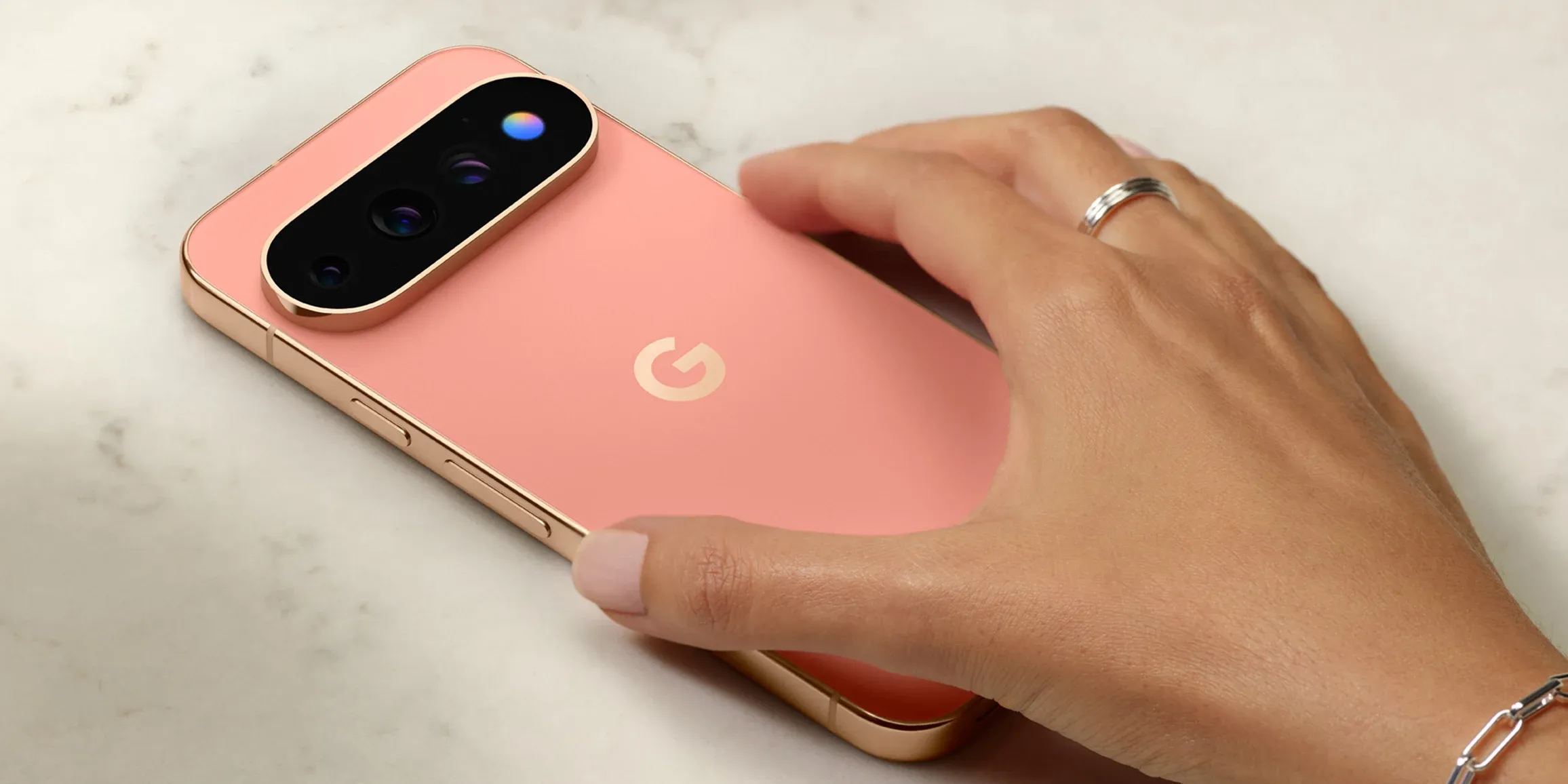
Layer 3: How to remove AI from a Pixel phone, as far as Google allows
These options are available on recent Pixel models, especially Pixel 9 and Pixel 10; some also appear on Pixel 8 devices, per CNET's testing.
The steps here address Android system components the underlying services that power on-device AI rather than app-level features. Disabling them can affect phone behavior beyond AI, and the changes run deeper than hiding a button.
This section is divided deliberately. The first group removes actual AI processing. The second removes entry points. They are not equivalent.
High-impact system disables
What you lose from the steps below: Smart replies, improved live captions, on-device AI processing for screenshots, and real-time call features. CNET notes these settings can interact with other phone functions track what you turn off.
Step 5: Disable on-device AI system services. In Android Settings, go to Apps > See all apps. Locate and disable each of the following: Android System Intelligence, Private Compute Services, and AI Core. These are the system-level services that underpin on-device AI features across the Pixel platform, per CNET.
Step 6: Turn off AI processing in the Screenshots app (Pixel 9 and newer). The screenshots app introduced on the Pixel 9 uses on-device AI to make screenshots searchable, per CNET. Open the app's settings and toggle off Search your screenshots with on-device AI. If the feature was previously active, you'll be offered the option to delete all AI-generated summaries and metadata from past screenshots delete these if you want a clean break.
Step 7: Turn off Call Assist features in the Phone app. Open the Phone app, go to Settings, and find the Call Assist section. Disable the AI features listed there, which can include real-time transcription and call screening enhancements, per CNET.
Step 8: Disable Circle to Search. Search Settings for Circle to Search (it may also appear under Display). Toggle it off to remove the gesture-based AI search overlay that activates on long-press of the home or navigation bar, per CNET.
Step 9: Switch your default assistant from Gemini to Google Assistant act now if you want this. Gemini is the default digital assistant on Pixel phones. Reverting to Google Assistant is still possible: go to Settings > Apps > Default apps > Digital assistant app and select Google Assistant. Once switched, you can uninstall the Gemini app. CNET explicitly warns that Google Assistant is being phased out and this option may not remain available indefinitely. If you want it, do this before a future software update removes the choice.
Interface cleanup (lower impact)
These steps remove visible AI entry points but do not disable underlying processing. Worth doing for a cleaner experience; just don't mistake them for the high-impact disables above.
Step 10: Remove the AI mode button from the home screen search bar. Launcher settings may expose an AI mode shortcut toggle look there, or long-press the Pixel Launcher search bar to access customization options. CNET confirms the button can be removed for a cleaner home screen.
Step 11: Hide the Gemini button in Messages. Open Google Messages, go to Settings > Gemini in Messages, and toggle off Show Gemini button. This removes the icon from the compose bar; it does not affect Gemini's underlying access to Messages unless you also disconnect it in Connected Apps (covered in Layer 4).
Step 12: Uninstall the Journal app (Pixel 10 only). The Pixel 10 ships with an AI-centric journaling app, per CNET. It can be uninstalled directly from the app drawer.
Removing the visible surfaces is satisfying but incomplete. The more consequential cleanup happens at the permissions layer, which operates independently of every toggle above.
Layer 4: Permissions review what still has access after the named features are off
This is a required step, not optional cleanup.
Turning off AI features by name doesn't necessarily revoke the underlying permissions that allow Gemini to reach your data. Google's own help documentation states explicitly that even after disconnecting the Messages app from Gemini, the Gemini mobile app can still access your device contacts if the Google app holds Contacts permission, and can still access your notifications if the Utilities app remains connected. That's a permissions-layer issue operating independently of the feature toggles above.
Step 13: Disconnect apps from Gemini's Connected Apps settings. Open the Gemini app, go to Settings > Connected Apps, and review what's connected. Disconnect anything you don't want Gemini to access Messages, Utilities, and any other listed apps. Note that disconnecting Messages here is separate from hiding the Gemini button in Step 11; both steps are needed.
Step 14: Revoke Google app permissions at the Android level. Go to Settings > Apps > Google > Permissions. Review and revoke permissions particularly Contacts, Notifications, and SMS that you don't want the Google app to hold. Repeat this review for the Gemini app itself under Settings > Apps > Gemini > Permissions. These are the access points that persist at the system level regardless of which in-app toggles are switched off.
With permissions tightened, the remaining cleanup is the browser.
Layer 5: Browser and Search Chrome cleanup and an AI Overviews workaround
These steps are supplementary. The Chrome steps require a desktop and are US-only; the Search workaround works everywhere. Neither is Android-specific.
Step 15: Turn off Gemini in Chrome (Mac or Windows desktop, US only, ages 18+). Gemini in Chrome is rolling out gradually and isn't available to all users, per ZDNET. If you don't see these settings, Gemini hasn't reached your account yet. Open Chrome, click the three-dot menu, go to Settings > AI innovations. Under Gemini, turn off: Show Gemini at the top of the browser, Show Gemini in Mac menu bar and turn on keyboard shortcut, and Let Chrome browse for you. Also in AI innovations, turn off History search, powered by AI and Help me write.
Step 16: Suppress AI Overviews in Google Search. AI Overviews can't be turned off with a persistent setting, but appending -ai to any search query suppresses the generative summary and returns standard results. Android Police confirmed this works across desktop and mobile browsers. It requires doing it per search, but it's immediate and requires no settings changes.
What you've done and what remains
After completing the steps above, the Workspace suite is running without Gemini features. Google Photos has reverted to classic search. On-device AI services can be disabled on supported Pixel models. App-level permissions have been reviewed and tightened. Chrome's AI surfaces are off.
What remains is also specific. CNET is direct on this point: on Pixel devices, AI is built into the platform at a level Google doesn't fully expose to user controls. Some AI-adjacent functionality in the camera system, in adaptive battery, in parts of the OS isn't addressable through the steps in this guide. The goal was reduction, and that goal is achievable. Full removal was never on offer.
On reversibility: every change above can be undone. Return to the relevant settings panel and toggle features back on. ZDNET confirmed the Workspace smart features restore immediately when re-enabled. The one exception worth planning for: CNET notes that the option to revert from Gemini to Google Assistant may not survive future software updates. If keeping that option open matters to you, Step 9 is the one to prioritize.


Comments
Be the first, drop a comment!