



Google Photos rearrange Collections tab: how to pin albums
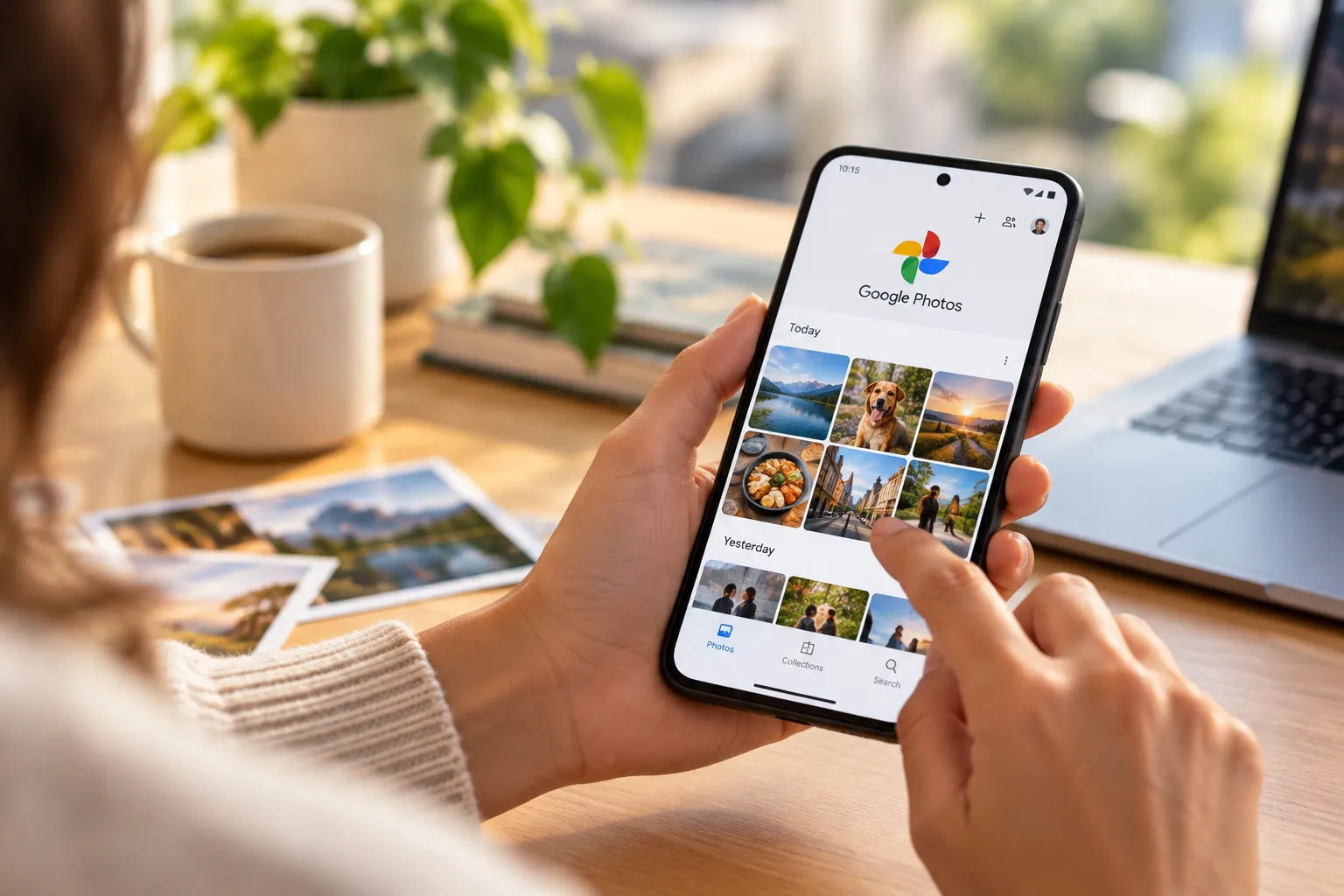
Google Photos has replaced its old shortcut grid with a layout users can actually control, giving people a real way to rearrange the Collections tab instead of relying on shortcuts the app picked for them, according to Android Authority and Android Police, both reporting last week. The redesign splits into two separate tools: a Pinned row at the top for individual destinations, and a Reorder control below it for entire sections like Albums, Places, and Device folders. Anyone who wants to rearrange the Google Photos Collections tab on a phone that already has the update will find both tools sitting right inside the tab.
Pinning and reordering do different jobs, and mixing them up is the fastest way to misread the new layout. Pinning adds specific destinations, individual albums, a Places view, People & pets, or a detected document group, to a shortcut row at the top of the screen. Reorder works a level up, moving or hiding entire section categories rather than the items inside any one section (Android Police, last week).
The redesign is tied to Google Photos version 7.97 on Android and 7.98 on iOS. 9to5Google reported last week that Google enabled it through a server-side push, so updating the app alone doesn't guarantee the controls show up right away.
Who has the Google Photos Collections update right now
Nobody is citing a Google announcement or changelog here. Everything known so far comes from reporters who spotted the redesign live on their own devices.
An Android Police writer found the new tab active on both a Pixel 9 Pro XL and a Samsung Galaxy Z Flip 7, which at minimum shows the change isn't limited to one device brand or Android skin (Android Police, last week). That's two devices from one reporter, not proof that every account on every version has received it, especially given how Google is staging the rollout server-side.
Two visual cues settle the question either way: an Edit button above the shortcut row at the top of the Collections tab, and a Reorder button at the bottom. If neither shows up, the server-side flag probably hasn't reached that account yet, though neither report spells out how Google sequenced the staged rollout, according to Android Authority's reporting last week.
The layout being replaced is a 2x2 shortcut grid, where Favorites and Trash sat fixed while the other two slots rotated based on usage (9to5Google, last week). Earlier testing of a carousel version of that older design found the rotating shortcuts could reshuffle as soon as a new photo landed in an album, a quirk that made quick, repeatable access to one album hard to count on (9to5Google, last year).
Not everyone is thrilled with the change. One Google Photos subreddit user called the redesign "absolute garbage," a sign the new defaults haven't won over every longtime user even though the layout hands people more control than the version it replaced, Android Authority reported last week.
How to pin albums and other destinations to the top
The Pinned row defaults to Favorites, Screenshots, and Trash, and like every other section on the redesigned tab, it displays as a horizontally scrollable carousel of labeled cards (Android Police, last week). Tapping the Edit button above that row opens a selection screen where individual albums, the Places view, People & pets, or an auto-detected document group can be added alongside the defaults (Android Police, last week; Android Authority, last week).
Once added, a selected destination stays anchored in the upper pane. That's a direct answer to the old rotating-shortcut problem that made the top row unpredictable from one visit to the next (Android Police, last week).
The Pinned row's position can't be moved elsewhere on the page; it's sticky at the top with its own dedicated control (Android Police, last week). Its contents can still be edited, and reports also describe an option to hide the pinned section entirely from the Reorder menu for anyone who'd rather not see it at all, according to Android Authority. That locked-top behavior lines up with what an Android Authority teardown found two months ago, when an early build of the pin feature let users hide pinned entries but not relocate the row itself.
Someone who regularly shares a trip album with family, or treats Photos as an informal document scanner, could pin that album next to the Documents group instead of leaving the three defaults untouched. That's one way to use the tool based on how it's described, not a documented best practice from Google.
How to use Google Photos to reorder Collections sections
The Reorder button at the bottom of the Collections tab manages entire section rows, including Device folders, Places, Albums, and Documents (Android Police, last week; 9to5Google, last week). Opening it lists every section currently on the tab, lets you move each row up or down, and shows a checkbox next to each one. Neither report describes a way to reorder individual albums inside a single section, so treat the tool as row-level only until Google says otherwise.
Hiding a section doesn't delete it. Unchecking the box next to a section's name pulls it out of the default scrolling view, but the content lands in a consolidated "Other Collections" group rather than disappearing (Android Police, last week; 9to5Google, last week). 9to5Google lists Videos, Recently Added, Stickers, Moments, Creations, Archive, Locked, and Trash as examples that can land there, though the exact contents may vary by account (9to5Google, last week). Getting back to a hidden collection just means opening Other Collections and tapping the item from that grid; it stays reachable, just outside the main scroll.
Someone who checks screenshots or downloads constantly might keep Device folders near the top, while someone who rarely browses by location could move Places into Other Collections. Again, that's a possible use of the controls as described, not a workflow Google has prescribed.
An Android Authority teardown from earlier this year showed a different version of this redesign with collapsible sections that remembered their expanded or collapsed state between visits. That specific memory behavior hasn't been confirmed in the version now rolling out, so don't assume it carries over just because both builds share a similar card-based layout.
Check your version before assuming something's broken
Open the Collections tab and look for the Edit button above the shortcut row and the Reorder button at the bottom. If both are there, start by pinning the two or three destinations opened most often, then use Reorder to push rarely-used sections into Other Collections. Nothing gets deleted either way.
If neither button shows up, confirm the app is running Google Photos 7.97 on Android or 7.98 on iOS, the versions tied to this rollout, and then wait. Because activation is server-side, an up-to-date app without the new controls likely just means the staged rollout hasn't reached that account yet, not that anything needs fixing.










Comments
Be the first, drop a comment!