



Chrome can now preserve more than the URL when you send a tab to another device. Google confirmed Sept. 24 that its cross-device handoff can save the exact state of the tab, including your scroll position and partially filled forms, so you can continue where you left off on another device.
The feature uses Chrome's existing Send to your devices command. It is separate from Google's Gemini-powered Auto Browse feature, which automates multi-step tasks inside Chrome.
That distinction matters because the two features solve very different problems. Auto Browse can research travel, make reservations or work through online forms for you. Cross-device tab sharing moves the page you're already using to another signed-in device and now preserves more of your progress.
How Chrome's new cross-device tab handoff works
Chrome already lets users send an open page between devices signed in to the same Google Account.
On a computer, Google's current Chrome instructions say to open the page, select More > Cast, save, and share > Send to your devices, then choose the destination. You can also right-click the page and select Send to your devices.
The receiving device gets a notification with the shared page.
What's new is what travels with it.
In a Sept. 24 Chrome update, Google said Chrome now saves the exact state of a tab when it is sent between devices. That includes the current scroll position and partially filled forms.
Google gives the example of reading halfway through a long research paper on a laptop, sending it to a phone and continuing from the same place during a commute.
That is more than ordinary URL sharing, but it is still an intentional handoff. Google has not said Chrome automatically pushes every open tab to a new device without the user choosing to send or reopen it.
Chrome still syncs open tabs separately
Chrome also has a broader tab-sync system that predates this update.
If you're signed in to Chrome with the same Google Account on multiple devices and have the relevant syncing enabled, you can view tabs that remain open elsewhere.
On a computer, open Chrome, select More > History > History, then choose Tabs from other devices, according to Google's Chrome sync documentation.
Chrome's New Tab page can also show a Continue with these tabs card for recently opened tabs from another device. Google says those tabs need to have been opened within the previous 24 hours.
Android goes a step further with tab groups. Google says tab groups can automatically sync between devices using the same Google Account, and users can choose whether groups from other devices open automatically.
These features are related to cross-device browsing, but they are not the same thing as the new state-preserving Send to your devices handoff.
What gets preserved when you send a tab
Google has explicitly confirmed two pieces of state:
Your scroll position
Partially filled forms
That means a shared page can reopen closer to the point where you stopped instead of simply loading from the top.
Google has not published a complete list of every type of page state that transfers.
For example, the Sept. 24 announcement does not say whether the feature preserves video playback position, text selected on a page, unsaved content inside complex web apps or every type of dynamic form.
Treat scroll position and partially completed forms as the confirmed behavior rather than assuming the entire browser session moves intact.
The feature also should not be confused with moving an authenticated session. Chrome's sharing documentation says users need to be signed in to their Google Account to send pages between their own devices, but Google has not described the new feature as transferring website login sessions or cookies between devices.
Auto Browse is a separate Gemini feature
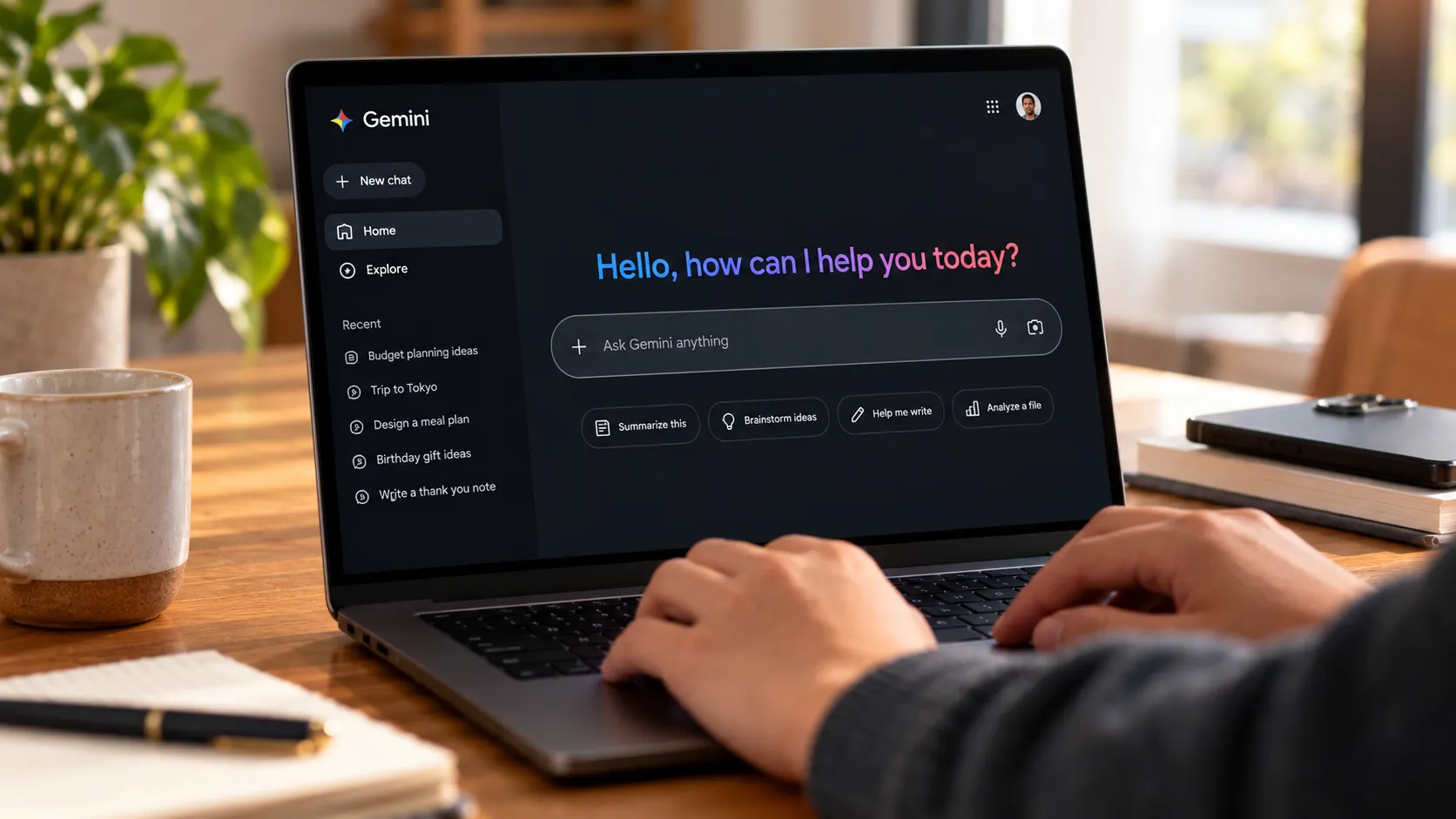
Google introduced Auto Browse earlier this year as part of its Gemini 3 upgrades for Chrome.
Auto Browse lets Gemini perform multi-step web tasks on a user's behalf. Examples in Google's current support documentation include comparing products, finding travel accommodations, making restaurant reservations and scheduling appointments.
It does not power the new Send to your devices feature.
Auto Browse is currently available to eligible Google AI Pro and AI Ultra subscribers in the U.S. Google has also expanded it to Android, another change since the January announcement.
To use Auto Browse on Android or computer, users generally need to:
Be at least 18.
Be in the U.S.
Use English.
Have Google AI Pro or AI Ultra.
Sign in to Chrome with an eligible account.
Use the latest version of Chrome.
Have Standard or Enhanced Safe Browsing enabled.
Google says the rollout remains gradual, so qualifying users may not see it immediately.
Auto Browse is not currently available through Gemini in Chrome on iPhone or iPad.
Auto Browse also has usage limits and safeguards
Google's current documentation now provides details that were missing from the original January announcement.
Google AI Pro subscribers can request up to 20 Auto Browse multi-step tasks per day, while Google AI Ultra subscribers can request up to 200.
Before starting a task, Auto Browse shows the plan it intends to follow. Users can pause, stop or take over a task while it is running.
Google also says Gemini can ask for confirmation before actions such as sending communications, changing user data, submitting forms or scheduling events. Some steps, including finalizing financial transactions or accepting terms of service, may require the user to take control.
Google warns that Auto Browse remains experimental and can make mistakes.
None of those controls apply to ordinary tab sharing. They govern Gemini acting on websites, not Chrome sending an existing page to another device.
How to send a Chrome tab to another device
On a computer:
Open Chrome and sign in to your Google Account.
Open the page you want to continue elsewhere.
Select More > Cast, save, and share.
Select Send to your devices.
Choose the receiving device.
Open the notification on that device.
You can also right-click the page and select Send to your devices.
With Google's new handoff behavior, Chrome can preserve the page's scroll position and partially filled forms when you continue on the other device.
If you did not actively send the page, check Tabs from other devices or Chrome's New Tab page instead. Those use Chrome's syncing features to surface tabs that remain open elsewhere.
What Google has and hasn't confirmed
Google has now confirmed that Chrome can preserve the state of a tab when users deliberately send it between devices.
It has specifically named scroll position and partially filled forms.
Google has not described this as an automatic migration of every open tab, nor has it said that a new phone or computer automatically recreates an entire Chrome session exactly as it appeared on the old device.
That makes the terminology important.
Send to your devices is an intentional page handoff that can now preserve more state. Tabs from other devices lets you find pages open elsewhere. Synced tab groups keep groups available across signed-in devices. Auto Browse is an unrelated Gemini agent that performs tasks on websites.
For anyone trying to continue a page on a different device without losing their place, Google's Sept. 24 update is the relevant change. Auto Browse was never the feature doing that job.







Comments
Be the first, drop a comment!