



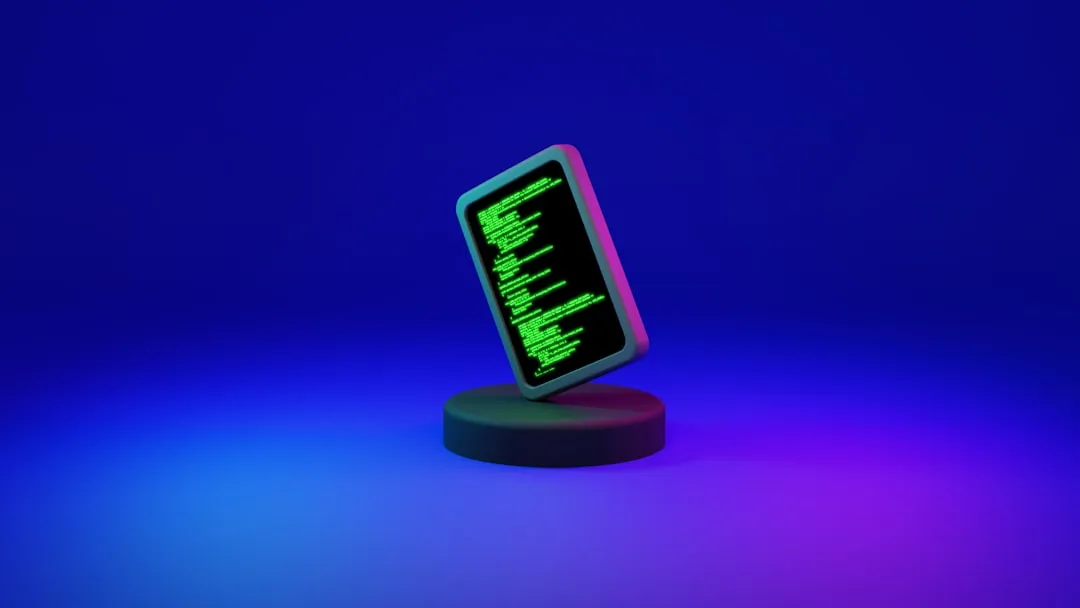
Android Canary 2603 Linux Terminal UI: What Changed and Why It Matters
Google shipped Android Canary 2603 last week, and the most significant change isn't a new Quick Settings toggle or a blur effect. The build, confirmed dropped on March 19 for Pixel 6 and later devices including the Pixel Tablet, delivers a modernized Linux Terminal interface with expanded advanced settings, per Android Authority. Google hasn't published a granular changelog of every Terminal UI tweak, but the new build visibly refreshes the Terminal's layout and surfaces more advanced controls than prior releases offered.
That refresh lands just as the Terminal is becoming more than a shell. On eligible Pixel devices running newer Android 16 builds, the Terminal can already run GPU-accelerated graphical Linux apps: GIMP, LibreOffice, Chromium, and full desktop environments like XFCE, using VirGL to translate OpenGL calls from the VM to the Android host, as MakeUseOf documented earlier this month. A better interface for a more capable tool is the logical next step. Whether Google is treating this as a long-term platform investment rather than an experiment it might quietly drop is an interpretation, but the continued build-by-build investment makes a reasonable case.
Who this affects right now: developers and Linux-fluent users on Pixel hardware willing to run pre-release software. Who it affects eventually: potentially anyone on Android, because the infrastructure Google is assembling in Canary is designed to bring Linux apps into Android's own windowing layer, not into a parallel environment sitting beside it.
What changed in the Android Canary 2603 Linux Terminal UI
The 2603 Terminal update delivers a refreshed layout and expanded advanced settings controls. Google has not documented every specific change in the build notes, and Android Authority is still working through the full list of changes as of the March 19 release. What is clear is that the Terminal continues to receive active UI investment each Canary cycle, with this build representing the most visible interface update to date.
The broader context matters here. Android 16 had already added multi-tab support for running concurrent terminal sessions and the ability to allocate device storage to the Linux VM, both documented by MakeUseOf. The 2603 UI refresh builds on that foundation rather than replacing it.
What the Terminal is, and why it's a different class of tool than Termux
Think of it as a small Linux PC running inside the phone rather than a shell app pretending to be one. The Android Linux Terminal runs a full Debian 12 virtual machine via the Android Virtualization Framework (AVF) and KVM, operating in parallel with Android apps on the same hardware, as both MakeUseOf and XDA Forums have documented.
That distinction has practical weight. Termux, the most capable prior option for Linux on Android, operates within its own custom package repositories, which ship around 2,000 packages. The built-in Terminal connects to Debian's standard package system instead. Python, Node.js, Git, htop, and a broad catalog of command-line software are all installable via apt install, without the ceiling that custom repositories impose, according to MakeUseOf.
Beyond the command line, the Terminal ships with a built-in weston display server. Running weston from the shell opens a graphical environment inside the VM, the bridge between terminal and graphical Linux app. On eligible Pixel devices, GPU acceleration via VirGL makes this genuinely usable: GIMP, LibreOffice, and Chromium run this way, as do games like Doom and OpenTTD, per XDA Forums.
Android 16 has layered practical developer ergonomics on top:
- Multi-tab support for concurrent terminal sessions
- Adjustable storage allocation for the VM, which fills up quickly once you start installing packages
- UI improvements, now refreshed further in 2603
What the Terminal cannot do, and where the limits sit
The VM's isolation from Android cuts both ways. The upside is that the Linux environment can't touch the Android installation. The downside is that it can't easily access phone files, the camera, or Android-native hardware either. Tasks routine on a physical Linux machine, like reading from local storage or piping data to Android apps, require workarounds that are not officially documented or smooth in practice, as MakeUseOf noted.
The terminal interface runs inside a WebView, which adds latency inconsistent with what a lightweight shell should feel like. Phone keyboards compound the problem. Quick SSH sessions or short scripts are workable, but anything requiring sustained command entry needs a paired external keyboard to be practical.
The practical triage for 2603:
- Try it now if you're on a Pixel with Android 16 and want a portable development environment, an SSH fallback, or a way to run graphical Linux tools without carrying a laptop
- Wait if you need file sharing with Android or camera access; those gaps are architectural, not cosmetic
- Skip it for now if you're on a Samsung or other non-Pixel device; AVF is either absent or non-functional on that hardware, as XDA Forums confirmed
This matters beyond Pixel testers because Google is embedding Linux execution at the platform level. Whether that capability reaches other OEMs depends entirely on manufacturers enabling AVF. Samsung has not done so. No timeline has been announced. That's the difference between a Pixel curiosity and a feature of Android itself.
What else changed in Canary 2603
The Terminal is the main story, but 2603 ships broader system changes. Quick Settings now has separate tiles for Wi-Fi and mobile data, letting users toggle each independently. App lock, secured with PIN, password, or fingerprint, hides notifications, widgets, and shortcuts when active; it's triggered by a long-press on any app icon. App bubbles let users float any home screen app as a moveable overlay, per Android Authority.
Additional changes include a redesigned screen recording review flow that surfaces playback, editing, deletion, and sharing in a single screen after recording stops. Long-press menus now collapse app shortcuts by default. The permission UI has been refreshed, and system UI blur has been increased.
These changes follow the pattern running through the 2026 Canary cycle. Canary 2601, released in January, reorganized settings categories, per Android Authority. The February build polished Live Updates visually, per Android Authority. The 2603 changes continue that thread, with the Terminal update as the substantive platform work underneath.
None of the 2603 changes are confirmed for Android 17 beta or stable release. Canary builds are pre-release channels for API testing and behavior change previews, not feature announcements, as Android Developers documentation makes clear.
How to get it, and what the hardware requirements actually are
Canary 2603 covers Pixel 6 and later, Pixel Fold, and Pixel Tablet. Existing Canary testers receive the update over the air. New testers must flash their device via the Android Flash Tool. One detail worth foregrounding: returning to a beta or stable channel requires a full device wipe. This is not a reversible opt-in, per both Android Developers documentation and Android Authority.
The Terminal's requirements are narrower than the Canary build itself. It needs AVF active, which is confirmed on Pixels and select Android One devices, based on community reporting from XDA Forums. Samsung devices do not currently support AVF; the Terminal app icon may appear on some of them, but the feature won't launch. A single command settles the question: getprop ro.virtualization.supported returns true if AVF is active.
Getting to the Terminal involves four steps, listed here in the order the source documents them. First, enable the experimental "Run Linux terminal on Android" slider in developer settings. Second, tap the Linux development environment option, also in developer settings. Third, if Developer Mode isn't already active, enable it by going to About Phone and tapping Build Number seven times. Fourth, download the VM image, roughly 500 to 600 MB, before first launch, per MakeUseOf. The setup friction is real but one-time. After that, the VM persists between sessions.
The two things worth watching next
Google's stated intent is on record. A Google engineer confirmed in a public issue tracker post, cited by Android Authority in March 2025, that the Terminal's purpose is to bring Linux apps, tools, and games into Android, explicitly not to introduce a separate desktop environment. The goal, as the engineer described it, is Linux apps rendering inside Android's windowing layer alongside native apps. Canary 2603's UI and settings update advances that project.
The feature remains experimental, gated behind Pixel hardware, developer settings, and a setup process that includes a full device wipe to exit.
Two milestones will determine whether this story expands beyond a narrow audience. First, whether Terminal improvements reach the Android 17 beta. Second, whether any OEM enables AVF by default. That second one is the bigger structural question: without other manufacturers enabling AVF, the Terminal stays a Pixel feature regardless of how good it gets. Neither milestone has arrived. Until one does, the Android Linux Terminal is a credible platform signal and a genuinely capable tool for a specific kind of user, and 2603 is the clearest evidence yet that Google intends to keep building it out.



Comments
Be the first, drop a comment!