





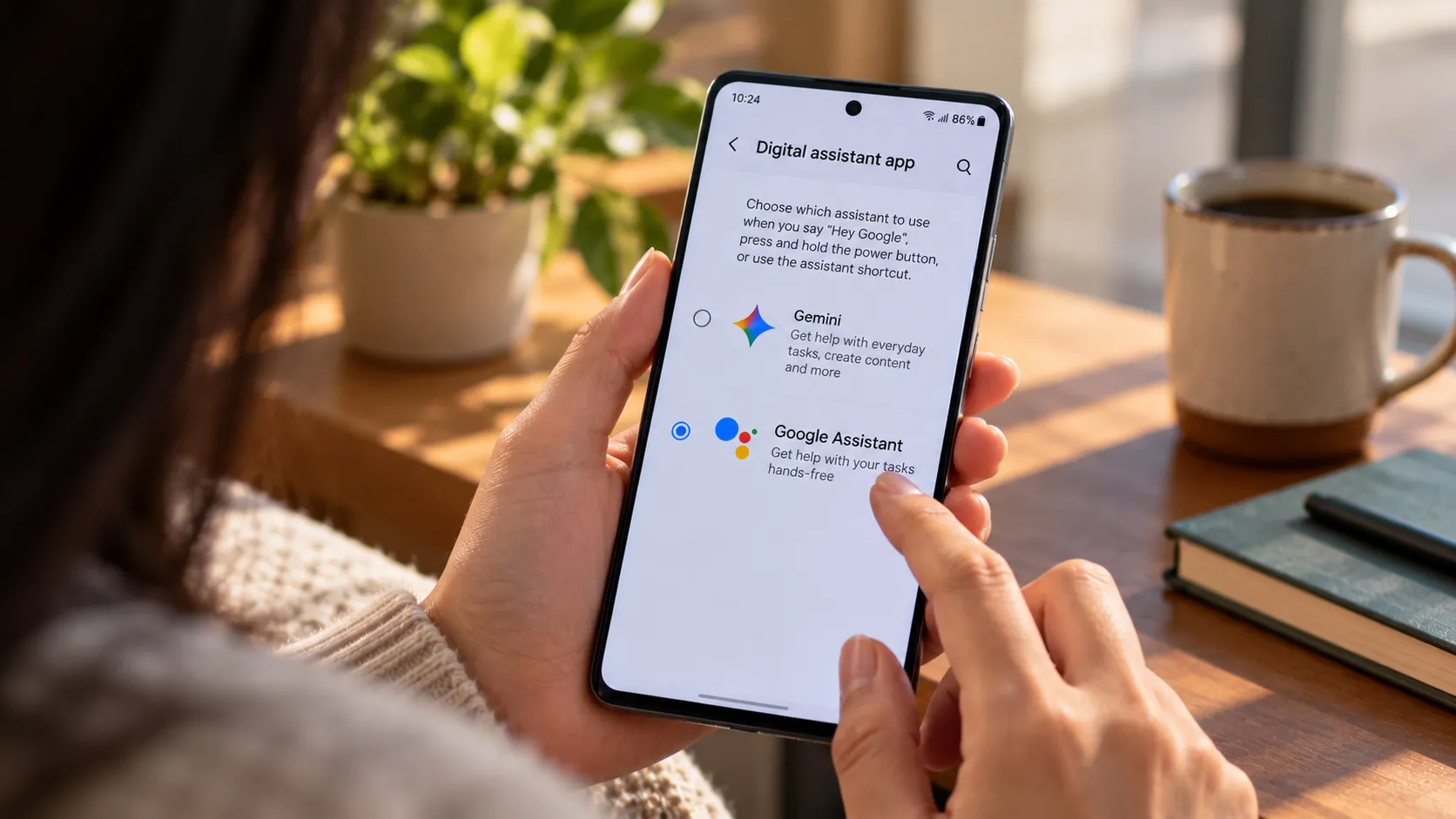
A Reddit post covered by Android Authority describes a workaround to switch from Gemini back to Google Assistant by uninstalling updates to the Google app and then reopening the Assistant listing in the Play Store. It isn't an official Google procedure, and the reporting doesn't establish which phone models or Android versions it works on.
However, there's a simpler option to try first. Google's official Gemini help documentation still describes a built-in setting for switching back to Google Assistant. If that option is available on your phone, there's no need to roll back the Google app.
Some context before anyone touches a setting: Google announced in March 2025 that classic Assistant would eventually stop working on most mobile devices and disappear from app stores entirely. One exception from Google's announcement was that phones not meeting Gemini's minimum system requirements would keep Assistant unchanged at that time.
If you're on older or budget hardware and Gemini never took over your phone in the first place, none of this applies to you.
For everyone else, this guide covers the official switch to try first, lower-risk Gemini settings fixes, the reported rollback workaround, and how to confirm the switch actually worked.
What this workaround does and doesn't change
This is primarily a phone-level change. It affects which assistant responds when you say "Hey Google," long-press the power button, or use an assistant shortcut.
It isn't confirmed to restore Assistant on Nest and Home speakers, Android Auto, or other connected devices, which Google has described as separate parts of its migration to Gemini.
Worth being precise about what "uninstall updates" actually means, too.
You're not deleting the Google Assistant app or permanently removing the Google app from your phone. You're reverting the Google app itself, which handles Search, Discover, and assistant-related functions, to an older factory version.
The reported workaround uses that older version to reopen Assistant's setup flow.
The method traces back to a Reddit post covered by Android-focused publications. There's no Google support document endorsing the rollback as a way to restore Assistant, and the reported fix shouldn't be treated as permanent.
The reporting doesn't establish which phone brands, Android versions, regions, or Google app versions it works on.
Reverting the Google app also has implications beyond the assistant switch. It can temporarily remove app updates, fixes, and features, and the available reporting doesn't establish exactly how it affects Search, Discover, or account behavior.
If your actual complaint is voice-command reliability or a missing integration rather than Assistant specifically, try the settings fixes below first.
If you specifically want to bring back Google Assistant as your default, start with Google's documented switching option before considering the rollback.
Try the official switch and built-in Gemini fixes first
Google still documents a way to switch from Gemini to Google Assistant without uninstalling updates.
To try it:
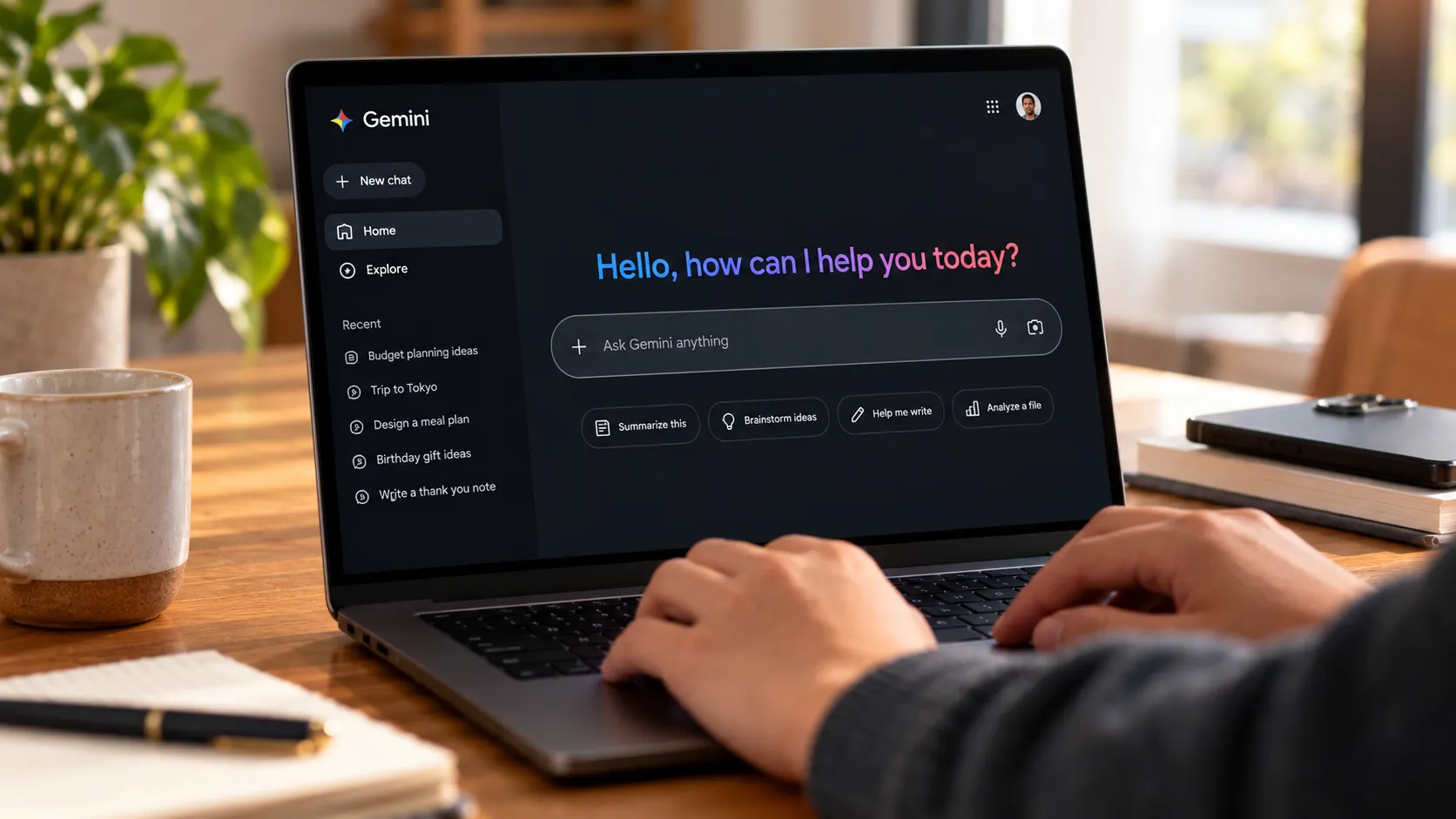
Open the Gemini app on your Android phone.
Open the menu, then tap your profile picture or initial.
Select Switch to Google Assistant.
Choose Google Assistant and tap Switch to confirm.
Google says the change makes Assistant respond to "Hey Google" and supported touch shortcuts instead of Gemini.
Menu placement may vary by app version. If the option isn't visible, check whether Gemini and the Google app are updated before assuming the setting has been removed.
Not every Assistant-to-Gemini complaint requires switching assistants, either.
If "Hey Google" detection feels broken or missing, open Gemini's settings and look for Talk to Gemini hands-free, then enable it. You may also need to redo Voice Match.
If music, calendar, or note integrations stopped working, open the Gemini app and go to Settings > Personal Intelligence > Connected Apps. Check the services you rely on, such as Google Workspace, YouTube Music, or Spotify, and connect them if available.
These settings may resolve specific voice-command or integration problems without changing your default assistant.
If the official switch works, you can skip the rollback entirely.
How to switch from Gemini back to Google Assistant using the workaround
This alternative applies to phones where Gemini has already replaced Assistant as the default and the official switching option is unavailable or doesn't work.
Results are unconfirmed across Android manufacturers, versions, and regions.
Before starting, check which assistant currently responds to your usual voice or button shortcut. You can also inspect Settings > Apps > Default apps > Digital assistant app, although that menu may show the Google app as the assistant provider rather than distinguish Gemini from Google Assistant.
Check your Google app's current version on its app information page. If the workaround causes problems later, you can update through the Play Store to restore a current build, though not necessarily the exact version you started with.
Go to Settings > Apps > Google, tap the three-dot menu, and select Uninstall updates. You can also long-press the Google app icon and tap App info to reach that screen.
Open the Google Assistant listing in the Play Store. According to the reported workaround, this should launch a setup screen that prompts you to try Gemini.
Decline Gemini and choose to open Assistant instead. This may set Google Assistant as the default, sometimes triggering a prompt to choose between Assistant and Gemini.
Menu names and locations vary by manufacturer, so your phone's Settings app may label things differently.
If Uninstall updates doesn't appear, or the Assistant setup screen doesn't offer a choice, don't assume the method will work on your phone.
The steps above are a reported workaround, not instructions Google has officially endorsed.
How to confirm Assistant is actually active
Don't assume the setup screen alone means the switch worked. Run through these checks before trusting the new default:
Say "Hey Google" and confirm Assistant, not Gemini, responds.
Set a timer by voice command.
Try a music-playback command.
Test a smart-home voice command if you use one regularly.
Reopen Gemini's assistant-switching controls, if available, to check which assistant is selected.
These are recommended checks, not proof that Assistant behaves exactly as it did before Gemini arrived.
Also remember that Android's default digital assistant setting may identify Google as the provider without showing whether Gemini or classic Assistant is active. Testing the actual response is more useful than relying on that label alone.
If Assistant doesn't stick
If Assistant never appears after the rollback, or it reverts to Gemini shortly afterward, update the Google app again through the Play Store.
You can then restore Gemini through the Google app's assistant settings.
Google's documentation describes opening the Google app, going to Settings > Google Assistant > Digital assistants from Google, selecting Gemini, and following the prompts.
Some Android versions also expose that choice through the device's Settings app.
Confirm the assistant actually changed afterward rather than assuming the setup completed successfully.
A future Google app update could remove the workaround or change how it behaves. The available reporting doesn't establish when that might happen or whether the rollback will continue working on any particular device.
What this won't restore
If your real frustration is with smart-home routines rather than your phone, this rollback isn't a reliable solution.
Google's Gemini for Home rollout is separate from the phone's default-assistant setting.
Changing the assistant on your Android phone doesn't establish that Google Assistant will return to Nest speakers, smart displays, or other home devices that have already migrated.
Android Police has also reported problems with music playback, typed commands, and routines during its hands-on experience with Gemini for Home.
If that's your situation, check the affected devices and routines directly rather than expecting a phone-level switch to restore their previous behavior.
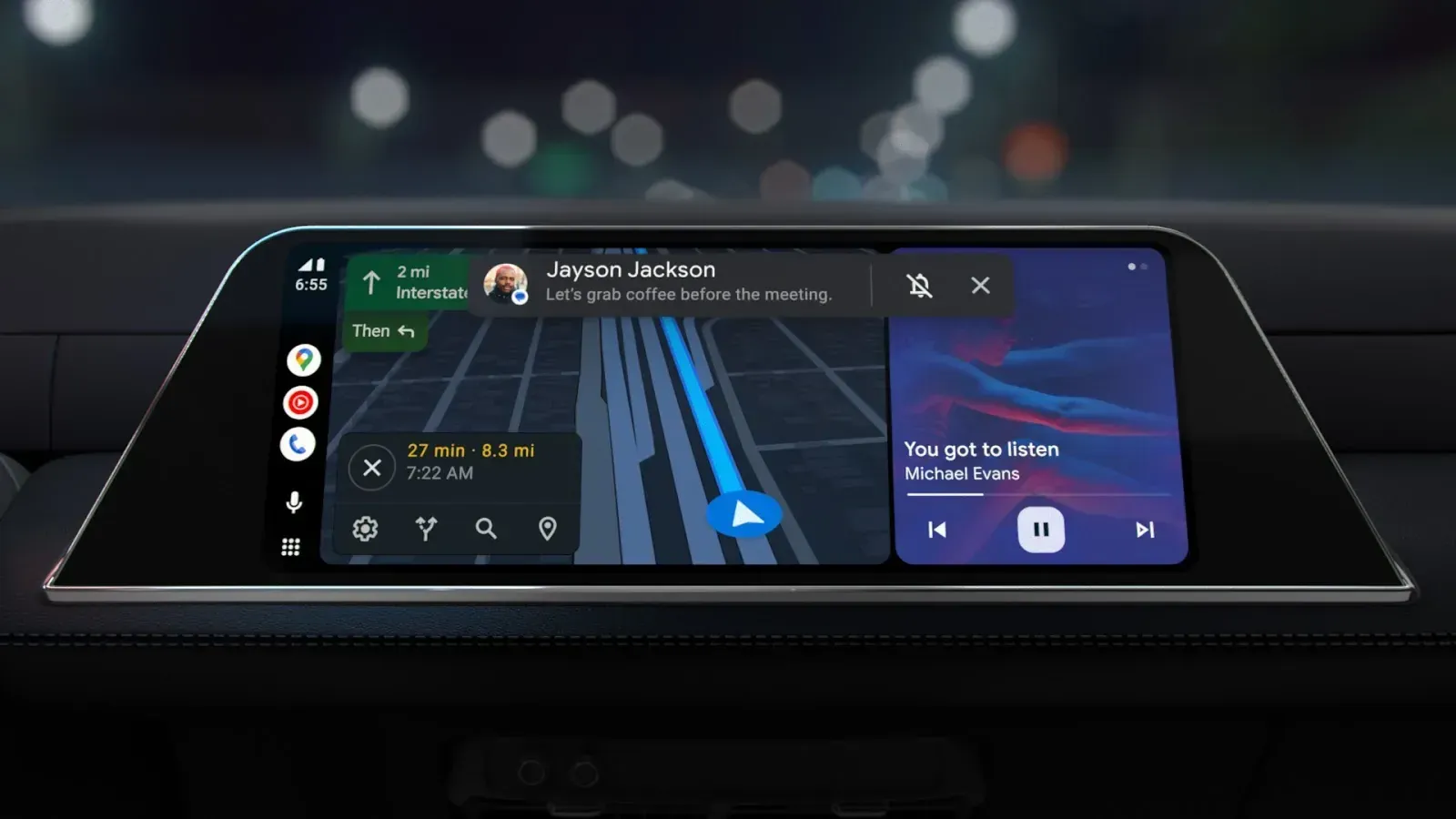
The same caution applies to Android Auto, watches, and connected headphones. Google has been migrating different device categories on separate timelines, so a successful phone rollback shouldn't be treated as confirmation that Assistant has returned everywhere.
What to do now
Try Google's official Switch to Google Assistant option first. It's the simplest documented route and doesn't require reverting the Google app.
If the real problem is hands-free detection or a missing integration, check Gemini's voice and Connected Apps settings before changing assistants.
If you specifically need Google Assistant and the official switch isn't available, the reported Google app rollback is a fallback worth approaching cautiously.
Run through the verification checks rather than trusting the setup screen alone. If Assistant doesn't appear, or the rollback causes other problems, update the Google app again and restore Gemini through Settings.
This is a user-reported workaround, not a Google-supported procedure, so don't count on it surviving future updates indefinitely.
Google's longer-term plan remains to replace classic Assistant on supported mobile devices. For now, though, its help documentation still describes an official way to switch back, making that the first option to check before attempting a rollback.






Comments
Be the first, drop a comment!