



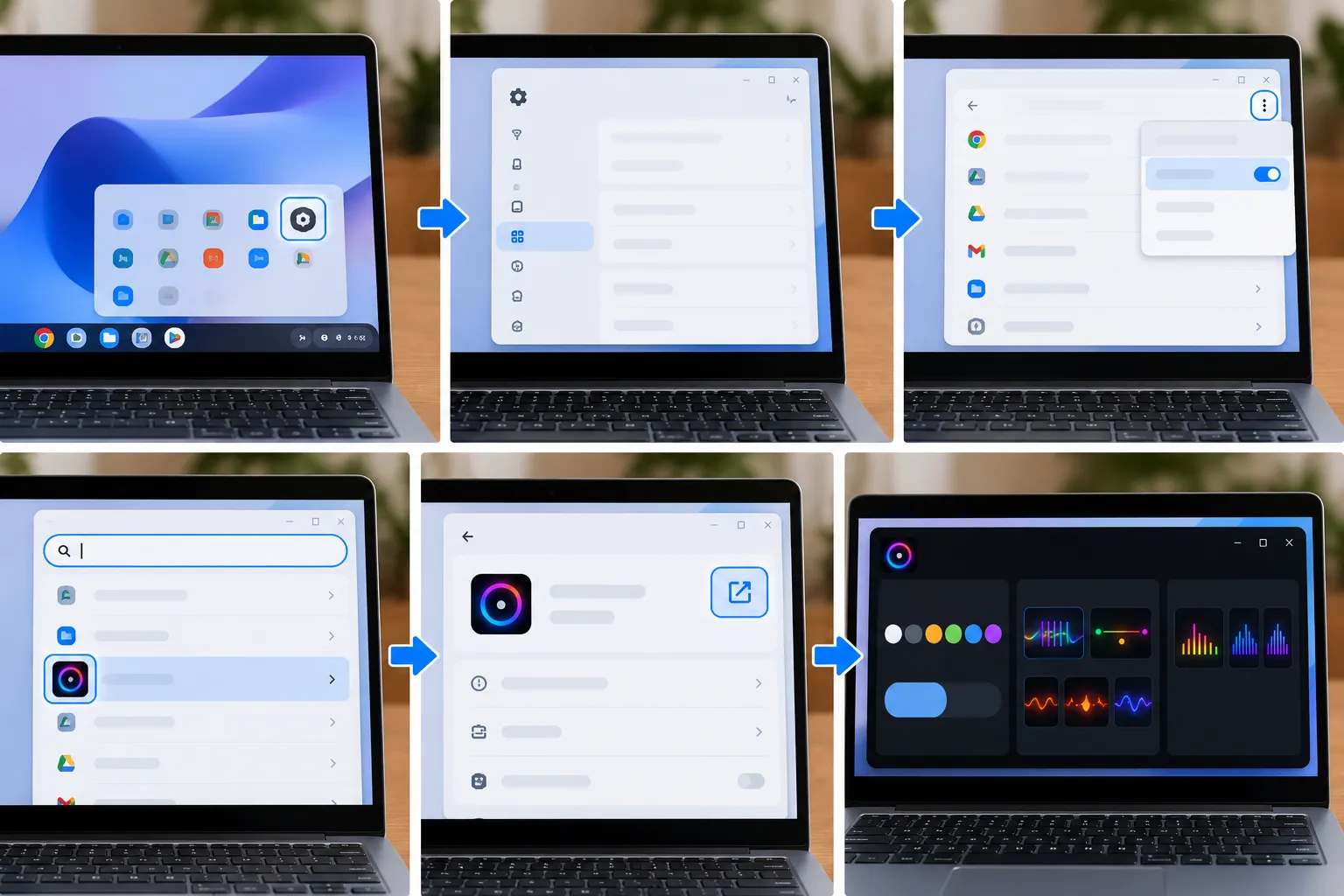
The Glowbar, the light strip built into the lid of Googlebook laptops, normally shows information such as battery status and Gemini activity. A hidden system app called Glowbar Disco turns that same strip into a customizable, music-reactive light show, and figuring out how to find Glowbar Disco on Googlebook means digging past the regular app launcher into the system settings menu.
Google doesn't appear to have published a support page documenting Glowbar Disco, but Chrome Unboxed, Android Authority, and 9to5Google all describe the same route to the app.
Google's Alexander Kuscher, Senior Director of Product for Laptops and Tablets, named Glowbar Disco his favorite Glowbar feature during an interview on Android Faithful, describing it as an app "hiding somewhere" on the device. 9to5Google later reported that Kuscher acknowledged it might be "too hard to find."
Android Authority had also caught a glimpse of the effect earlier, during hands-on time with Googlebooks, noticing an audio-reactive mode Google declined to explain at the time. Kuscher's interview confirmed there's an actual hidden app behind it, turning the lid's status light into something closer to a secret light show the owner controls.
Chrome Unboxed subsequently published the settings path, and Android Authority credited the outlet with revealing how to reach the app. What follows covers those steps, what each panel does, and why it's worth trying without expecting it to become a permanent lighting setting, since it has no launcher shortcut and the effects stop when the app closes.
How to find Glowbar Disco on Googlebook in settings
Here's how to open Glowbar Disco on a Googlebook, step by step. The whole process happens inside the stock Settings app.
Open Settings on the Googlebook.
Select Apps, then choose See all apps.
Open the three-dot menu in the top corner and select Show System.
Type Glowbar Disco into the search bar.
Select the Glowbar Disco result, then click the Open icon in the top-right corner of the app info screen.
That sequence matches the instructions published by Chrome Unboxed and Android Authority and the shorter route described by 9to5Google.
What to expect once Glowbar Disco is running
Glowbar Disco doesn't appear in the standard app launcher, so there's no normal launcher shortcut to use next time. 9to5Google reports that accessing it again requires repeating the Settings process.
The effects remain active while the machine is on and the Disco app is open. Closing the app stops them. The available reporting doesn't establish whether individual choices are remembered between sessions, so don't assume a selected color or animation will persist after reopening the app.
What to do if Glowbar Disco doesn't appear
First, confirm that Show System is enabled in the three-dot menu and search for the full name Glowbar Disco.
Beyond that, there isn't a documented troubleshooting path. Chrome Unboxed says Glowbar Disco is hidden inside the system settings of new Googlebooks, but the reporting doesn't provide a download method or alternative installation procedure if the app isn't present.
If the steps were followed correctly and the app still doesn't show up, don't install unofficial software or dig into system files in an attempt to force it onto the device. Nothing in the reporting establishes that as a supported workaround.
A factory reset isn't documented as a fix either. If an OS update changes the location or availability of the app, the steps above may also change.
What remains unknown about Glowbar Disco
The current reporting establishes where Glowbar Disco is located and what its controls do, but Google doesn't appear to have published dedicated support documentation for the feature.
Chrome Unboxed describes the app as being inside "every new Googlebook," but the available coverage doesn't provide a model-by-model compatibility list or document whether software updates could change its availability or location.
Kuscher's comments on Android Faithful confirm Google built the app intentionally. For an individual Googlebook, searching the system-app list remains the quickest way to verify that the app is available on the device.
Googlebook Glowbar light strip settings: what you can customize
Once it's open, Glowbar Disco splits into three sections: Glowbar Theme, Preset Animations, and Music Sync.
Glowbar Theme offers seven colors: white, gray, coral, yellow, green, blue, and purple. A separate control switches the strip between a solid color and a gradient.
Preset Animations includes six patterns: Firebird, Fire, Rainbow, Vibe Code, Strobe, and Pong. The panel also carries the playful warning, "Careful, you may become too cool."
Music Sync adds three modes: VU Meter, Spectrum, and Disco. These make the Glowbar respond to system audio in real time. Google labels the feature experimental and warns that results may vary.
Solid colors and gradients are the simplest options to try first. Preset Animations provide self-running effects, while Music Sync is the option specifically designed to respond to whatever audio is playing on the laptop.
The reporting doesn't establish how Music Sync performs across different audio sources or volume levels, so its experimental label is worth keeping in mind.
Why the Glowbar exists
Kuscher told Android Faithful that Google wanted Googlebook models to share one recognizable design element rather than simply adding another logo to the lid. Hardware partners built the physical strip, while Google handled the software.
Chrome Unboxed also reported a detail behind Glowbar Disco itself: during Google's initial Googlebook preview event, Kuscher said a team member built the app by "vibe coding" it directly on a Googlebook. That provides some context for the Vibe Code animation preset included in the app.
The Glowbar wasn't purely decorative before Disco showed up. It already provides status information, including battery and Gemini activity.
Google also plans to let developers tap into the Glowbar for their own app experiences, according to Kuscher's comments reported by Android Authority. The reporting doesn't establish a public developer API or release timeline yet, so that remains a future plan rather than something third-party developers can rely on today.
Check your own Googlebook
The fastest way to find Glowbar Disco is to open Settings > Apps > See all apps, select Show System from the three-dot menu, and search for Glowbar Disco. If it appears, the Theme, Preset Animations, and Music Sync sections provide the controls documented so far.
If the app doesn't appear after double-checking the system-app view and search term, there's no documented workaround to apply. Waiting for updated guidance or an OS update is safer than installing unofficial software or modifying system files.
And if persistent Glowbar lighting without keeping the Disco app open sounds more useful, that isn't what Glowbar Disco currently provides. 9to5Google says closing the app stops its effects, while Google's broader developer access remains a future plan rather than a currently documented feature.







Comments
Be the first, drop a comment!