




Your Google Pixel phone comes with powerful gesture controls that can transform how you navigate your device. Whether you're a long-time Android user or new to the Pixel ecosystem, understanding how to enable or disable these navigation gestures can significantly impact your daily phone experience. Google has made gesture navigation the default on most modern Android devices, according to Android Police, and this system has been available since Android 10's launch in 2019. However, many users remain unaware that traditional navigation buttons are still an option, as BGR notes, giving you the flexibility to choose what works best for your usage style.
Finding your navigation preferences
The location of navigation settings on your Pixel phone depends on which version of Android you're running. For devices with Android 14, Google has moved the setting to a more accessible location under Display settings. You'll find the option by opening Settings, selecting Display, then tapping Navigation Mode where you can choose between Gesture Navigation and 3-button navigation. On older Android versions (13 and earlier), the path differs slightly - you'll need to go to Settings, scroll to System, tap Gestures, then System Navigation to access the same options.
The official Google support documentation confirms that you can select between two main options: Gesture navigation (which removes visible buttons) and 3-button navigation (which provides dedicated Home, Back, and App Overview buttons). This choice fundamentally changes how you interact with your device, so it's worth understanding what each option offers before making the switch.
PRO TIP: If you're unsure which method to try first, consider your current smartphone experience. Users coming from iPhones often adapt quickly to gesture navigation, while those upgrading from older Android devices may prefer starting with familiar button controls.
Mastering gesture navigation controls
Once you've enabled gesture navigation, your Pixel phone responds to specific swipe patterns instead of button taps. The most essential gesture is returning to your home screen, which requires swiping up from the bottom of the screen. Going back to previous screens involves swiping from the left or right edge of the screen, and in some screens you may see an on-screen preview or visual cue that shows where the back gesture will take you.
Accessing your recent apps becomes a two-step process with gestures. You'll need to swipe up from the bottom, hold briefly, then release to see all your open applications. For quick app switching, there's a handy shortcut where swiping left or right on the bottom gesture bar cycles through your most recently used apps. Google has also implemented predictive back gestures on Android 14 devices, which preview what will appear when you complete your swipe, making navigation more intuitive.
The key to mastering gestures is understanding the timing - hold gestures need that brief pause to register properly, while quick swipes should be smooth and deliberate. If you find gestures triggering accidentally during normal app use, you can adjust the sensitivity settings to require more intentional swipes.
Working with traditional button navigation
If gestures feel unnatural or you prefer the precision of dedicated buttons, the 3-button navigation system provides a familiar experience. This layout includes three buttons for Home, Back, and App Overview, positioned at the bottom of your screen. Navigation becomes straightforward: tap Back to go to previous screens, tap Home to return to your main screen, and tap Overview to see all open apps.
The button system offers more predictable behavior, especially when using apps that might interfere with edge swipes. Switching between apps requires tapping Overview and then swiping through the app cards until you find what you need. While this takes more steps than gesture navigation's quick swipe method, many users find the visual confirmation of buttons more reliable for critical actions.
Button navigation excels in specific scenarios: when wearing gloves, using screen protectors that affect touch sensitivity, gaming applications where edge swipes conflict with controls, or when frequently sharing your phone with others who aren't familiar with gesture controls. The consistent, tactile feedback makes buttons particularly valuable for accessibility needs.
Advanced gesture features and customization
Beyond basic navigation, your Pixel phone offers additional gesture controls that work regardless of your navigation preference. The double-tap power button feature opens your camera from any screen, while the camera twist gesture switches between front and rear cameras when the camera app is already open. These hardware-based gestures complement your chosen navigation method.
Google provides some customization options for gesture navigation users. You can adjust sensitivity settings and control whether corner swipes activate Google Assistant. Recent updates have also addressed navigation issues that some users experienced, with Google's August 2025 update specifically fixing unresponsive gesture and button navigation problems that affected various Pixel models.
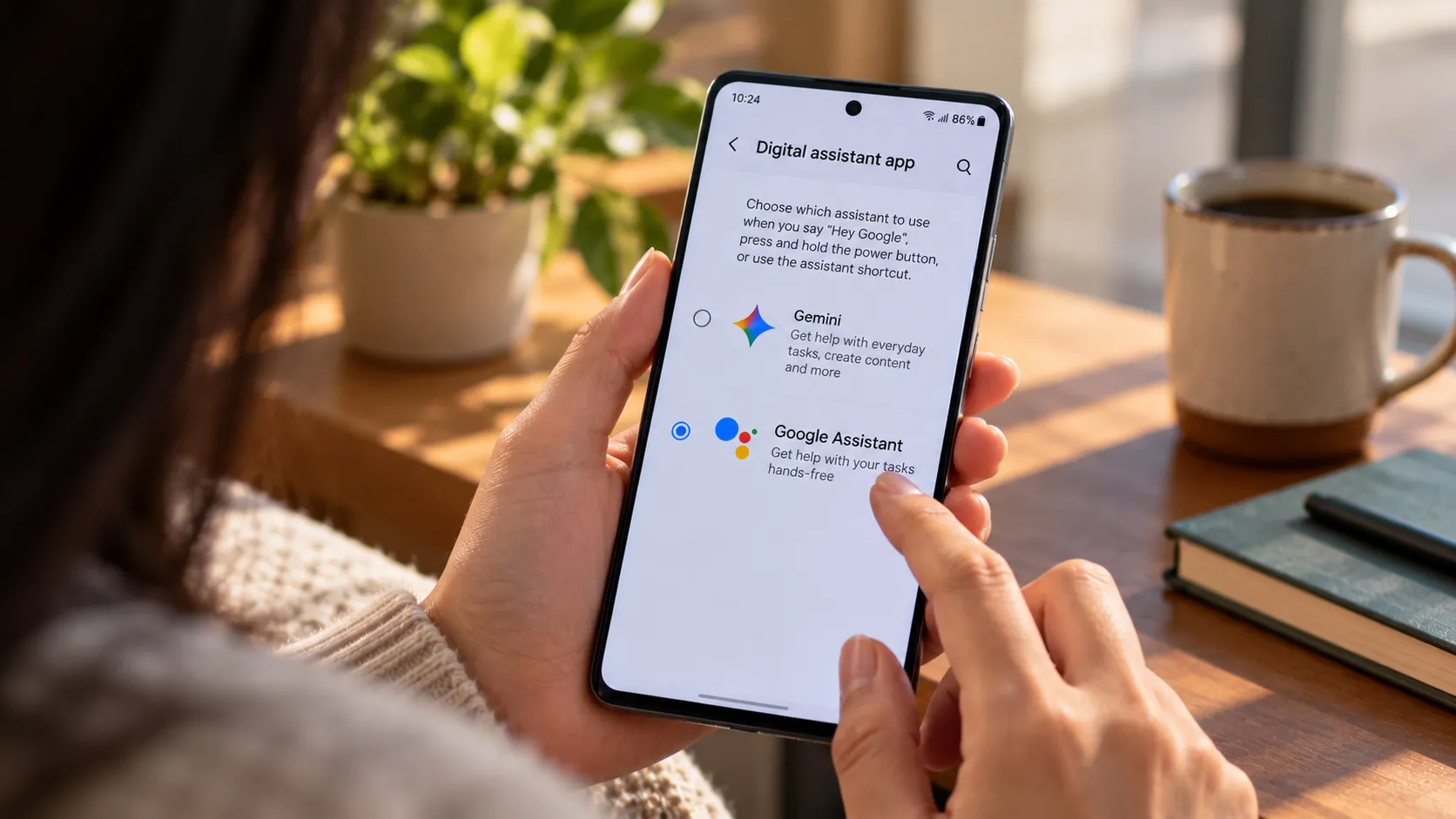
Corner swipe activation for Gemini AI creates a particularly useful workflow - diagonal swipes from bottom corners launch the assistant in a compact text box, allowing quick queries without interrupting your current app. This feature works especially well for translation requests, quick calculations, or setting reminders while browsing or reading.
Making the right choice for your workflow
The decision between gesture and button navigation often comes down to personal preference and usage patterns. Gesture navigation offers a more immersive experience with additional screen real estate, since it removes visible buttons from your display. However, some users find the learning curve steep, especially when apps don't properly support gesture navigation or when precision is crucial for work tasks.
Remember that you can switch between navigation methods anytime without affecting your apps or data. Google has maintained both options specifically because user preferences vary widely. Consider your primary use cases: if you frequently watch videos, read articles, or use creative apps, gesture navigation's extra screen space provides genuine value. If you prioritize speed, precision, or share your device often, button navigation's consistency may serve you better.
The beauty of Pixel phones lies in this flexibility - you're not locked into a single interaction method. Try gesture navigation for a full week to overcome the initial learning curve, then switch to buttons for another week. Your daily usage patterns will quickly reveal which approach feels more natural and efficient for your specific needs.






Comments
Be the first, drop a comment!