





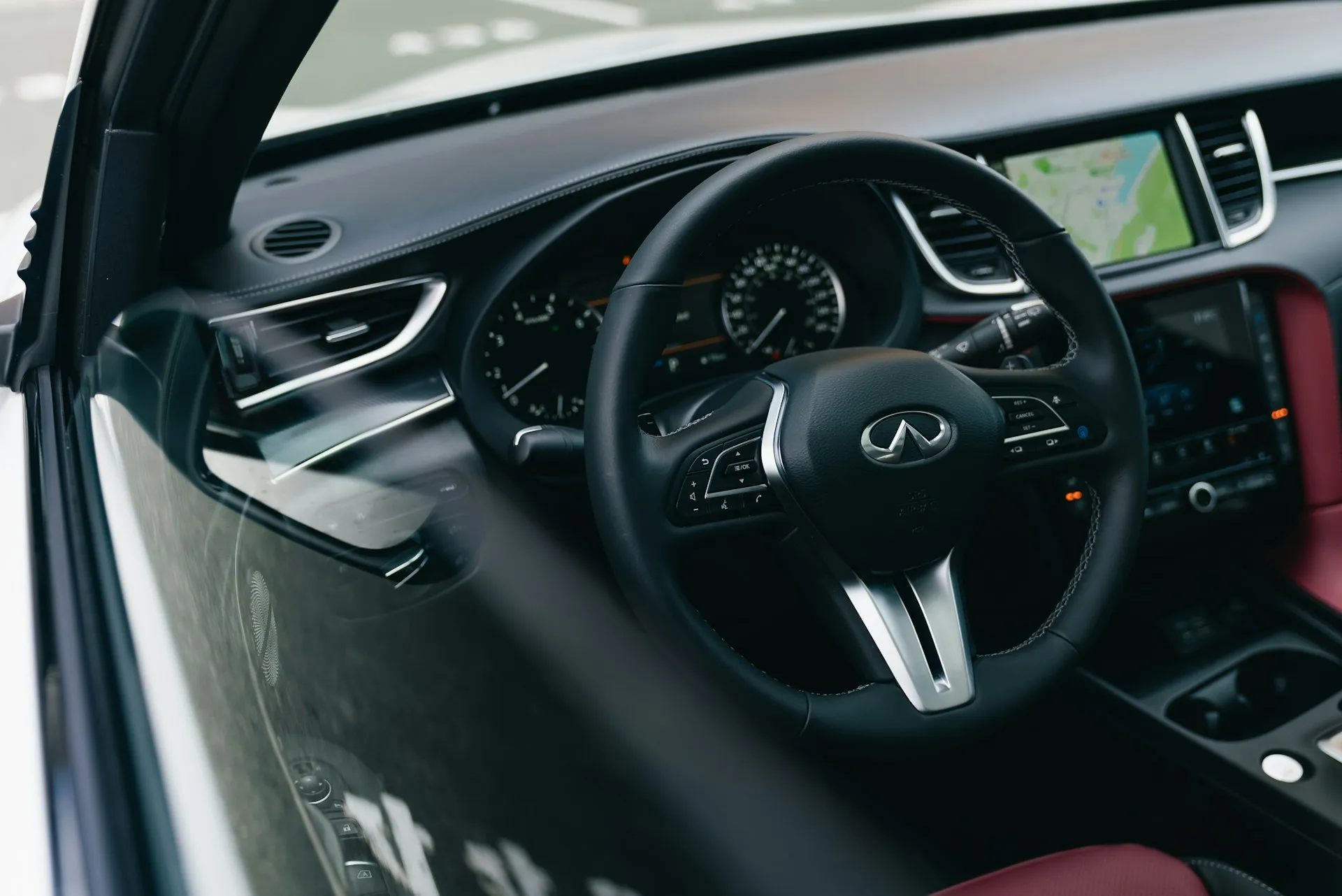
When you've got Android Auto's display brightness randomly bouncing between day and night modes, it's like having a strobe light in your dashboard when all you want is a smooth, comfortable drive.
This frustrating brightness confusion happens because Android Auto's automatic brightness and day/night features get mixed up by your car's lighting sensors, creating scenarios where driving with bright display themes during nighttime can be genuinely distracting and potentially dangerous. Imagine squinting through a blazing white navigation screen at 11 PM while your headlights are clearly on. Here are solutions from users that actually work.
The root cause: when car sensors go rogue
Let's break down what's really happening behind the scenes. Your Android Auto display brightness depends on a delicate dance between your phone's settings, the car's ambient light sensors, and your infotainment system's own brightness controls.
The problem often stems from car light sensors being overly sensitive, constantly detecting shadows during daytime driving, and triggering inappropriate mode switches. One user perfectly described the issue: their light sensor keeps "picking up shadows during the day as the sun angle is low now, throwing my headlights on and the AA screen into night mode."
This becomes particularly maddening with newer vehicles that have automatic headlight systems. The car's sensors interpret every passing shadow or underpass as nighttime, causing the display to flicker between modes during normal daytime driving.
Modern automatic headlight systems are designed to be highly responsive to lighting changes for safety reasons, but this sensitivity creates a cascade effect where, unless the dashboard dimmer dial is adjusted to less than maximum brightness, navigation apps will stay in blindingly bright daytime mode even after sunset when auto-headlamps have clearly activated.
The underlying technical issue is that some vehicles have built-in systems that override Android Auto settings, essentially creating a hierarchy where the car's interpretation of lighting conditions takes precedence over your phone's smart detection algorithms. This explains why adjusting settings on your phone sometimes feels completely ineffective—your car is actively countermanding those instructions based on its own sensor readings.
The dashboard dimmer trick that changes everything
Here's the solution that solved my problem and has worked for countless other frustrated Android Auto users: adjust your car's dashboard brightness control. This might sound too simple to be true, but multiple users have confirmed that turning down the dashboard illumination from the brightest setting by just one notch can immediately fix the issue. The key insight here is understanding that when your dashboard brightness is maxed out, it bypasses the car's ambient light sensor entirely in some vehicles.
One user described this: "It was set on the dot, which keeps it at max brightness at all times and bypasses the sensor in the car that can tell if how bright it is outside." But here's the brilliant part—you don't need to make your dashboard uncomfortably dim. If you take it off the absolute maximum setting but keep it at the max setting just above it, you activate the sensor.
This solution works because manufacturers designed these systems with a specific logic: maximum brightness setting equals manual override mode. When you're at the absolute maximum, the car assumes you want manual control and disables automatic adjustments.
By moving just one click away from maximum, you're telling the car's computer, "Use your sensors to make intelligent decisions about brightness based on actual lighting conditions." Some infotainment systems are reactive to the brightness level of your car's dashboard, and if set to maximum brightness, the system may perceive that it is always daytime.
For Toyota owners specifically, there's an additional car-specific step that's proven effective. With your lights turned on, navigate to Menu > Display > Day Mode and set it to "Off". This Toyota-specific solution addresses the manufacturer's particular implementation of day/night mode controls, which can override Android Auto's natural switching behavior.
Android Auto app fixes and developer settings
Beyond car-specific adjustments, several Android Auto app configurations can resolve stubborn brightness issues. The first step is navigating to your phone's Settings > Apps > Android Auto > Advanced Settings to locate the "Day/Night Mode for Maps" option, ensuring it's set to "Automatic" rather than being permanently locked to day or night mode. If automatic mode isn't working properly, temporarily setting it to "Night" can help you identify whether the issue lies with the automatic detection system or the night mode functionality itself.
The Android Auto developer mode contains some useful troubleshooting options, though results can be mixed. Forum discussions reveal that enabling developer mode and setting the day/night control to "Car Controlled" can resolve conflicts between phone-based and vehicle-based brightness management systems. This setting tells your phone to defer to the car's sensor readings rather than trying to make its own lighting decisions. However, some users report that developer mode changes only work temporarily and revert when the app is restarted, making this more of a diagnostic tool than a permanent fix.
Keeping your Android Auto app updated is absolutely crucial for resolving brightness conflicts. Compatibility issues between outdated versions and newer phone operating systems can prevent proper brightness switching. There was actually a bug in Maps a while ago that caused the day/night to be ignored, with some users stuck on night and others always stuck on day. That was fixed in an update, demonstrating how critical staying current with updates can be for maintaining proper functionality.
Additionally, clearing the app's cache through Settings > Apps > Android Auto > Storage & Cache can resolve corrupted settings that might be interfering with automatic brightness adjustment. This process essentially gives the app a fresh start with its brightness detection algorithms.
Navigation app-specific solutions
Sometimes the issue isn't with Android Auto itself but with individual navigation apps that have their own brightness preferences. For Google Maps users, the fix involves opening the Maps app on your phone, tapping your profile image, going to Settings > Theme, and setting it to "Always in Dark Theme" if automatic switching isn't working properly. This creates a manual override that forces the app into dark mode regardless of what other systems are trying to tell it to do.
Waze users have a similar override option: open the Waze app, go to Settings > Map Display > Dark Mode, and set it to "On" or "Only at Night" depending on your preference. These app-specific settings can sometimes override system-level brightness controls that might be malfunctioning, essentially creating a backup plan when automatic systems fail you.
It's worth noting that third-party apps related to display settings can sometimes interfere with Android Auto's brightness functionality. Common culprits include blue light filter apps like Twilight or f.lux, screen dimming utilities, and even some battery optimization apps that modify display behavior. If you've installed any of these types of applications, try temporarily disabling them to see if they're creating conflicts with Android Auto's natural brightness detection systems.
Take back control of your display
The Android Auto brightness issue might seem like a minor annoyance, but driving with inappropriate brightness levels during nighttime can be genuinely dangerous due to glare and distraction. Beyond the safety implications, the constant flickering between modes disrupts navigation focus and can cause eye strain during longer drives. After testing multiple solutions, the dashboard brightness adjustment has proven most effective across different car models and Android Auto versions, with users reporting immediate success after making this simple change.
What's particularly fascinating is understanding the engineering logic behind this solution. Car manufacturers designed brightness controls with the assumption that maximum setting equals "I want manual control," while any setting below maximum means "use intelligent automation." This design philosophy makes perfect sense for accessibility—some drivers need maximum brightness due to vision requirements—but it creates confusion for users who simply want the brightest possible automatic setting.
Remember to consult your car manual for model-specific brightness controls, as different manufacturers implement these features with varying interfaces and terminology. The key insight is recognizing that this isn't just a software problem—it's a hardware integration challenge that requires understanding how your specific vehicle communicates lighting conditions to Android Auto.
Pro tip: Start with the dashboard brightness adjustment first, as it's the most commonly successful solution and doesn't require any app modifications. Test your solution during both day and night driving to ensure it works properly in all conditions—sometimes the automatic switching takes a few minutes to activate after lighting changes. If the dashboard fix doesn't work, then move systematically through Android Auto app settings and individual navigation app configurations. Most importantly, be patient with the system; modern cars often have multiple sensors and computer systems that need time to synchronize their readings before making brightness decisions.





Comments
Be the first, drop a comment!