





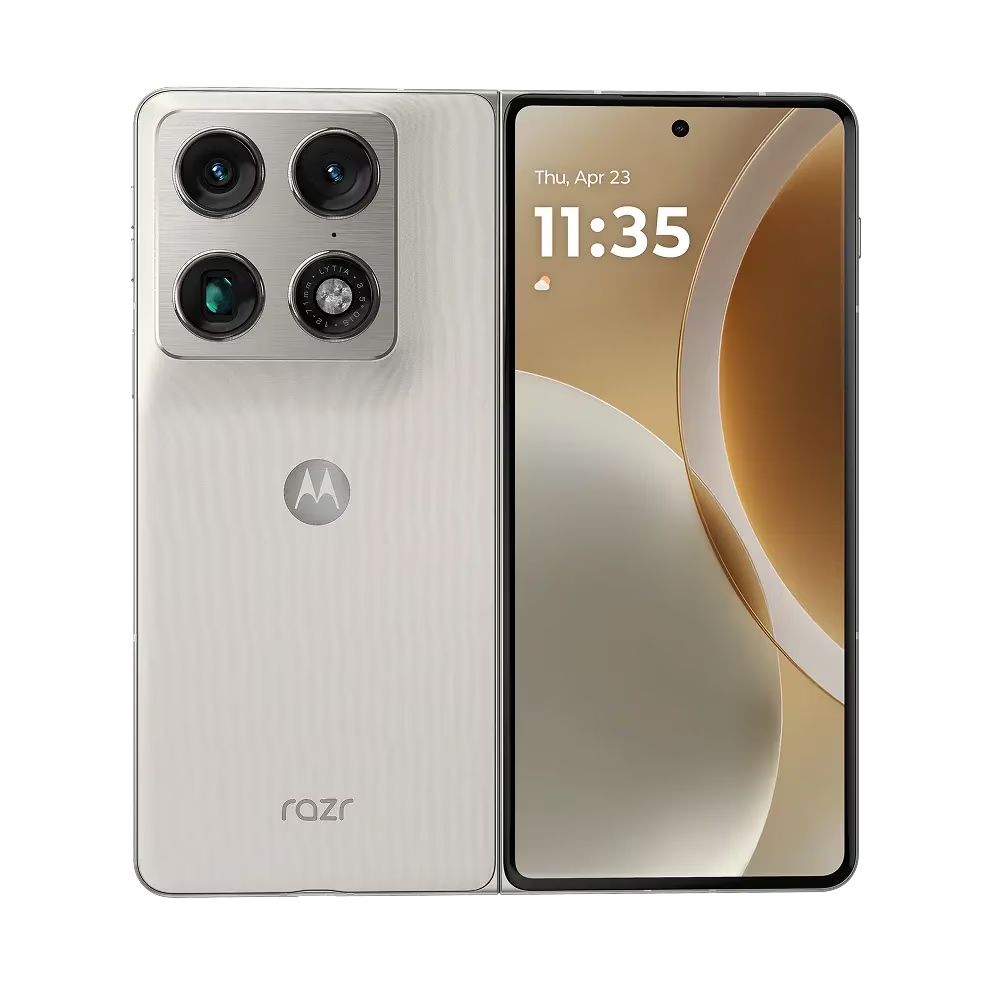
The Razr Fold has one clear hardware distinction over Samsung's Galaxy Z Fold7: active stylus support on both of its displays. The Moto Pen Ultra features on Razr Fold span handwritten notes and pressure-sensitive sketching to on-screen search and cross-device syncing. The Galaxy Z Fold7, at $1,999, offers none of it.
Not every pen feature has been equally verified, though. Notes and sketching are the two use cases most consistently highlighted in full reviews, while several shortcut and utility features have now also been tested hands-on. Others still come mainly from Motorola's own documentation. This guide covers all six, ordered from most proven to least, and flags the difference at every step.
A few hardware facts worth establishing once. The pen works on both the 8.1-inch inner display and the 6.6-inch outer screen, PCMag confirmed in its review. It ships with 4,096 pressure levels, tilt detection, palm rejection, a side button, replaceable tips, and a 6-axis motion sensor. The inner display's near-square 8:7.2 aspect ratio is proportioned for multitasking and document-style input rather than widescreen media consumption. These traits apply across all six uses and won't be restated in each entry.
Before you start: setup, carry, and what the pen actually costs
The Moto Pen Ultra does not come with the Razr Fold.
The pen runs $99.99 and is sold separately. The Razr Fold starts at $1,899, so buying both brings the total to roughly $1,999 at which point the price advantage over the Galaxy Z Fold7 largely disappears on list price.
There's also no built-in silo. The pen stores in a fabric-covered USB-C charging case Engadget described as roughly the size of a Sharpie — a separate item you carry alongside the phone. The pen itself lasts about 3 hours of active writing; the case holds an additional 24 to 27 hours of backup charge, per tests.
Motorola's product page claims two minutes in the case deliver 1 hour of pen power. That specific fast-charge figure hasn't been independently timed in any published review, so treat it as a manufacturer claim until someone tests it.
Two setup details that address real friction: Motorola says the pen sends smart alerts when its battery runs low or when you've left it behind, which matters more than it sounds for a stylus with no built-in silo. The quick access toolbar is also customizable. You can assign shortcuts and choose which tools appear before starting any task. Configure that first, according to Motorola's documentation.
How to use Moto Pen Ultra on Razr Fold: 6 features ranked by evidence
1. Take handwritten notes
Engadget calls handwritten notes one of two primary use cases that "elevate" the Fold's main display when the stylus is present. This is the most independently validated thing the pen does.
The workflow is straightforward: open a note on the inner 8.1-inch screen and write. The quick access toolbar keeps note tools one tap away, according to Motorola's documentation, though whether that toolbar behavior holds consistently across all third-party apps hasn't been independently verified. The outer 6.6-inch panel handles quick captures without unfolding. Both screens are supported.
One gap to know before buying: whether a dedicated Motorola notes app exists and whether handwriting converts to searchable text isn't confirmed in any current review source. If handwriting-to-text conversion matters to your workflow, verify that specifically before purchasing.
Best for anyone who retains information better by writing than typing meeting notes, lecture notes, and margin annotations on a PDF. The pen advantage over a fingertip is unambiguous here.
2. Sketch and shade with pressure and tilt
Sketching is the second use case Engadget specifically names as a reason stylus support elevates the display. It's also where the hardware specs translate most directly into creative output.
The 4,096 pressure levels map directly to line weight. Press harder for a bold stroke, ease off for fine detail. Tilt detection is designed to adjust shading angle for nuanced effects, per Motorola's documentation. Palm rejection means resting your hand on the screen while drawing won't register as accidental input, though real-world reliability for that feature hasn't been graded by any reviewer in the current source set.
Best for illustrators, visual note-takers, and anyone who diagrams to think. The near-square inner screen gives more vertical canvas than a widescreen panel would, which makes a practical difference for portrait-orientation work.
One open question: which drawing apps actually support the pressure and tilt data? Whether this flows cleanly into third-party tools beyond Motorola's own software isn't confirmed anywhere. If your drawing app of choice is critical, check compatibility before committing.
3. Mark up screenshots and documents without switching apps
Motorola says the pen triggers an instant screenshot that can be annotated, highlighted, and text-extracted in a single workflow without jumping to a separate app. No independent reviewer in the current source set has tested this feature.
The use case is intuitive: to annotate a contract, circle figures in a report, and pull a quote from a PDF. Freehand markup is genuinely more precise with a pressure-sensitive stylus than a fingertip, and this is where that precision advantage is most practical. The pen draws a clear line (literally) around exactly what you want; a finger approximates.
The catch: Motorola presents this as a system-level pen workflow, but whether it integrates cleanly with Google Docs, Adobe Acrobat, or Microsoft Word hasn't been confirmed in any review. If your annotation work depends on specific third-party apps, that compatibility question needs an answer before you spend the extra $100.
4. Search anything on-screen by drawing around it
Motorola's product page describes circling, highlighting, or tapping any image, video frame, or text to trigger a Google search in context, without leaving the current app. Android users will recognize the concept immediately it's similar to existing on-screen search gestures already available on many Android devices.
The pen is just the input method here. The functional outcome is the same; the stylus tip lets you draw around a specific element more precisely than a finger, but the difference is marginal for most searches. This feature doesn't require a stylus to be useful; it's already baked into Android. The pen makes the gesture cleaner, not fundamentally different.
Most useful for anyone who encounters unfamiliar products, names, or references while browsing and wants to look something up without losing their place in whatever they were reading.
5. Clip specific text into notes with Quick Clip
Quick Clip lets you draw a boundary around any block of on-screen text and route that content directly into a new or existing note via the quick toolbar, according to Motorola's documentation. No independent reviewer has tested this feature.
The distinction from screenshot markup is worth being clear about: screenshot markup captures and annotates everything visible on screen; Quick Clip extracts only the text within your drawn boundary and sends it to a note. One preserves context visually; the other builds a clean text record. They look like the same gesture but serve different workflows.
For researchers or students pulling short passages from multiple sources, that's potentially faster than copy-paste-switch-paste if it works as described. How Quick Clip handles dense text, mixed-language content, or tabular data hasn't been tested by anyone outside Motorola.
The destination for clipped text is a note accessible via the quick toolbar; whether that's a Motorola-specific notes app or a broader integration remains unclear from available sources. Treat this as a documented feature with real-world reliability still to be confirmed.
6. Sync notes and sketches across devices with Smart Connect
This ranks last for a reason: it's useful only if you already own compatible Lenovo or Motorola hardware, and even then it's unproven.
Motorola says notes and sketches made on the Razr Fold can sync across Smart Connect-compatible Motorola and Lenovo tablets and laptops, so work started on the phone continues on a larger screen. No independent reviewer in the current source set has tested Smart Connect syncing, confirmed which devices qualify, or described how reliably it works.
The pen's role ends at creation. Syncing is the phone's job, and whether that handoff is seamless or frustrating depends entirely on the ecosystem. Outside the Lenovo and Motorola product family, this entry is informational at best.
Who should buy the pen and who shouldn't
Buy it if handwritten notes, sketching, or document annotation are a regular part of how you work. Those are the two uses reviewers specifically confirmed, and the hardware supports sustained sessions. The Razr Fold carries a 6,000mAh battery, the largest currently available in a book-style foldable compared to 4,400mAh in the Galaxy Z Fold7, per PCMag. Long note-taking sessions won't kill the phone before you're done.
Skip it if your interest is mostly in search shortcuts or text clipping. Those features exist, but they're documented by Motorola rather than tested by reviewers; none of them requires a $99 stylus to be useful on a touchscreen, and at least one of them, on-screen search, is already available by gesture on most Android phones.
Wait if Smart Connect compatibility or third-party app support are deciding factors. Neither is settled in the current evidence.
The honest tradeoff: the pen is a genuine differentiator — reviewers note it's a capability the Galaxy Z Fold7 simply doesn't offer — but it doesn't make the accessory essential for everyone. The pen doesn't change that overall picture; it extends the phone's value for a specific type of user. People already in the Lenovo ecosystem who annotate documents daily are the closest match to the intended audience. Know which type you are before adding $100 to an already $1,899 phone.







Comments
Be the first, drop a comment!