





Google has been replacing Google Assistant with Gemini in Android Auto, with the rollout expanding to 45 languages globally, per Google's announcement. If your phone already runs the Gemini app, you likely have access or will soon. The change matters more than a typical assistant update: Assistant frequently failed to register voice input at all, something a Tom's Guide tester called a near-daily occurrence. Gemini also removes the rigid syntax problem, so you can speak naturally and hold a follow-up conversation instead of hunting for the exact phrase that triggers a response.
This guide covers the four Gemini commands for driving with the four useful commands supported by Google's documentation and demonstrated in independent hands-on testing: finding a stop en route, checking your schedule, building a list hands-free, and requesting music by mood. Gemini in Android Auto also handles messaging, message summarization, and Gmail access; those are worth exploring, but the four here are where to start.
By the end, you'll know exactly what to say, what to expect on screen, and where each command tends to break down.
Before your first drive: two settings, one scope note
You need two settings confirmed before these commands work reliably.
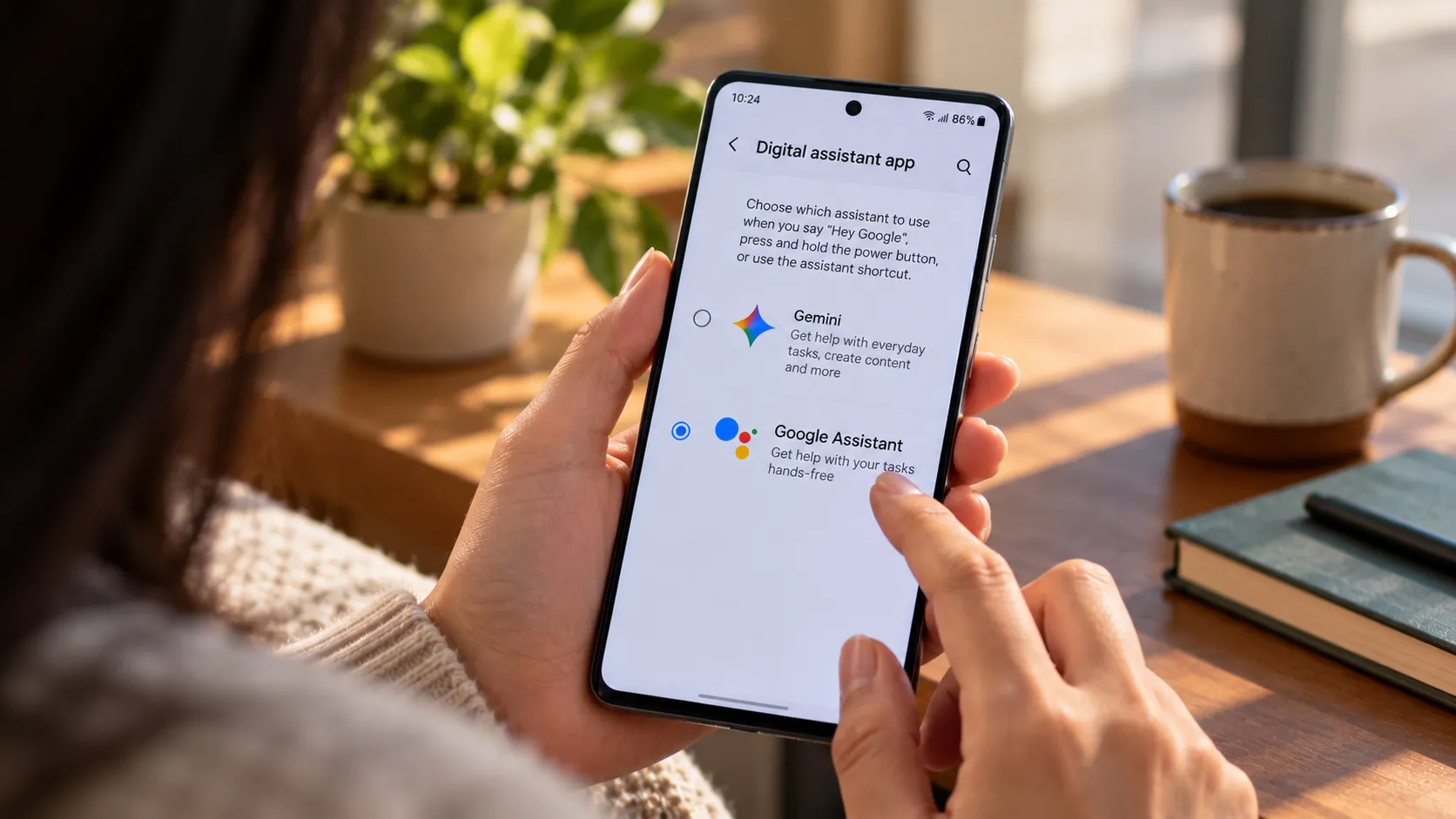
Step 1: Switch to Gemini if Android Auto still shows Google Assistant. Open your phone's Settings, then go to Apps > Assistant > Digital assistants from Google and select Gemini. The exact path may vary by phone.
Step 2: Connect the apps that Commands 2 and 3 depend on. In the Gemini app, open your profile menu, select Apps or Connected Apps, and enable the services you want Gemini to use. Menu names may vary by app version. Without this, calendar and Keep requests return generic answers instead of your actual data. These commands require Gemini to have access to the relevant calendar or notes service. Supported apps currently include Google Calendar, Google Tasks, Google Keep, Samsung Calendar, Samsung Reminder, and Samsung Notes.
Invoking Gemini while driving: Say "Hey Google," tap the microphone icon on the Android Auto screen, or long-press the voice command button on your steering wheel if your car has one. Same wake word as Assistant, per Google's launch documentation.
Scope note: Some Gemini capabilities, such as identifying dashboard warning lights and checking whether cargo fits in your trunk, are exclusive to vehicles with Google built-in, available in more than 100 models from 16 brands. All four commands below work through a standard Android Auto phone connection. No special hardware required.
Best Gemini voice commands for Android Auto, ranked by reliability
Rankings are based on overlap between Google's own documented capabilities and independent hands-on testing from XDA, Android Police, and Tom's Guide. Commands 1 and 2 have the clearest combination of official support and hands-on evidence. Command 3 works well when you have a specific task in mind. Command 4 is a genuine improvement over what Assistant could do, but contextual requests are less predictable than the others.
Find a stop en route
What it does: Overlays nearby results on your active route
Reliability: Most reliable
Setup required: None
Check your schedule or navigate to your next appointment
What it does: Reads your calendar aloud and launches navigation
Reliability: Most reliable
Setup required: Connected apps (Step 2)
Build a Keep list from a plain-English prompt
What it does: Infers items and creates a checklist
Reliability: Works well with a clear task
Setup required: Connected apps (Step 2)
Request music by mood or context
What it does: Plays music from YouTube Music, Spotify, and other services
Reliability: Improved, but less predictable
Setup required: Compatible music app installed and connected
Command 1: Find a stop along your route — no syntax required
Say: "Find nearby gas stations" / "I'm hungry, find me Chinese food nearby" / "Find EV charging stations along my work route"
What happens: Gemini surfaces nearby options and overlays them directly onto your active route, with estimated detour times and ratings for each. You choose one on screen; navigation updates immediately. XDA documented in May 2026 that this works for food, fuel, pharmacies, and EV chargers; the same natural-language pattern applies to almost any roadside need.
What's better than Assistant: In the cited test, Gemini displayed options on the route and allowed the driver to choose one before navigation updated. Gemini can also pull insights from reviews before you commit to a detour, giving you a sense of whether a place is worth stopping for, per Google's November 2025 announcement.
When it tends to fail: Technical acronyms and all-caps brand names trip Gemini up. Tom's Guide this month found it spelling out unfamiliar terms letter by letter rather than interpreting them. If a specific term fails, rephrase in plain English: "fast charger nearby" instead of the connector standard name.
Command 2: Check your schedule and navigate to your next appointment
Say: "What's my schedule for today?" / "When is my next meeting?" / "Navigate to my next appointment"
What happens: Gemini reads your calendar appointments aloud, one by one. If an event has a location attached, following up with "Navigate to my next appointment" launches turn-by-turn directions without any manual address entry. You can ask a follow-up question in the same exchange, and Gemini holds the thread.
What's better than Assistant: Schedule check and navigation happen in one continuous exchange, not two separate commands. Android Police's July 2026 hands-on describes reviewing upcoming appointments and locations, then routing to an off-site meeting, all before arriving at the office.
When it tends to fail: Events without a location attached cannot trigger navigation. Gemini will say it needs an address. Also, this command requires the Connected apps setting to be enabled in Step 2 above. If Gemini gives a generic response, check the connected-app permission first; account, connectivity, and rollout issues can also interfere.
Command 3: Build a shopping list from a plain-English prompt
Say: "I'm making vegetable pizza tonight and heading to the grocery store; add the ingredients to a Keep note" / "Add milk, eggs, and coffee to my grocery list"
What happens: Gemini infers the full list from the single-sentence description and builds a structured checklist in Google Keep. No dictating item by item. XDA tested this in May 2026 and confirmed Gemini produced a complete, organized list without further input. Android Police used the same approach for grocery lists, packing lists, and errand reminders that surfaced mid-drive.
What's better than Assistant: You describe the situation; Gemini figures out the list. Things that would otherwise require parking and typing get captured while you're still moving.
When it tends to fail: For notes and checklists in Keep, the note should sync through Google Keep, but review inferred ingredients before relying on the list. Gemini doesn't consistently push source links or external content to your phone after a query.
Command 4: Request music by mood or context, not song title
Say: "Play something relaxing" / "Play upbeat music for a long highway stretch" / "Play the song that won Best Original Song at the most recent Oscars"
What happens: Gemini interprets the intent, mood, occasion, or cultural reference and pulls a match from a connected app. XDA reported in May 2026 that a deliberately vague reference to an awards-ceremony song was correctly identified and played from YouTube Music without further prompting. Google confirmed at launch that description-based and mood-based requests are supported across YouTube Music, Spotify, and other connected apps, though the independent test cited here specifically used YouTube Music.
What's better than Assistant: You no longer need exact song titles, album names, or playlist labels. A description is enough for most requests.
When it tends to fail: Contextual and cultural-reference requests are the least-verified category in this guide; most evidence comes from individual testers rather than broad testing. Specific song names and genre requests are consistently reliable. Obscure references are hit-or-miss. Treat mood-based requests as a dependable default; treat cultural references as a bonus when they work.
What's working now, and what isn't
The logic behind all four commands is the same: describe what you need rather than recall the correct trigger phrase. That's the practical shift when a language model replaces a pattern-matching assistant.
The reach is substantial. Android Auto runs in over 250 million compatible cars, per Google in May 2026, and the Gemini rollout covers 45 languages globally. Most Android Auto users likely already have access or will soon.
Gemini in Android Auto is still working through real gaps, though. How-To Geek's June 2026 assessment described the debut as "bumpy," pointing to verbosity complaints and the missing ability to push source links or follow-up content to your phone, something Assistant did routinely. That gap matters most when you'd want a reference waiting on your phone after you park.
Start with Commands 1 and 2 on your next commute. Add Command 3 to any errand run. Use Command 4 for music on familiar routes and accept that cultural-reference requests will land less reliably than simple genre or mood prompts. Use conversational features on stretches where the road demands less; when traffic tightens, stop the conversation.








Comments
Be the first, drop a comment!