





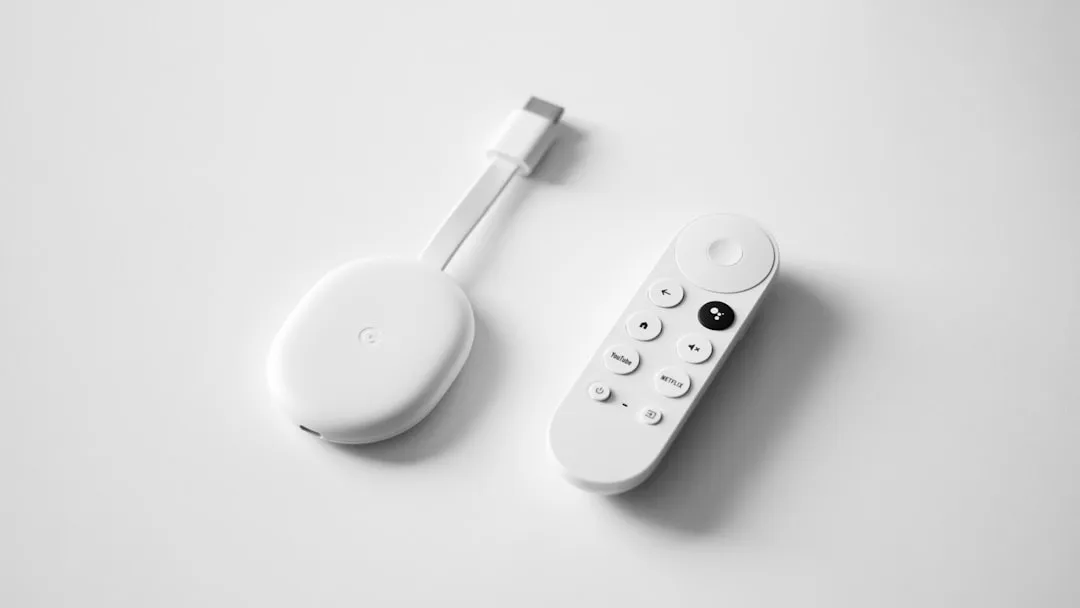
Chromecast with Google TV Remote Disconnecting: How to Fix It
A documented bug in the Google TV Streamer causes the device to pair itself to a different remote than the one it shipped with, leaving the original unresponsive for no obvious reason. Google acknowledged this specific failure and committed to a software fix, per Android Police. That acknowledgment is now more than a year old, and no public confirmation of a shipped fix has appeared.
The problem isn't limited to the Streamer. A growing number of Chromecast with Google TV owners have reported remotes that won't stay connected, requiring repeated re-pairing or device resets to restore basic function, per 9to5Google last month. Two separate complaint streams, two related devices the pattern suggests Google has a remote connectivity problem that runs across its TV hardware line.
This piece covers the Streamer's pairing failure specifically: what the documented bug does, how to confirm whether it's affecting your device, and the fastest sequence back to a working remote.
What the Google TV Streamer remote disconnecting bug actually does
The Streamer's documented failure mode is specific and easy to miss. The device pairs itself to a phantom remote, treats that pairing as authoritative, and ignores input from the remote actually in hand. The physical remote appears fine. Nothing responds. Most people assume dead batteries or hardware failure and start from the wrong place.
The correct starting point is Settings > Remotes & Accessories, which shows which remote the Streamer thinks it's paired to, per Android Police. If the listed device isn't the one in hand, that's the diagnosis: not a hardware failure, not dead batteries, just a mistaken pairing the Streamer made on its own. The fix is a re-pair, not a replacement.
A second failure mode also affects the Streamer: remotes that successfully pair but won't hold their connection, dropping out intermittently and requiring repeated re-pairing sessions to stay functional. This is the same pattern driving the current surge of Chromecast with Google TV complaints, where the issue had surfaced sporadically in Google's own forums before a fresh wave of Reddit reports last month showed a clearer trend, per 9to5Google. The disconnects are intermittent rather than total, which makes them harder to diagnose. The remote works sometimes, fails other times, and the natural assumption is interference or a dying battery rather than a pairing fault.
Both failure modes share the same practical result: the remote stops working, and you need an alternate way to control the device before any fix is possible. The Google TV app on a phone provides a virtual remote and full access to settings menus, per 9to5Google. If the TV supports HDMI-CEC and the feature is enabled, the TV's own remote may also work as a temporary fallback. Either way, get one of those working before attempting any of the steps below.
Fix sequence for a Chromecast with Google TV remote disconnecting
Step one: replace the batteries. Low charge produces erratic, intermittent behavior where the remote connects and drops before the batteries appear visibly dead. Swapping them takes thirty seconds and eliminates the most common cause, per Android Police. If fresh batteries restore the remote, stop here.
Step two: check what the Streamer thinks it's paired to. Using the Google TV app as a control method, open Settings > Remotes & Accessories and check the listed device. If it isn't the remote in hand, the wrong-pairing bug is the culprit. Hold the Home and Back buttons simultaneously on the physical remote until the white indicator light flashes, then pair it fresh from the same menu, per Android Police. This clears the phantom pairing and restores normal operation without touching the hardware.
Step three: reboot the device with the batteries removed. For intermittent disconnects that survive a battery swap, a coordinated reboot clears stale pairing state from both sides simultaneously. Use the Google TV app to navigate to Settings > Device Preferences > Reboot, or press and hold the physical button on the back of the Streamer for roughly 15 seconds. While the device restarts, remove the remote's batteries. Reinsert them only after the Streamer has fully come back up, then re-pair via Settings > Remotes & Accessories > Pair remote or accessory, per Android Authority. The sequencing matters: reinserting batteries before the device finishes booting can re-establish the same faulty pairing state you're trying to clear.
Step four: unpair, then re-pair from scratch. If the coordinated reboot doesn't hold, Android Authority documents a full unpair-and-repair as the next step. Using the Google TV app, go to Remotes & Accessories, select the non-working remote, and choose the remove option. Then navigate to Remotes & Accessories > Pair remote or accessory, hold the Home and Back buttons on the physical remote until it appears in the list, select it, and confirm, per Android Authority. This is a more thorough reset than a simple re-pair and addresses cases where the pairing database has become corrupted rather than just mismatched.
Step five: if none of the above holds, the remote itself is likely the problem. Once batteries and software causes are ruled out, hardware failure is what's left. Google sells an official replacement remote; compatible third-party remotes also exist as lower-cost alternatives, per Android Authority.
The sequencing matters more than it might seem. The wrong-pairing bug and intermittent disconnect problems are nearly identical from the user's perspective, which is why owners have replaced remotes that were never broken. Catching a software-side failure at step two or three costs nothing. A replacement remote costs money and doesn't fix an underlying pairing bug.
What Google has said, and what it hasn't
Google's response to its remote problems is uneven. The company acknowledged the wrong-pairing bug on the Streamer and committed to a future software update, per Android Police. That was over a year ago. No public follow-up has confirmed the fix shipped.
The broader connectivity failures affecting Chromecast with Google TV owners have drawn no public response from Google at all, per 9to5Google. Google confirmed it still actively supports Chromecast with Google TV software last month, following an erroneous support page update that briefly suggested otherwise. That confirmation matters: it means a patch is technically feasible. Whether one is in development is unknown.
The result is a genuine support gap. One failure mode acknowledged more than a year ago with no confirmed resolution; a second affecting a growing number of owners with no acknowledgment at all. Software updates on Google TV devices apply automatically through the normal update channel, so a fix could surface without any announcement. Whether or when that happens, the troubleshooting sequence above doesn't depend on it, and Google's silence doesn't change the diagnostic steps available to owners right now.
What's worth watching: if Google does issue a software update targeting the wrong-pairing bug on the Streamer, it may also address the broader connectivity pattern seen on Chromecast hardware, given both devices share the same underlying platform. That's speculative, but the overlap in failure modes makes it plausible. For now, the Google TV app should stay installed and treated as a permanent fallback. It's the only reliable way into the settings menus needed to diagnose and fix a pairing problem when the physical remote has already stopped responding.



Comments
Be the first, drop a comment!