



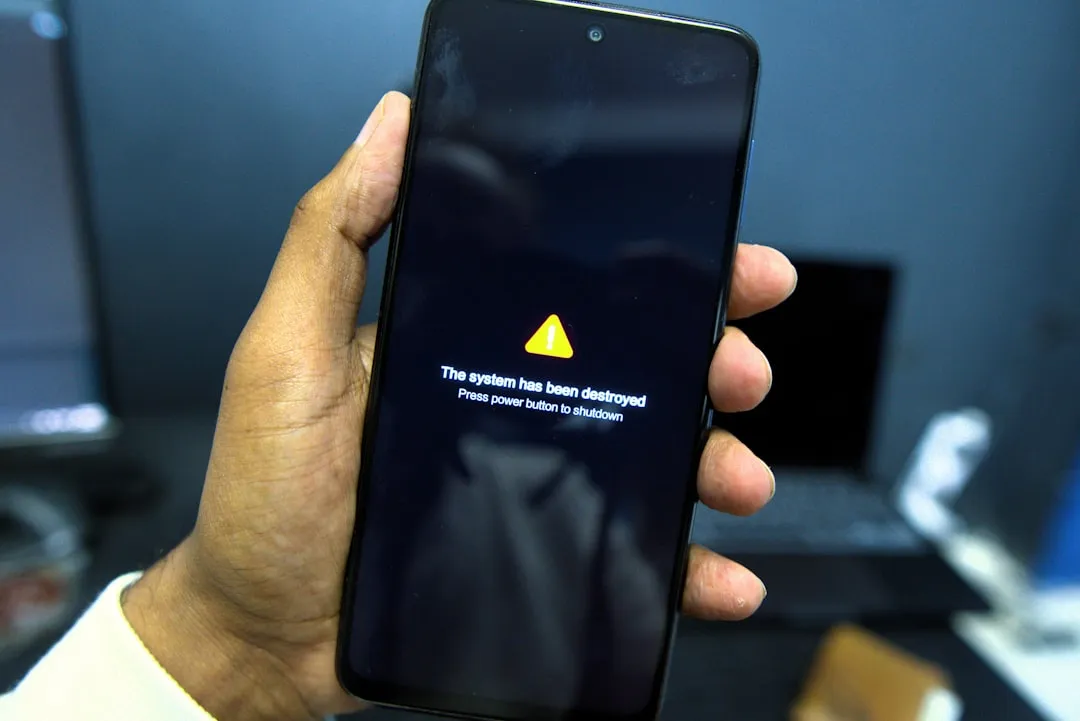
Android acting up? Your phone freezing, crashing, or running slower than usual? Before you panic or rush to the repair shop, there's a built-in diagnostic tool that might solve your problems: Safe Mode. This feature temporarily disables third-party apps, helping you identify whether a recently installed app is causing havoc with your device's performance.
Safe Mode essentially strips your Android experience down to its core components, running only the essential system apps and services that came pre-installed on your device. Think of it as your phone's way of going back to basics – like starting your computer in Safe Mode when Windows is acting up. It's a powerful troubleshooting step that can save you hours of frustration and potentially expensive repair costs.
What exactly is Safe Mode, and why does it work?
When your Android device boots into Safe Mode, it temporarily disables all third-party applications you've downloaded from the Google Play Store or installed from other sources. Only the apps that came pre-installed with your device remain active – the core system applications that handle essential functions like calling, texting, and basic Android operations.
This works because Android can temporarily disable user-installed apps during startup. The operating system creates separate processes for third-party apps, which means they can be selectively disabled without affecting core system functionality. When Safe Mode activates, Android prevents third-party apps from loading during startup in Safe Mode.
The diagnostic power comes from this clean separation. If your phone runs smoothly in Safe Mode but struggles in normal operation, you've identified that the problem lies within your downloaded applications rather than the core system. Conversely, if issues persist in Safe Mode, you're dealing with deeper system-level problems – corrupted system files, hardware malfunctions, or conflicts within the pre-installed software stack.
Safe Mode also prevents automatic startup routines that many apps use to launch background services immediately when your device boots. This startup isolation is particularly effective for identifying apps that consume excessive resources during initialization or create conflicts with system processes during the boot sequence.
How to activate Safe Mode across different Android devices
The activation method varies by manufacturer due to different implementations of the Android bootloader, but the power button method works across most modern devices. Start by pressing and holding the power button until the power menu appears. Instead of simply tapping "Power off," press and hold that option for several seconds until you see the Safe Mode prompt.
This hold-to-confirm approach exists because Safe Mode entry needs to be intentional – accidental activation could confuse users when their apps suddenly become unavailable. Once you confirm the Safe Mode restart, your device will reboot and display "Safe Mode" in the bottom corner, indicating that third-party app isolation is active.
Alternative methods exist for specific manufacturer implementations. Samsung devices often use the power and volume down combination during startup, while some HTC and LG models respond to volume down alone during the boot animation. These variations stem from different bootloader customizations that manufacturers implement alongside their Android skins.
For devices where the standard method fails, the timing during the boot sequence becomes crucial. The device detects these key combinations during early startup, typically when the manufacturer's logo appears but before the Android animation begins.
When should you actually use Safe Mode?
Safe Mode becomes essential when you need to isolate app-related problems from system-level issues. The most common scenario involves performance degradation following new app installations – sudden battery drain, frequent crashes, or system slowdowns that correlate with recent downloads.
The diagnostic value is particularly high for identifying apps that create resource conflicts. Some applications poorly manage memory allocation, others interfere with system processes, and certain apps contain bugs that trigger cascading failures in other applications. Safe Mode isolates these problematic apps, allowing you to test system stability without their interference.
Malicious software scenarios represent another critical use case. Aggressive adware or potentially harmful applications can sometimes interfere with normal use or block access to settings menus. Safe Mode disables these interference mechanisms, providing clean access to uninstall problematic software.
Boot loop situations also benefit from Safe Mode diagnosis. When devices repeatedly restart during normal boot sequences, Safe Mode can determine whether third-party apps are causing initialization failures or if deeper system corruption requires more extensive repair approaches.
Network-related anomalies – unexpected data usage, suspicious background activity, or connection instability – can sometimes be caused by specific applications. Safe Mode testing can quickly isolate whether these issues stem from downloaded apps or indicate system-level network stack problems.
Diagnosing problems and taking action in Safe Mode
Once in Safe Mode, systematic testing reveals whether your issues are app-related. Perform your normal device usage patterns – make calls, send messages, browse the web, and use basic system functions. Document which problems disappear and which persist, as this information guides your next troubleshooting steps.
For app-related problems confirmed by smooth Safe Mode operation, the reverse chronological uninstall method proves most efficient. This approach targets the most recently installed apps first because they're statistically most likely to be causing new problems. The method also preserves your established app ecosystem while removing potential troublemakers.
Access Settings > Apps directly from Safe Mode to review and uninstall suspicious applications. Pay particular attention to apps installed just before problems began, focusing on those requesting extensive permissions or showing unusual resource usage patterns in the app details screen.
Between each uninstall, restart in normal mode to test problem resolution. This iterative approach prevents removing multiple potentially innocent apps and helps you identify the specific culprit. The process requires patience but provides definitive identification of problematic software.
For multiple suspect apps, prioritize removal based on permission levels and background activity. Apps with device administrator privileges, accessibility service access, or extensive system permissions pose higher risks for causing system-wide problems.
Getting back to normal mode and preventing future issues
Exiting Safe Mode requires only a standard restart – press and hold the power button, select "Restart," and your device will boot normally with all apps restored. The system automatically re-enables third-party applications and their associated services once Safe Mode deactivation completes.
Prevention strategies should focus on app vetting and installation hygiene. Before downloading applications, examine recent reviews for mentions of performance issues, crashes, or suspicious behavior. Check the developer's track record and update history – reputable developers regularly maintain their applications and respond to user-reported problems.
Permission analysis during installation provides crucial security insight. Apps requesting permissions unrelated to their stated function warrant additional scrutiny. A simple utility app seeking contact access, location data, or camera permissions likely has purposes beyond its advertised functionality.
Maintain installation records, either mentally or in writing, noting when you add new apps to your device. This documentation proves invaluable when problems arise weeks or months later, helping you quickly identify potential causes based on installation timing.
Regular maintenance includes periodic app auditing – remove unused applications that accumulate over time and keep remaining apps updated to their latest versions. Developer updates frequently address compatibility issues, security vulnerabilities, and performance problems that could trigger the need for Safe Mode diagnosis.
What to do when Safe Mode doesn't solve the problem
Persistent issues in Safe Mode indicate problems beyond third-party app conflicts. These scenarios point to hardware malfunctions, corrupted system partitions, or defective pre-installed software that requires different diagnostic approaches.
System-level corruption affects core Android components that Safe Mode cannot isolate or disable. These issues stem from failed system updates, storage device errors, or gradual file system degradation that compromises essential operating system functions.
Before considering a factory reset, attempt cache partition clearing through recovery mode. This process removes temporary system files that can become corrupted and cause stability problems. Boot into recovery mode (usually power + volume up during startup) and select "Wipe cache partition" to clear these potentially problematic temporary files.
System update availability should also be verified, as manufacturers often release patches for known stability issues. Navigate to Settings > System Update to check for available firmware updates that might address your specific problems.
If software-based solutions, including Safe Mode diagnosis, cache clearing, and system updates, fail to resolve persistent issues, hardware problems become the likely cause. At this point, professional diagnosis can determine whether component failures require repair or if software corruption necessitates complete system reinstallation through factory reset procedures.
The key insight Safe Mode provides in these scenarios is elimination – by confirming that third-party apps aren't the cause, you can focus troubleshooting efforts on system-level solutions and avoid wasting time on app-related fixes that won't address the underlying problem.













Comments
Be the first, drop a comment!