





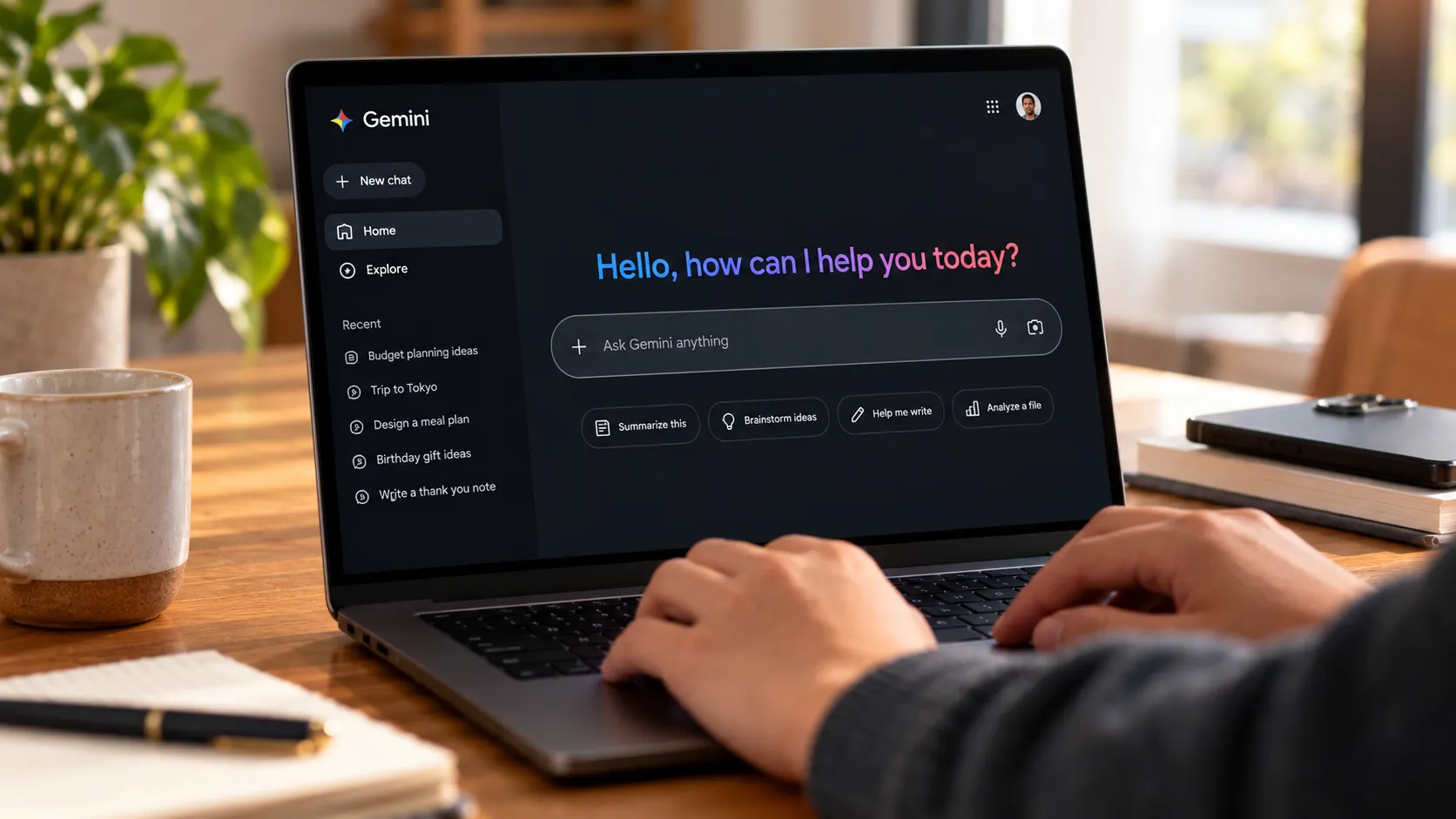
If "Switch to Google Assistant" has vanished from the Gemini app's account menu, you may have been moved to Gemini as part of Google's mobile migration. Google still publishes switch-back instructions, but 9to5Google found that the option had disappeared on devices it tested in September.
On devices where Google has completed the migration and removed the switch-back control, no supported way to restore Assistant has been confirmed. That's the short answer to how to bring back Google Assistant from Gemini, but whether it applies to your phone yet is worth confirming first, since 9to5Google's testing covered devices and accounts in the US and Europe rather than every eligible phone worldwide.
This guide works like a decision tree. First, run three quick checks to see whether your phone has already migrated. From there, you land on one of two paths: closing Gemini's setup gaps if you've already switched, or recording your routines now if you haven't been moved yet.
How to bring back Google Assistant from Gemini: first check whether your phone has migrated
Three checks can help determine whether your phone has migrated, although none conclusively establishes whether the change is permanent.
Step 1: Open the Gemini app and look in the account menu for "Switch to Google Assistant." Its absence is what 9to5Google flagged as a marker of migration on the specific app versions it tested. Treat it as the fastest signal available, not a guarantee that every account behaves identically.
Step 2: Open Settings > Google > All Services > Search, Assistant & Voice > Google Assistant and check the "Digital assistants from Google" selector. If Gemini is the only option listed, note it as another data point rather than confirmation. Android Police documented this menu as part of the manual-switch process before the final cutover, so labels may have shifted since.
Step 3: Test "Hey Google," a power-button long-press, and a corner-swipe gesture. Voice commands on migrated phones now redirect to Gemini, and 9to5Google separately confirmed the power-button and corner-swipe gestures open Gemini too.
One thing that trips people up: Google has said eligible devices switch automatically, with no setting change or install required. A missing pop-up or notification doesn't mean your device is exempt from the rollout.
What you can't undo, and what not to waste time trying
If the switch-back option is already gone, there's no confirmed path to disable Gemini and use Google Assistant again on that device. That limitation is consistent with Google's reported migration plans, although its current support pages still describe how to switch back.
Google's own user communication states that once availability is removed, users can no longer use or switch back to Assistant on their phone, tablet, or paired devices. 9to5Google's testing backs this up at the software level: the switch-back control was removed from the Gemini app itself, not relocated to another menu.
No supported rollback is documented. There's no sourced evidence that clearing Gemini app data, uninstalling app updates, downgrading the Google app, or sideloading an old Assistant APK restores Assistant after migration. The reporting and Google's messaging don't describe a rollback method, local or otherwise, so any claim like that should be treated as unverified until Google says differently.
What this cutoff doesn't touch matters just as much as what it does. Google TV is not part of the September mobile phase, and 9to5Google separately confirmed Nest and Home smart speakers and displays are untouched too. Vehicles with Google built-in keep Assistant for now. Phones and tablets below Gemini's minimum requirements, or in regions without Gemini, retain Assistant "at this time" with no further detail from Google.
Already migrated? Fix Gemini's rough edges on your phone
If your phone has switched, the useful move is closing the setup gaps that didn't carry over cleanly, not chasing a fix that doesn't exist.
Step 1: In the Gemini app, go to Settings > Talk to Gemini hands-free and turn on "Hey Google." This setting didn't always carry over automatically in one tester's experience ahead of the final cutoff.
Step 2: Re-run Voice Match specifically for Gemini. The same report found it sometimes needed to be redone even after working fine under Assistant.
Step 3: Check the Gemini app's Connectors or Connected Apps settings for services such as Google Workspace, YouTube Music, and Spotify. Menu names may vary by app version. Missing permissions here were linked to broken music and app commands in that same pre-cutoff test.
Check your history settings while you're in there. Gemini conversations sync across devices, unlike Assistant, which never had a true chat archive. Manage that history through the Gemini Apps Activity / Web & App Activity page in your Google Account rather than assuming it behaves like old Assistant logs.
If you use Google Home, routines, or third-party speakers
One pre-cutoff tester reported several things breaking after switching, and this should be read as that tester's experience rather than a confirmed universal or permanent limit: streaming music and podcast playback, typed commands, location-based triggers, and multi-device routines all had issues.
Some of that is a hardware gap rather than a setting. The Sonos One didn't support Gemini at the time of that test, a device-level limitation separate from anything adjustable in software.
The troubleshooting steps that the tester used are worth trying but not guaranteed to resolve unsupported-device or service-side limits: opt devices into Gemini through the Google Home app, test routines one at a time, rebuild complex ones in Automations, and move time-based routines to Scheduled Actions.
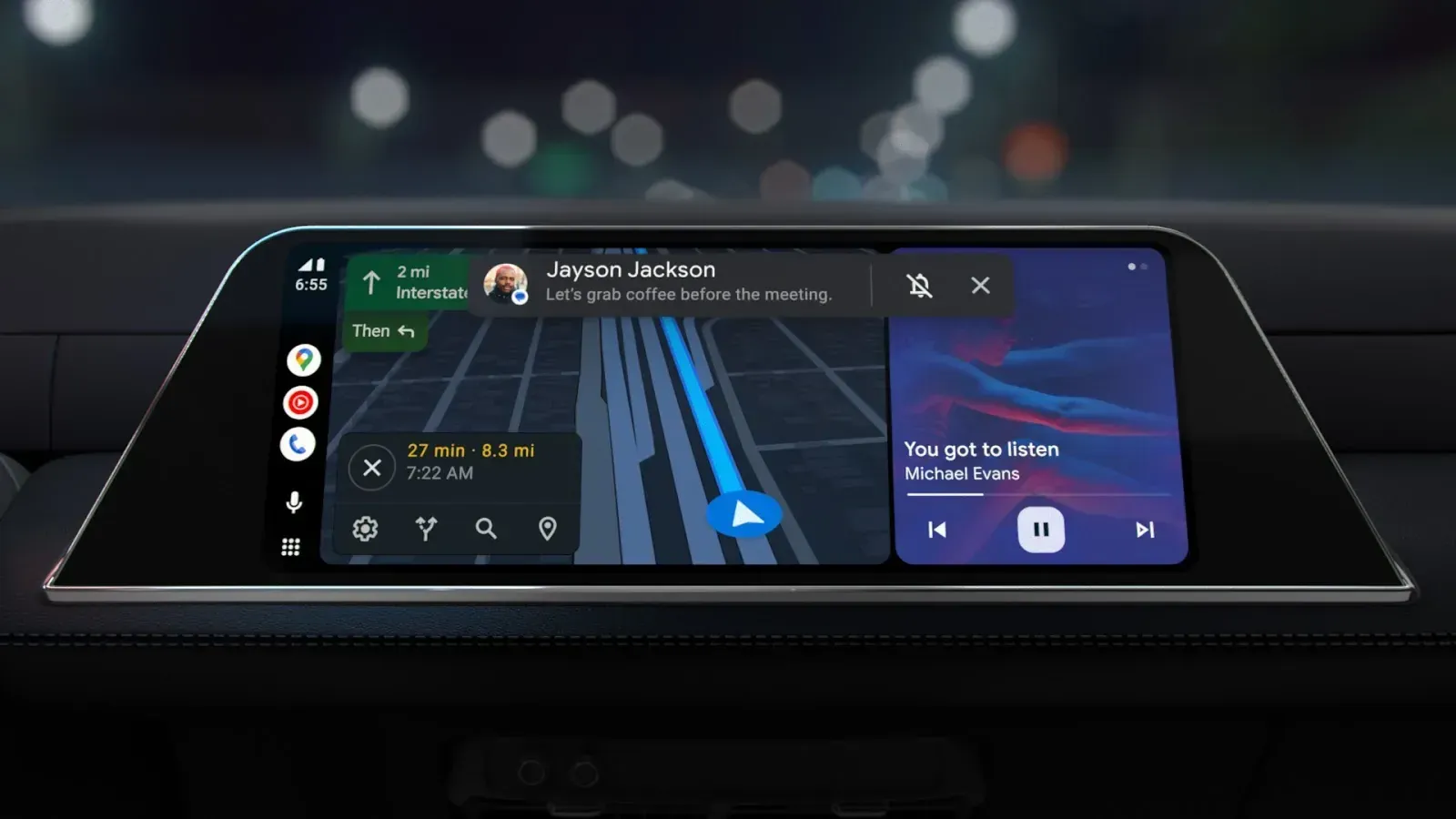
Cars add a separate wrinkle. Vehicles running Android Auto through a paired phone generally follow that phone's migration. When Google expanded Gemini to Android Auto, it described the rollout as reaching drivers "over the coming months" for phones that had already upgraded, which meant a car's Gemini access could lag behind the phone's own switch during that rollout window. Current timing for any specific car isn't documented, so check the in-car assistant directly rather than assuming it matches your phone.
Not migrated yet? Here's what to save now
If Assistant is still active on your phone, that's not a reason to wait and see. Google has said the migration needs no action from users and can arrive without warning.
Step 1: Open Google Home's Automations section and write down each routine's exact name and trigger, whether that's a voice phrase, a location, or a schedule.
Step 2: Note which streaming and productivity services you currently use through Assistant, such as Spotify, YouTube Music, or Workspace apps, so you have a baseline to compare after the switch.
Step 3: Check whether your smart speakers or displays already list Gemini support. As of one outlet's testing, the Sonos One did not, a gap that exists independent of anything you personally do.
Step 4: Manually run your most-used routines today and record the result. One tester who switched early recommended testing five to 10 routines daily to catch issues before they pile up; running that check now gives you a clear before-and-after comparison instead of discovering breakage after the fact.
The exceptions for unsupported hardware and unsupported regions carry no confirmed expiration. Google describes them as holding "at this time" with nothing further specified, and Digital Trends reported Google hasn't said how long that reprieve lasts. Don't treat a currently un-migrated device as permanently safe from the rollout.
What to do based on your result
Switch-back option already gone: No supported path back exists in reporting or Google's own messaging. Spend the time on the Gemini setup fixes above instead of searching for a workaround to replace Gemini with Google Assistant.
Still running Assistant, option still visible: Document routines and connected services now. Google has been migrating eligible devices to Gemini, but the exact timing for individual devices remains uncertain.
On unsupported hardware or in a region without Gemini: Assistant access has no confirmed end date, so check Google's support pages periodically rather than assuming the exception is permanent.
Whichever group applies, check your Google app's version today. 9to5Google found the switch-back control missing on tested devices running Google app versions 17.60 stable and 17.62 beta. Those versions alone do not establish whether your account has migrated. Treat any "restore Assistant" claim involving old APKs or downgraded app versions as unverified until Google documents an official reversal path.






Comments
Be the first, drop a comment!