





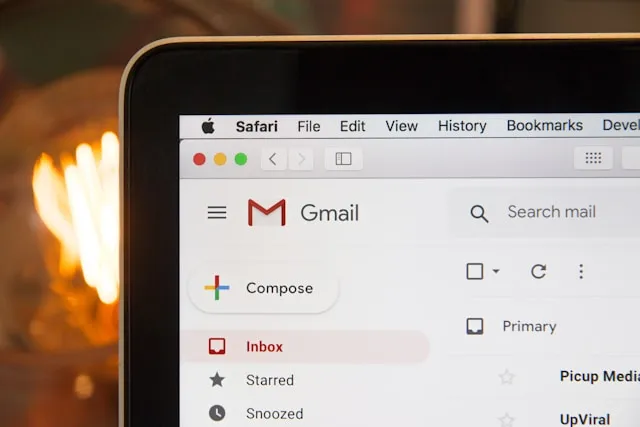
By the end of this guide, the regular Gmail Inbox does the sorting itself. Priority senders stay visible, receipts and newsletters get labeled and archived automatically, and subscriptions that just add clutter get canceled at the source. None of it runs through Gemini, Smart Reply, or Gmail's own tab classification, since this is a guide to Gmail inbox automation built entirely from rules typed in by hand.
Gmail still classifies mail behind the scenes for its Primary, Promotions, Social, Updates, and Forums tabs, and categories now interact with several Gemini features tied to that classification system. The setup below skips that system and builds around filters and labels instead. Gmail may still tag messages internally in the background, but none of the rules here depend on that tagging to work. Use Gmail on a computer for the setup below, especially for the optional template step later on, since templates can only be turned on and used from a computer, not the mobile apps. The mobile apps display the finished labels and filtered results without issue.
One decision is worth making before touching anything else: whether category tabs stay on. Turning them off (Settings → Inbox type → Default, with the category checkboxes cleared) turns the Inbox into a single list driven only by filters and labels, which is the simplest way to keep priority mail visible automatically. Keeping tabs on it works too; if a priority message doesn't show up in Primary, check Promotions and Updates before assuming the filter failed.
Cut inbox volume before automating anything
Fewer recurring senders means fewer filters to maintain later, so this comes first. Gmail's "Manage subscriptions" view lists every active subscription sender, ranked by how many messages they've sent in the past few weeks. It sits in the left navigation menu under "More."
The feature reached personal Google accounts, Workspace customers, and Workspace Individual Subscribers on a staged rollout, and Google's own documentation notes it may not be available on every account yet. Check the sidebar for "Manage subscriptions" before planning a cleanup around it.
Two details from Google matter before clicking unsubscribe:
Unsubscribing through this view removes the reader from every active mailing list tied to that sender, not just one. Review the sender's recent messages first if that's not the intent.
Requests can take several days to process, and some senders redirect to their own website to finish. Expect a few more messages to arrive in the meantime.
Unsubscribing and blocking aren't interchangeable. Blocking a sender doesn't cancel their mailing list; it only routes future mail from that address to spam. Use unsubscribe for lists knowingly joined, and block for unwanted senders that have nothing to do with a subscription.
Whatever survives this pass, recurring senders worth keeping but not worth seeing daily, becomes the newsletter filter in the next step.
Set up Gmail filters and labels to automatically organize emails
A filter checks incoming mail against criteria set by the reader, then applies a label, stars it, archives it, deletes it, or forwards it. To build one without accidentally sweeping up the wrong mail:
Go to Settings → See all settings → Filters and Blocked Addresses → Create a new filter.
Enter criteria, for example
from:(person@example.com OR another@example.com)for a priority filter. Gmail's filter screen includes a Search option that previews matching messages before any action gets set; using it as a safety check, instead of jumping straight to Create filter, catches an overly broad rule before it touches the wrong mail.Check the preview results. If unrelated messages show up, tighten the criteria and search again.
Once the matches look right, click Create filter and choose a label-only action first. For a cautious setup, let that label-only rule run for about a week before adding stars, archiving, skipping the inbox, or a template reply, so there's time to confirm it catches only what it should.
Skip "Categorize as" in the action list. It hands the decision straight back to Gmail's own classification instead of the rule just written.
Running filters and category tabs at the same time makes the inbox harder to audit: messages can end up labeled, archived, and categorized separately, which is part of why the setup above recommends turning tabs off. If tabs stay on, check them whenever a priority message doesn't show up in Primary.
A simple framework for what goes where:
Keep in Inbox, starred: people, deadlines, security and billing alerts.
Label and archive: receipts, confirmed newsletters, automated notifications.
Hold off on auto-delete until a filter has run with a label-only action for at least a week.
These five starter rules cover common message types, built with domain-level or multi-address matches rather than one narrow string:
Priority senders
from:(name@company.com OR name@personalmail.com)→ label "Priority," star it, leave in Inbox. Add the sender's name under "Has the words" only if it's distinctive enough to avoid false matches, since signatures can vary.Receipts and orders A narrower match works better than a subject alone here: pair a known sender with a subject term, for example
from:(receipts@amazon.com) subject:(order confirmation OR shipped). A broad rule matching "receipt" or "shipped" on their own can also catch a shipping newsletter or a phishing email using the same wording → label "Receipts," archive.Bills and account alerts
from:(billing@chase.com OR alerts@yourbank.com)→ label "Bills," star it, leave in Inbox, since these usually need a response.Newsletters worth keeping, the specific sender addresses chosen after the subscription cleanup above, → label "Newsletters," archive, mark as read.
Automated notifications, calendar or app-generated senders, → label "Notifications," archive.
Where sorted mail lives, and how to fix a bad filter
Labeled and archived mail isn't gone. Click the label in the left sidebar to see everything filed under it, without digging through the full inbox.
Labels carry this whole setup because Gmail supports up to 5,000 custom labels, while the five default category tabs are fixed and assigned by Gmail's own classification, with no way to create a custom category. If tabs stay on, treat them as fine for low-stakes browsing, general promotions, or social mail, and nothing tied to a deadline or a specific person.
Turning off a tab in display settings doesn't stop Gmail from tagging mail internally. The underlying category label still applies, which is why a "hidden" tab's mail is never actually lost, just out of view.
To undo a mistaken filter, open Filters and Blocked Addresses, find the rule, and click edit to adjust it or delete to remove it. Delete the rule, then inspect messages it may already have changed, since removing a filter doesn't automatically undo labels or archiving already applied to past mail. Search for anything affected and fix it by hand if needed, which is the practical case for testing new filters with a label-only action first.
Labels and stars created on desktop carry over to the Gmail mobile apps, so the same Priority label and starred view show up on a phone without rebuilding anything (Alibaba LifeTips, in January).
Review these settings quarterly
Filters and forwarding rules are also what attackers use to quietly redirect or hide mail after an account takeover, and changing the password alone doesn't clear any of it: a malicious filter has to be deleted, a forwarding address removed, and a delegate or OAuth app revoked separately. Check these four places every quarter:
Settings → Filters and Blocked Addresses, for rules that forward mail, skip the inbox, or delete messages.
Settings → Forwarding and POP/IMAP, for an unrecognized external forwarding address.
Settings → Accounts and Import → Grant access to your account, for delegates that shouldn't be there.
Google Account → Security → Third-party apps with account access, for unfamiliar connected apps.
If any of the four turns up something unfamiliar, treat it as a possible compromise until it's verified; then change the password, turn on two-step verification, check "Last account activity" for suspicious sessions and sign out of them, and revoke the access if it turns out to be unauthorized. Confirm a forwarding rule isn't a legitimate personal or business setup before removing it.
Workspace admins have separate email log search and audit logs for tracing forwarding and filter changes across an organization; that's an admin-console task, not something to run from a personal account view.
Optional advanced step: one narrow auto-reply template
This is an add-on for once the base setup has run cleanly for a while, not part of the core build. A saved Gmail template only becomes an automatic reply when it's attached to a filter action; it never sends on its own.
A concrete, narrow example: an acknowledgment reply scoped to a specific intake address plus a specific subject phrase, such as to:(intake@yourdomain.com) subject:("project request"). That's narrow enough to avoid catching a mailing list or a no-reply sender. In the filter's action list, check "Send template," choose the saved template, then click Create filter.
Run the filter with only the label action for a week first. Confirm every match is actually a message that should get an automatic reply, then add "Send template." A loosely scoped version of this filter can send an automatic acknowledgment to a newsletter or an unexpected contact, which is worse than leaving the message unanswered.
What to do next
Start with the subscription cleanup, since it shrinks everything that follows. Build one priority filter and one low-risk archive filter, previewing matches and testing both with a label-only action before adding stars, archiving, or a template reply. Once those two run cleanly, add the rest of the starter filters one at a time.
Put a recurring quarterly reminder on the calendar for the filter, forwarding, delegate, and connected-app check above. Checking those four settings on schedule is what catches a compromised account before it costs more than a misfiled newsletter.








Comments
Be the first, drop a comment!