



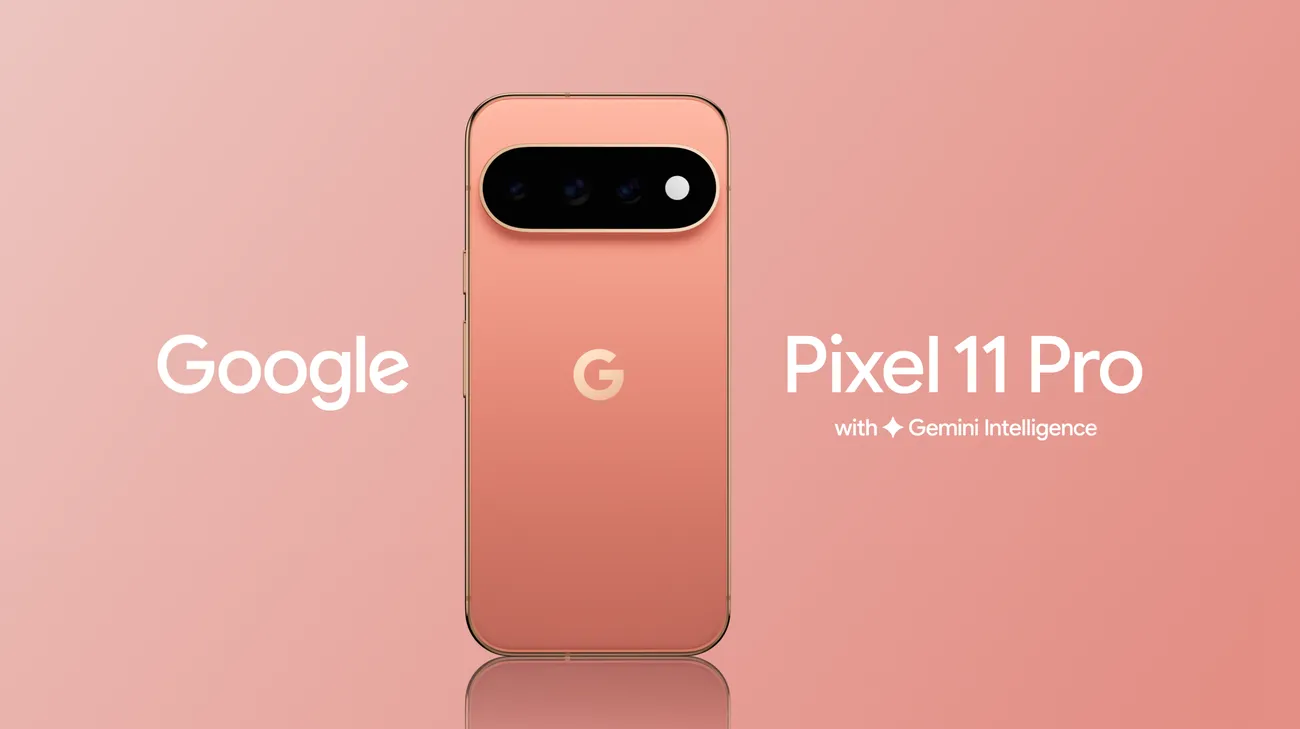
If your Pixel 11 keeps dropping Wi-Fi, shows a 5G icon without usable data, or cuts out over Bluetooth, that doesn't automatically mean the phone is defective.
Reports so far appear limited to a relatively small number of owners, while many Pixel 11 users report normal connectivity. The useful first step is matching the exact symptom to the right check instead of assuming every Wi-Fi, 5G, or Bluetooth problem comes from the new modem.
Google switched the Pixel 11 series from Samsung's Exynos modem platform to a MediaTek modem, a change Android Authority called one of the generation's more meaningful hardware updates after years of Pixel complaints around reception and cellular efficiency. Its early testing found stronger indoor download speeds and better 5G retention than the Pixel 10 Pro in some locations, although upload speeds were lower in the same test.
Reported Pixel 11 issues still vary widely, including 5G with no working data, weak or unstable mobile service, Wi-Fi that drops or slows down, and Bluetooth problems. Android Authority says the reports are not widespread enough to blame the modem itself, since carriers, routers, firmware, and individual hardware can all affect the result.
Match the symptom before you start
Don't run every fix in order if only one type of connection is failing.
Weak or no cellular signal: Try steps 1, 2, 3, 4, and 7.
5G or LTE icon but no working data: Try steps 1 through 5, then 7.
Wi-Fi connects but internet doesn't work: Try steps 1, 2, 3, 6, and 7.
Can't connect to Wi-Fi: Try steps 1, 2, 3, 6, and 7.
Bluetooth-only dropouts: Try steps 1, 2, the Bluetooth checks below, then step 7.
Before changing anything, test whether the problem follows the phone or the location.
Move to another room or building, try another Wi-Fi network, and check whether another phone on the same carrier has service in the same spot. If only one router or one coverage area causes the problem, the Pixel may not be the root cause.
Step 1: reset the connection without changing settings
Start with the least disruptive fix.
Toggle Airplane mode on, wait a few seconds, then turn it off again.
For a more complete power cycle, Google recommends turning the phone off, waiting about 30 seconds, then turning it back on.
This can clear a temporary connection failure without deleting any saved networks or changing carrier settings.
If the issue comes back immediately, move on instead of repeating the same toggle.
Step 2: install the latest Pixel software
Open:
Settings > System > Software updates
Install any available Android or Pixel update, then restart the phone after installation.
Pixel 11 is now receiving Android 17 QPR1 as part of the September Pixel Drop, with rollout timing varying by carrier and device.
Don't assume the Sept. 22 monthly connectivity fixes specifically address Pixel 11, though. Google's published device list for that update assigns its telephony fix to Pixel 6 through Pixel 10-class devices and its Wi-Fi/Bluetooth fix to Pixel 10 models, not Pixel 11.
Updating is still worth doing because Google continues to roll out fixes and firmware changes independently across Pixel models.
Step 3: use Pixel 11's built-in connectivity diagnostics
If you're in the US with a US Pixel 11 subscription, Google now provides dedicated diagnostics for calls, mobile data, and Wi-Fi.
Open:
Settings > Device health & support
From there, look for:
Call diagnostics
Mobile data diagnostics
Connectivity health
Wi-Fi diagnostics where available
Google says the mobile-data diagnostic can test connection speed, check settings, and generate a report. Call diagnostics can test incoming and outgoing calls through a Google server and produce a call-quality report.
This is a better checkpoint before resetting network settings because it can help separate a phone configuration problem from a carrier or coverage issue.
These diagnostics are currently limited by region. Google says the call, mobile-data, and Wi-Fi diagnostics are available on the Pixel 11 series in the US.
Step 4: check the SIM or eSIM and carrier settings
For cellular problems, open:
Settings > Network & internet > SIMs
Make sure:
The SIM or eSIM is enabled.
Mobile data is on.
The correct carrier is selected.
Your carrier account is active.
US Pixel 11 models use dual eSIM and do not have a physical SIM slot. Models sold in some other regions support a nano-SIM plus eSIM.
If you're using eSIM and the line appears inactive or repeatedly drops out, disable and re-enable the line first. If activation itself looks wrong, contact the carrier rather than deleting the eSIM immediately.
On a non-US Pixel 11 with a physical SIM, inspect the card only if your regional model actually supports one.
Also contact the carrier if the same problem follows you across several locations. Google specifically recommends checking for local outages and plan or provisioning changes when mobile troubleshooting doesn't resolve the issue.
Step 5: check mobile-data settings before blaming the modem
A 5G icon doesn't guarantee usable 5G data at that moment.
Google notes that the icon can appear when the phone is within a 5G service area even if the device isn't actively receiving 5G service.
If mobile data is the problem:
Check Settings > Network & internet > SIMs > Mobile data.
Check your preferred network type if your carrier exposes that option.
Make sure Battery Saver isn't affecting 5G behavior.
Check whether you've set a data warning or hard data limit.
Check roaming if the problem started while traveling.
Only enable roaming if your carrier plan supports it without unwanted charges.
If 5G is unreliable but LTE works normally, temporarily selecting LTE can also help isolate whether the problem is specific to the 5G connection or affects cellular service more broadly.
Step 6: isolate Wi-Fi and Bluetooth problems
If Wi-Fi is the only problem, test the network before changing phone-wide settings.
For a Wi-Fi network that connects but doesn't behave correctly:
Open Settings > Network & internet > Internet.
Select or press and hold the affected network.
Forget it.
Turn Wi-Fi off and back on.
Reconnect and enter the password again.
Google recommends this sequence for network-specific Wi-Fi problems.
Also test another router or hotspot. If the Pixel works normally elsewhere, restart the original router and check its firmware.
If you manually configured Private DNS, temporarily switch it off or back to Automatic as a diagnostic step. A failing third-party DNS service can make a working Wi-Fi connection appear to have no internet.
About Adaptive Connectivity
Android Authority has documented an unconfirmed workaround from affected Pixel 11 owners: disabling Adaptive Connectivity, restarting the phone, and resetting Wi-Fi settings.
Treat that as a test, not a proven repair.
Go to:
Settings > Network & internet > Adaptive Connectivity
If turning it off resolves repeated handoff or idle-connectivity problems, leave it off temporarily and watch whether the issue returns.
Don't assume the setting itself is definitely the cause. The workaround has not been confirmed by Google as a Pixel 11 fix.
For Bluetooth-only dropouts
Forget the affected accessory and pair it again.
Then test a second Bluetooth device.
If only one accessory drops, the problem may be on that device rather than the Pixel. If several unrelated accessories disconnect in the same way, the phone becomes a more likely common factor.
Step 7: reset only the affected network settings
Use a network reset after the lighter checks fail.
For cellular problems:
Settings > System > Reset options > Reset mobile network settings
For Wi-Fi or Bluetooth:
Settings > System > Reset options > Reset Bluetooth & Wi-Fi
Google documents these as separate resets.
The Wi-Fi and Bluetooth reset deletes saved Wi-Fi connections and paired Bluetooth devices, so you'll need to reconnect them afterward.
Don't reset both categories if only one type of connection is misbehaving.
If the correct reset fixes the problem, a corrupted or conflicting configuration may have been contributing.
If the problem reproduces afterward across several networks or accessories, it becomes less likely that a saved setting was the cause.
When to contact the carrier or Google
Independent testing of the Pixel 11 modem is encouraging but not conclusive.
Android Authority tested one Pixel 11 Pro against one Pixel 10 Pro in several locations. The Pixel 11 Pro held 5G in a weak-signal location where the Pixel 10 Pro dropped to 4G.
It also averaged about 493 Mbps indoors versus 405 Mbps on the Pixel 10 Pro and 671 Mbps outdoors versus 593 Mbps. Upload results went the other way, with the Pixel 10 Pro faster in both locations.
That's evidence that the Pixel 11 modem can perform well. It does not prove that every Pixel 11 unit, carrier, or location will behave the same way.
Contact your carrier first when:
The issue affects cellular service only.
Other phones on the same carrier are also struggling in the area.
eSIM activation or provisioning looks wrong.
The phone works normally on another carrier.
Contact Google or the retailer when:
The problem follows the phone across different locations.
Multiple Wi-Fi networks fail while other devices work normally.
Several unrelated Bluetooth accessories drop out.
Mobile problems continue with a properly provisioned carrier account.
The issue survives the correct network reset and the latest software.
Keep a short record of the date, location, carrier or router, software version, and result. That gives support something more useful than "signal is bad."
What to do next
Start with the connection type that's actually failing.
Power-cycle the phone, update the software, and use the Pixel 11's built-in diagnostics where available before changing more invasive settings.
For cellular problems, verify the eSIM or regional SIM setup and carrier provisioning. For Wi-Fi and Bluetooth, test another network or accessory before resetting anything.
The Pixel 11's MediaTek modem has performed better than the Pixel 10 Pro in several early download and weak-signal tests, while scattered owners are still reporting real connectivity problems. That combination is why the right approach is to isolate the failure first, then decide whether you're looking at a network, configuration, software, or hardware problem.










Comments
Be the first, drop a comment!